
If you want to check whether a cell is empty and get a clean TRUE or FALSE back, the ISBLANK function in Google Sheets is the simplest way to do it.
It takes a single cell and tells you whether that cell holds nothing at all. In this article, I’ll show you how to use ISBLANK on its own and paired with IF to flag missing entries.
ISBLANK Function Syntax in Google Sheets
Here is how the ISBLANK function is written:
=ISBLANK(value)
- value is the cell (or reference) you want to test. ISBLANK returns TRUE when the cell is truly empty and FALSE when it holds anything, including a space, a zero, or a formula result.
When to Use ISBLANK Function
- Flag rows that are missing a required entry before you process the data.
- Build a status column that reads “Missing” or “Provided” at a glance.
- Drive an IF formula so it reacts only when a cell is left empty.
- Audit a form or import for gaps without scrolling through every row.
Example 1: Check If a Cell Is Empty
Let’s start with ISBLANK on its own.
Below is the dataset, with values in column A across rows 2 to 6. Some cells hold text and a couple are left empty.
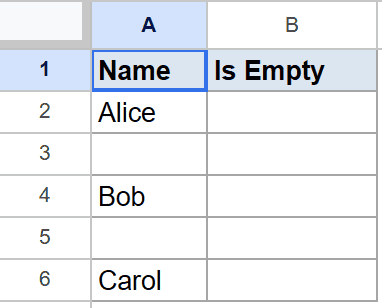
You want a TRUE or FALSE for each row showing whether the cell in column A is empty.
Here is the formula:
=ISBLANK(A2)
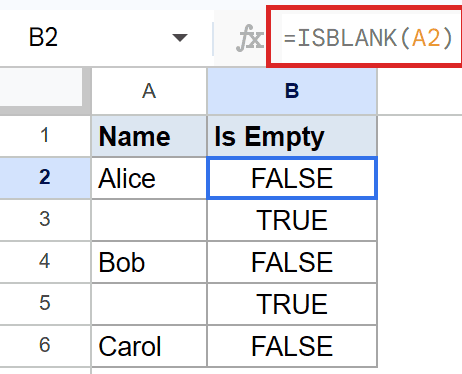
ISBLANK looks at the cell and reports back. The first row has text in it, so the result is FALSE.
The rows where column A is empty come back as TRUE. That’s the whole job of the function, a plain yes-or-no on emptiness.
Pro Tip: ISBLANK is strict about what counts as empty. A cell with just a space looks blank to your eye but holds a character, so ISBLANK reports FALSE for it.
Example 2: A Space or Zero Is Not Blank
A common surprise is that some cells only look empty.
Below is the dataset, with four cells in column A. The first is truly empty, the second holds a single space, the third holds a zero, and the last holds text.
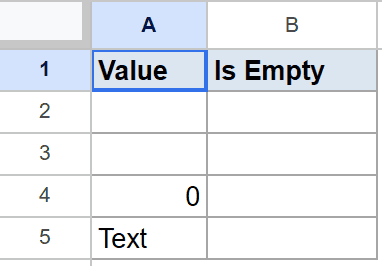
You want to see which of these Google Sheets actually treats as blank.
Here is the formula:
=ISBLANK(A2)
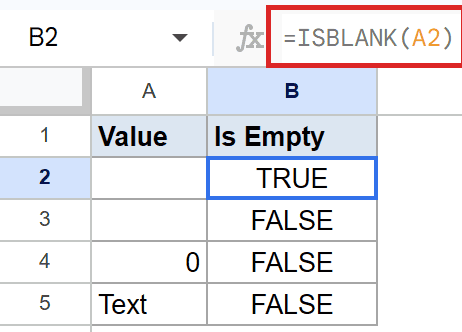
Only the first cell is genuinely empty, so ISBLANK marks it TRUE. The space, the zero, and the text all count as content, so each one comes back FALSE.
This trips people up because a lone space looks identical to an empty cell on screen. A cell holding zero catches people the same way. ISBLANK still sees both as values.
Example 3: Turn the Result Into a Clear Label
A raw TRUE or FALSE works, but a word reads better. Wrapping ISBLANK in IF lets you choose the label.
Below is the dataset, with a field name in column A across rows 2 to 5. Two of the fields are empty.
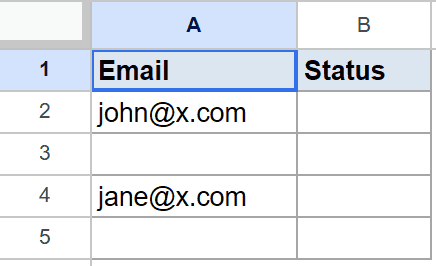
You want each row to say “Missing” when the field is empty and “Provided” when it isn’t.
Here is the formula:
=IF(ISBLANK(A2), "Missing", "Provided")
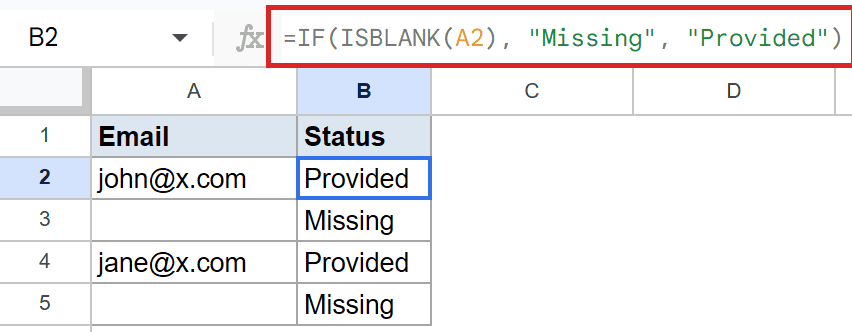
The IF function checks the TRUE or FALSE that ISBLANK hands it. When the cell is empty, the row becomes Missing.
When the cell has something in it, ISBLANK returns FALSE and the row becomes Provided. Same logic as Example 1, now in plain words.
Example 4: Check a Different Column for Completeness
This pattern scales to any column, so let’s point it at a second field to track completeness.
Below is the dataset, with a record name in column A and a detail field in column B, across rows 2 to 5. Two detail cells are empty.
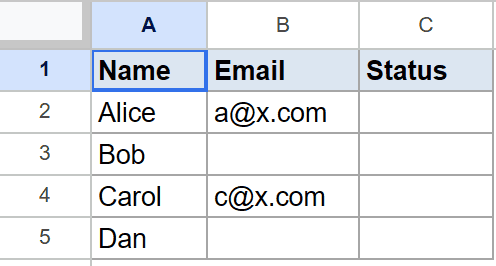
You want a status in column C that reads “Complete” when column B is filled and “Incomplete” when it’s empty.
Here is the formula:
=IF(ISBLANK(B2), "Incomplete", "Complete")
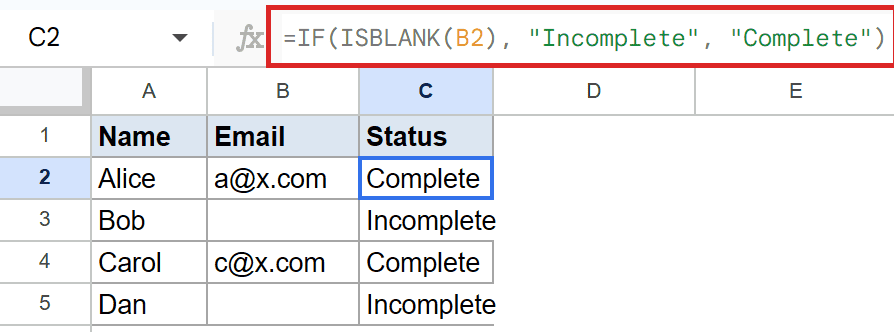
ISBLANK tests cell B2 this time instead of column A. When B2 is empty, the row becomes Incomplete.
When B2 holds a value, the row becomes Complete. You can fill this down to audit an entire table for missing details in one pass.
Tips & Common Mistakes
- A cell holding
""is not blank. A formula that returns an empty string looks empty but ISBLANK reports FALSE. To catch both, test with=A2=""instead, which treats truly-empty and empty-string the same. - Pass a single cell, not a range.
=ISBLANK(A2:A6)does not check each cell. For a per-row result, point ISBLANK at one cell and fill the formula down. - A zero counts as filled. A cell containing 0 holds a value, so ISBLANK returns FALSE for it. Don’t confuse an empty cell with a cell that simply equals zero.
ISBLANK is a small function that does one thing well, telling you whether a cell is empty. On its own it gives you TRUE or FALSE.
Wrap it in IF and you get readable labels like Missing or Complete, which makes auditing a sheet for gaps much faster.
List of All Google Sheets Functions
Related Google Sheets Functions / Articles: