
If you want to count how many cells in a range actually have something in them, the COUNTA function in Google Sheets gives you that number in one step. It counts text, numbers, dates, anything that isn’t an empty cell.
In this article, I’ll show you how COUNTA works, walk through four practical examples, and flag a couple of things to watch for.
COUNTA Function Syntax in Google Sheets
The COUNTA function takes one or more values or ranges.
=COUNTA(value1, [value2, ...])
- value1 is the first value or range to count.
- value2, … are optional extra values or ranges to add to the same count.
COUNTA counts every non-empty cell, no matter what type of data it holds. Only truly blank cells get skipped.
When to Use COUNTA Function
Here are a few times COUNTA comes in handy.
- Counting how many entries a list has when it mixes text and numbers.
- Checking how many cells are filled in a block that spans several columns.
- Counting completed items in a list that has gaps between rows.
- Counting only the rows that match a condition when paired with FILTER.
Example 1: Count Non-Empty Cells in a Mixed Column
Let’s start with the most common use.
Below is the dataset, a single column holding a mix of names, numbers, and one blank cell.
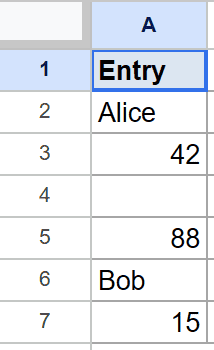
The goal is to count how many cells actually have an entry.
Here is the formula:
=COUNTA(A2:A7)
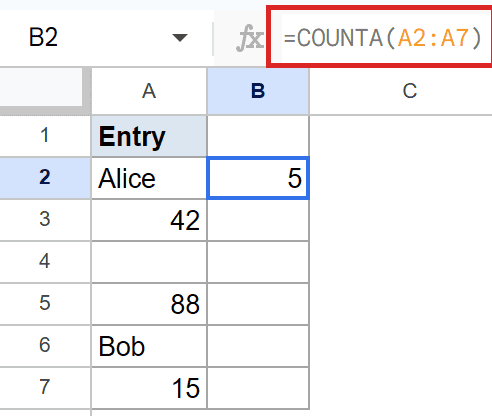
COUNTA looks at all six cells and counts the ones with content. There are two names, three numbers, and one blank, so the count comes to 5. The empty cell is the only one left out.
Pro Tip: COUNTA counts text and numbers alike. If you only want the numeric cells, use COUNT instead, which ignores text.
Example 2: Count Filled Cells Across a Two Dimensional Range
COUNTA isn’t limited to a single column.
Below is the dataset, with a month in column A, sales in column B, and a goal flag in column C.
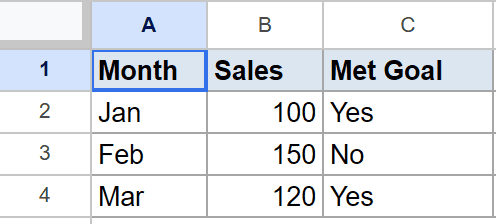
The goal is to count every filled cell across the whole block.
Here is the formula:
=COUNTA(A2:C4)
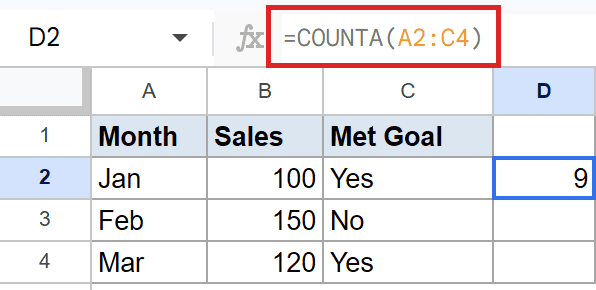
COUNTA sweeps the entire three-by-three block and counts each filled cell. Every cell here has an entry, so the count comes to 9.
Example 3: Counting Entries When the List Has Gaps
COUNTA handles lists with blank rows scattered through them.
Below is the dataset, a single column of tasks with empty rows mixed in.
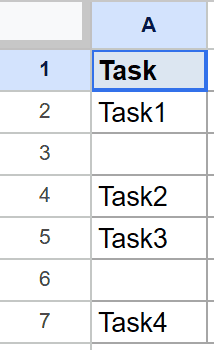
The goal is to count only the actual tasks, ignoring the gaps.
Here is the formula:
=COUNTA(A2:A7)
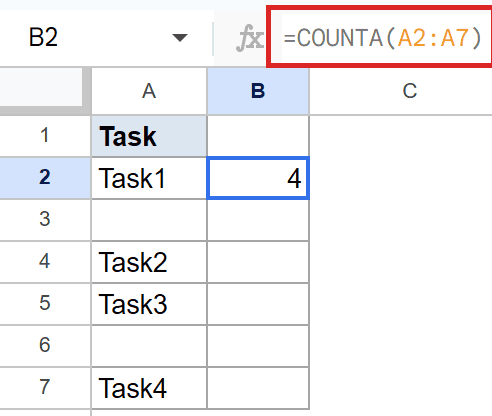
There are six cells in the range, but two of them are blank. COUNTA skips those and counts only the filled rows, so the task count comes to 4.
Example 4: Counting a Filtered List with FILTER
You can count only the rows that meet a condition by nesting FILTER inside COUNTA.
Below is the dataset, with a name in column A and a status in column B.
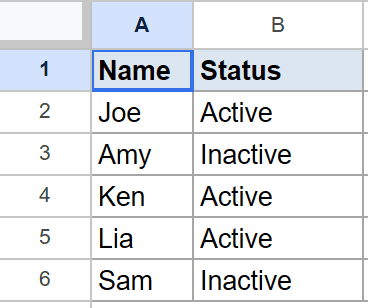
The goal is to count how many members are marked Active.
Here is the formula:
=COUNTA(FILTER(A2:A6,B2:B6="Active"))
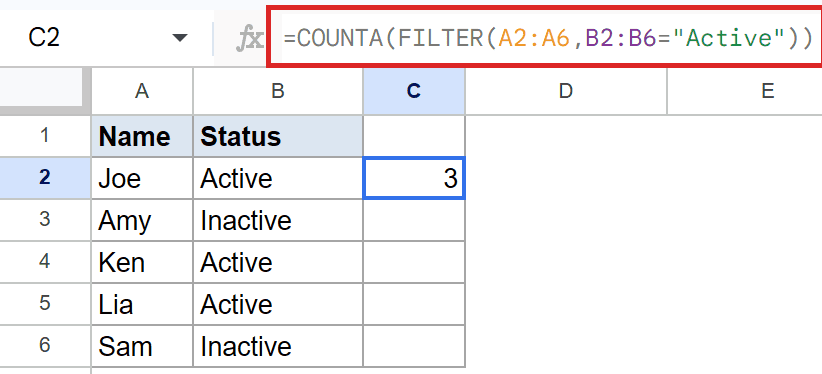
How this formula works:
- FILTER keeps only the names where the status is “Active”.
- COUNTA then counts how many names FILTER handed back.
- Three members are Active, so the count comes to 3.
Pro Tip: This FILTER-and-COUNTA pattern is the same idea behind one way to count cells with text in Google Sheets, where ISTEXT filters the range before COUNTA counts it.
Tips & Common Mistakes
- A space is not a blank. A cell that looks empty but holds a space or an apostrophe still counts. COUNTA only skips cells that are genuinely empty.
- Formulas returning “” still count. If a formula returns an empty string, the cell isn’t truly blank, so COUNTA counts it. Watch for this in ranges full of IF formulas.
- Use COUNT for numbers only. COUNTA counts everything, while COUNTUNIQUE counts distinct values and COUNT counts numbers. Pick the one that matches what you actually need.
COUNTA counts every non-empty cell in one or more ranges, no matter whether the contents are text, numbers, or dates. You saw it handle a mixed column, a two-dimensional block, a list with gaps, and a filtered subset.
Just remember it counts anything that isn’t truly empty, and it’s a quick way to measure how much data you’ve actually got.
List of All Google Sheets Functions
Related Google Sheets Functions / Articles: