
If you want to pull data straight from a web page into Google Sheets, like a heading, a link, or a list of items, the IMPORTXML function is what you reach for. You give it a web address and a short query, and it brings the matching content into your sheet.
The query part is written in XPath, which is just a way to point at a piece of a page. This article walks through four examples that cover the most common things people grab.
IMPORTXML Function Syntax in Google Sheets
Here is how the function is put together.
=IMPORTXML(url, xpath_query)
- url is the address of the page you want to read, in quotes or as a cell reference.
- xpath_query is the XPath that points at the part of the page you want, such as
"//h1"for the main heading.
When to Use IMPORTXML Function
IMPORTXML is handy any time the data you need lives on a web page instead of in your sheet. A few common cases:
- Pulling a page title or heading into a tracking sheet.
- Grabbing links or their text from a page.
- Reading an attribute like an image source or a link address.
- Collecting a list of items, such as every paragraph or list entry.
- Building a small dashboard that refreshes from a public page.
Example 1: Pull a Heading From a Web Page
The simplest job is reading one element off a page.
Below is the dataset. Column A holds the web address we want to read, and the formula in column B does the work.
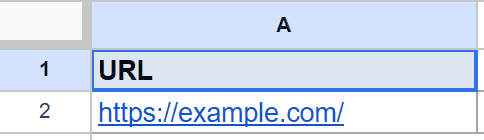
You want the main heading of the page in cell A2.
Here is the formula:
=IMPORTXML(A2, "//h1")
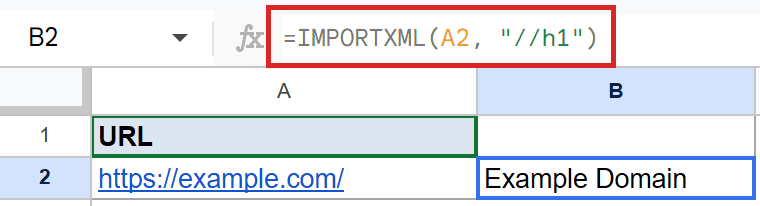
The query //h1 means “find the h1 element anywhere on the page”. IMPORTXML reads the page at the address in A2 and pulls the text of that heading.
The cell then shows Example Domain, which is the heading on that page.
Pro Tip: The two slashes in `//h1` mean “anywhere in the document”. A single slash like `/html/body/h1` would force an exact path from the top, which breaks more easily when a page changes.
Example 2: Grab a Link’s Text
You can point the query at a link instead of a heading.
Below is the dataset. Column A again holds the page address, and the formula sits in column B.
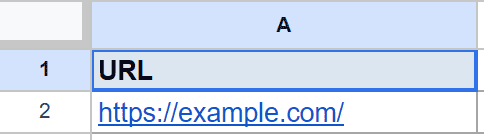
You want the clickable text of the link on that page.
Here is the formula:
=IMPORTXML(A2, "//a")
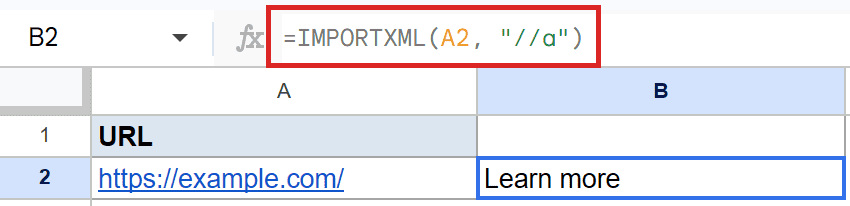
In XPath, a is the tag used for links, so //a finds the link on the page and pulls the words a reader would click.
The cell shows Learn more, which is the link text on that page.
Example 3: Read an Attribute Like a Link URL
Sometimes you do not want the visible text, you want a value hidden inside the tag.
Below is the dataset. Column A holds the page address, and the formula goes in column B.
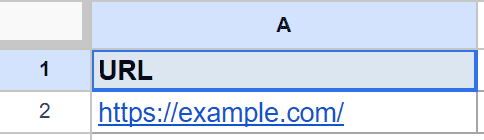
You want the actual web address the link points to, not the words on screen.
Here is the formula:
=IMPORTXML(A2, "//a/@href")

Adding /@href to the path tells IMPORTXML to read the href attribute of the link rather than its text. The @ symbol is how XPath refers to an attribute.
The cell shows the address the link leads to, https://iana.org/domains/example.
Pro Tip: The same `@attribute` trick works for other attributes too. Use `//img/@src` to read image addresses or `//a/@title` to read link titles.
Example 4: Return Every Paragraph at Once
When a query matches more than one element, IMPORTXML returns all of them.
Below is the dataset. Column A holds the page address, and the formula in column B pulls a list.
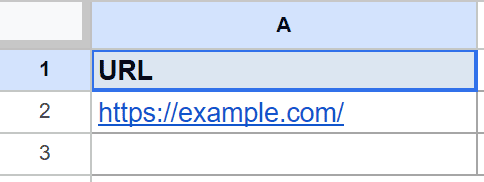
You want the text of every paragraph on the page, not just the first one.
Here is the formula:
=IMPORTXML(A2, "//p")

The query //p matches every paragraph element. Because there is more than one match, the result spills down the column, with one paragraph per row.
This page has two paragraphs, so the result fills the two cells below the formula.
Tips & Common Mistakes
- The page must be publicly reachable. IMPORTXML can only read pages that anyone can open without logging in. For data in another spreadsheet you own, use the <a href=”https://geosheets.com/google-sheets-function/importrange/”>IMPORTRANGE</a> function instead.
- Results can lag or refresh on their own. Imported data is cached and updates on a delay, so a fresh page change may take a while to appear in your sheet.
- A wrong path returns an error. If the XPath does not match anything on the page, you get an error instead of a value. Test the path on a small element first, then expand it.
IMPORTXML turns a public web page into live data you can work with in a sheet. Start with a single element like a heading, then move on to links, attributes, and full lists as you get comfortable with XPath.
When the data you need lives in another spreadsheet rather than on a web page, reach for IMPORTRANGE instead.
List of All Google Sheets Functions
Related Google Sheets Functions / Articles: