
When you want a quick count of the empty cells in a range, the COUNTBLANK function in Google Sheets gives you that number in one step. No filtering, no manual scanning.
This guide covers four examples, from counting gaps in a single column to spotting missing entries across a grid and seeing how COUNTBLANK differs from COUNTA.
COUNTBLANK Function Syntax in Google Sheets
Here is what the COUNTBLANK function looks like.
=COUNTBLANK(range)
rangeis the single range of cells you want to check for blanks.
When to Use COUNTBLANK Function
- Checking how many fields are still missing in a data entry sheet.
- Counting unmarked cells in an attendance or checklist grid.
- Auditing a column for gaps before you run reports.
- Confirming whether formulas left any cells empty.
Example 1: Count Empty Cells in a List
Let’s start with the simplest case, one column with a few gaps.
Below is the dataset with task names in column A and the assigned owner in column B. Some tasks have no owner yet.
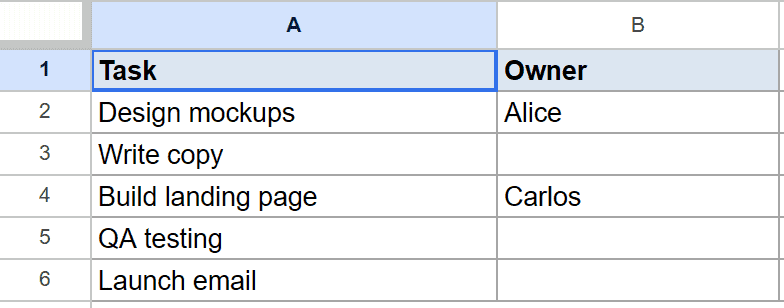
I want to know how many tasks are still missing an owner.
Here is the formula:
=COUNTBLANK(B2:B6)
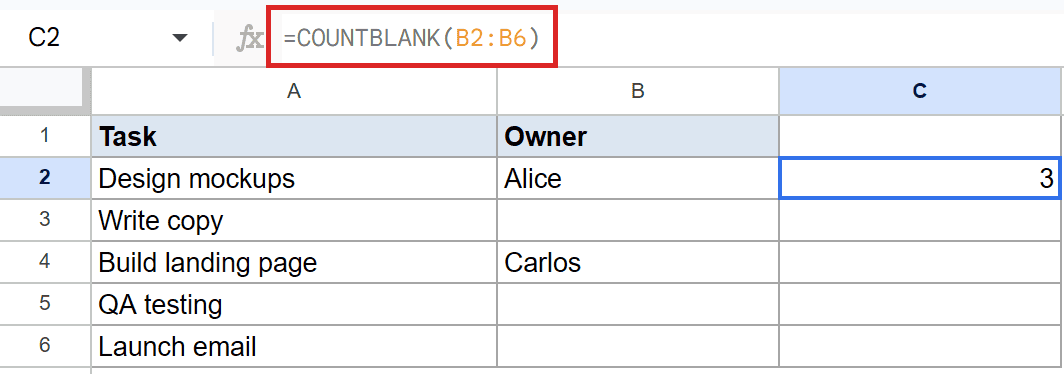
COUNTBLANK scans the five cells in B2:B6 and returns 3, since three tasks have no owner listed.
It only counts the empty cells. The two cells with names in them are ignored.
Example 2: Count Missing Entries in Attendance Grid
COUNTBLANK is not limited to a single column.
Below is the dataset with student names in column A and attendance marks across columns B, C, and D for Monday, Tuesday, and Wednesday.
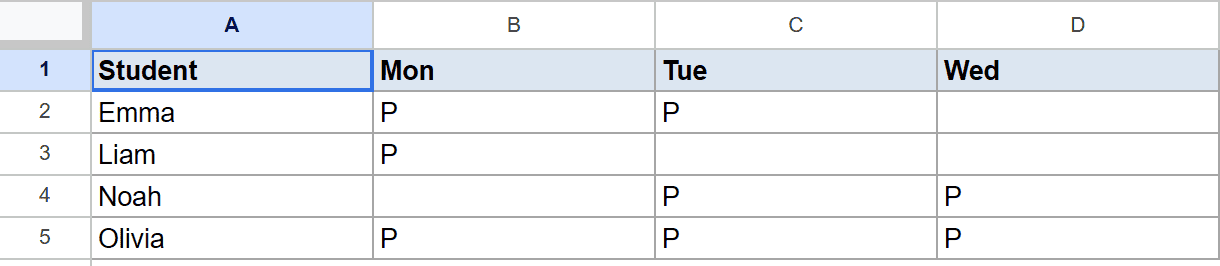
I want a single count of every unmarked attendance cell in the grid.
Here is the formula:
=COUNTBLANK(B2:D5)
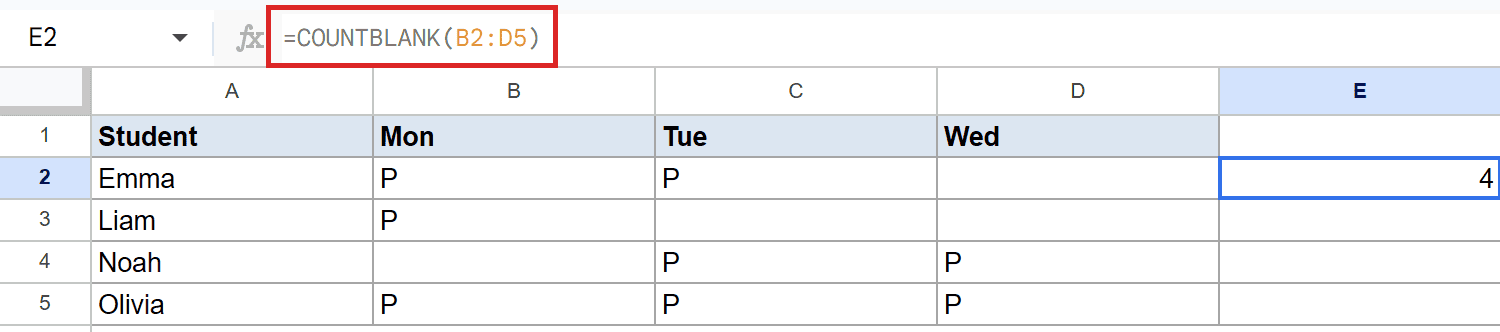
By passing a two-dimensional range, COUNTBLANK checks all 12 cells at once and returns 4 for the four blank attendance marks.
This is handy when you want one total across a whole block rather than a count per column.
Pro Tip: COUNTBLANK takes one range only. To count blanks across two separate blocks, add two calls together, like =COUNTBLANK(B2:B6)+COUNTBLANK(D2:D6).
Example 3: COUNTBLANK vs COUNTA on Same Data
Here is a quick way to see what COUNTBLANK does by comparing it to its opposite.
Below is the dataset with product names in column A and prices in column B, where two prices are missing.
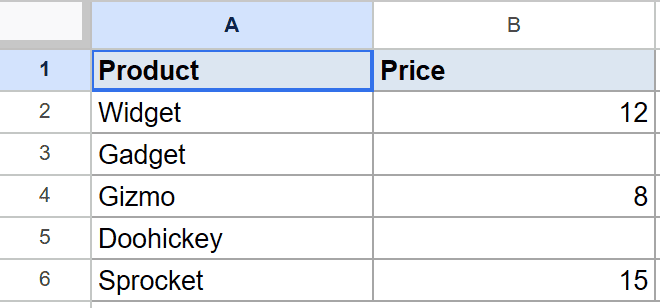
I want to count the empty price cells, then compare that to the filled ones.
Here is the formula:
=COUNTBLANK(B2:B6)
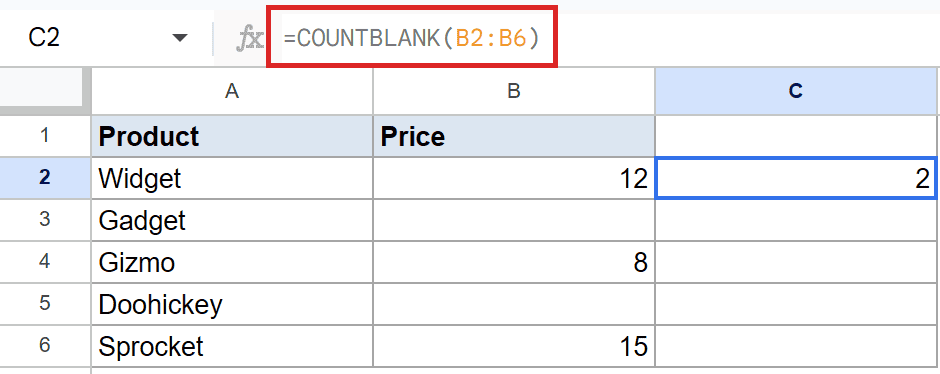
COUNTBLANK returns 2 for the two missing prices. COUNTA on the same range would count the three filled ones, and together they cover all five cells.
Think of COUNTBLANK and COUNTA as two halves of the same range. One counts what is empty, the other counts what is filled. If you also need to count only the cells holding words, see how to count cells with text in Google Sheets.
Example 4: Count Formula Blanks in a Column
This last example clears up a common point of confusion.
Below is the dataset with order IDs in column A and shipped dates in column B, where unshipped orders are blank.
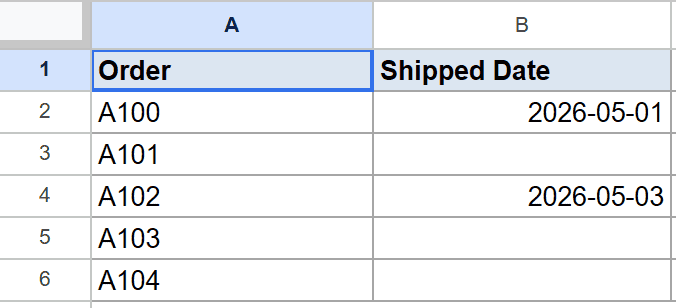
I want to count how many orders have not shipped yet.
Here is the formula:
=COUNTBLANK(B2:B6)
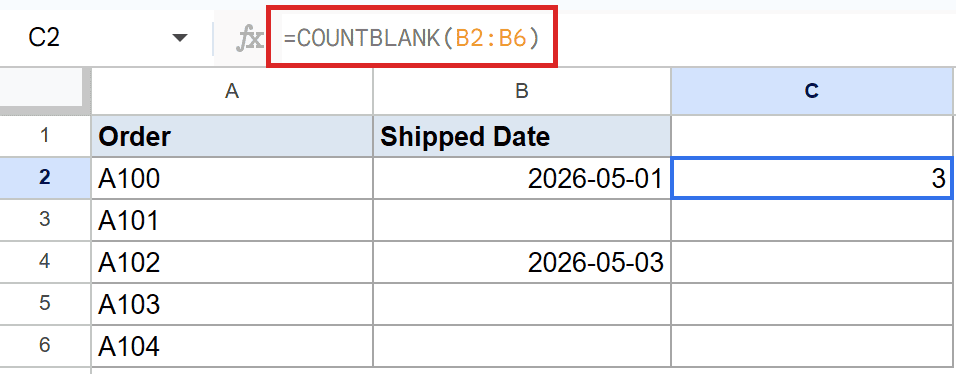
COUNTBLANK returns 3 for the three orders with no shipped date.
The key thing to know: COUNTBLANK also counts cells that look empty because a formula returned an empty string “”. COUNTA would treat those as filled, but COUNTBLANK sees them as blank.
Tips & Common Mistakes
- COUNTBLANK counts cells that hold an empty string “” returned by a formula as blank, even though the cell technically has content. COUNTA disagrees and treats those same cells as filled, so the two can give different totals.
- COUNTBLANK counts empty cells while COUNTA counts non-empty ones. Use COUNTBLANK to find the gaps and COUNTA to confirm what is actually there.
- COUNTBLANK takes only one range. To check several separate ranges, add multiple COUNTBLANK calls together instead of listing ranges inside one set of parentheses.
COUNTBLANK is the fastest way to find out how many cells in a range are sitting empty. It works on a single column or a full grid with the same simple syntax.
Once you remember that it counts formula-driven empty strings as blank too, you will read its results correctly every time.
List of All Google Sheets Functions
Related Google Sheets Functions / Articles: