CONVERT Function in Google Sheets

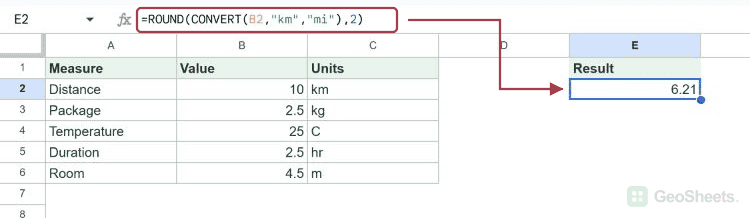
If you need to switch a number from one unit to another, like kilometers to miles or Celsius to Fahrenheit, the CONVERT function in Google Sheets does it without a lookup table. You hand it the value, the unit it’s in, and the unit you want, and Sheets returns the converted number.

I’ll walk through five examples, covering distance, weight, temperature, time, and one more length conversion to get a feel for the unit codes.

CONVERT Function Syntax in Google Sheets

CONVERT changes a number from one unit of measure to another.

=CONVERT(value, start_unit, end_unit)
  • value is the number you want to convert.
  • start_unit is the unit code the number is currently in (in quotes), like "km", "kg", or "hr".
  • end_unit is the unit code you want it converted to, also in quotes.

When to Use CONVERT Function

  • Switch distances between metric and imperial, like kilometers to miles or meters to feet.
  • Convert weights for shipping logs that mix kilograms and pounds.
  • Turn temperatures between Celsius, Fahrenheit, and Kelvin without remembering the formula.
  • Translate durations between seconds, minutes, hours, and days.
  • Move between liquid measures, energy units, or any of the dozens of other categories CONVERT supports.

Example 1: Convert Kilometers to Miles

Let’s start with the most common job, going from kilometers to miles.

Below is the dataset. Column A has five distances in kilometers, ranging from 1 to 100.

I want column B to show each distance in miles, rounded to two decimal places.

Initial dataset in Google Sheets: "Distance (km)" column populated, "Distance (mi)" empty.

Here is the formula:

=ROUND(CONVERT(A2,"km","mi"), 2)
Google Sheets showing `=ROUND(CONVERT(A2,"km","mi"), 2)` in B2, converting kilometers to miles.

CONVERT applies the standard kilometer-to-mile factor and ROUND trims the result to two decimals. So 1 km becomes 0.62 mi, 5 km becomes 3.11 mi, 10 km becomes 6.21 mi, 42 km (a marathon) becomes 26.1 mi, and 100 km becomes 62.14 mi.

Wrapping CONVERT in ROUND keeps the column tidy. Without ROUND you’d see long decimals like 0.6213711922373339, which is technically correct but a pain to read.

Example 2: Kilograms to Pounds for a Shipping List

Weight conversions work the same way, with kg and lbm as the codes.

Below is the dataset. Column A has the weight of five packages in kilograms.

I want each weight converted to pounds in column B, again rounded to two decimals.

Google Sheet with "Weight (kg)" column showing values and "Weight (lb)" column empty.

Here is the formula:

=ROUND(CONVERT(A2,"kg","lbm"), 2)
Google Sheets: formula =ROUND(CONVERT(A2, "kg", "lbm"), 2) converting kg to lbs.

Note the unit code is lbm, not lb. CONVERT uses the more precise mass code, where lbm stands for pound-mass. The 1 kg row comes out to 2.2 lb, 2.5 kg becomes 5.51 lb, 10 kg becomes 22.05 lb, 15 kg becomes 33.07 lb, and 22 kg becomes 48.5 lb.

If you mistype lb instead of lbm, you’ll get an #N/A error because lb isn’t a valid CONVERT code in that category. The unit codes are strict, which is the point of the next example.

Example 3: Celsius to Fahrenheit for a Weather Log

Temperature is where CONVERT pays off, because it handles the offset for you.

Below is the dataset. Column A has five temperature readings in Celsius.

I want each reading in Fahrenheit in column B.

Google Sheet with Celsius temperatures in column A, and an empty 'Temp (F)' column.

Here is the formula:

=CONVERT(A2,"C","F")
CONVERT(A2, "C", "F") formula in Google Sheets B2 converts Celsius to Fahrenheit.

CONVERT applies the full formula, including the 32-degree offset. So 0°C becomes 32°F (freezing), 25°C becomes 77°F, 37°C (body temperature) becomes 98.6°F, 100°C becomes 212°F (boiling), and -10°C becomes 14°F.

This beats writing A2 * 9/5 + 32 because you don’t have to remember whether the offset goes before or after the multiplication. CONVERT does the right thing every time.

Pro Tip: Unit codes are case sensitive. Lowercase `”m”` means meters, but uppercase `”M”` is the mega SI prefix. Mixing them up gives you a wildly wrong answer instead of a clean error, so always copy unit codes from the Google Sheets reference.

Example 4: Hours Into Seconds

Time conversions use codes like hr, min, and sec.

Below is the dataset. Column A has five durations in hours, including fractional values.

I want each duration in seconds in column B.

Google Sheets: data for "Duration (hr)", column "Duration (sec)" is blank.

Here is the formula:

=CONVERT(A2,"hr","sec")
Google Sheets formula CONVERT(A2, "hr", "sec") in B2 converts hours to seconds.

CONVERT multiplies by 3600 internally, so 1 hour becomes 3600 seconds, 2.5 hours becomes 9000, a quarter hour becomes 900, a normal workday of 8 hours becomes 28800, and a full day of 24 hours becomes 86400.

No ROUND needed here because the multiplication lands on whole numbers for every input. Times tend to behave nicely that way.

Example 5: Meters to Feet for Room Dimensions

One more length conversion, this time for room measurements.

Below is the dataset. Column A has five room measurements in meters.

I want each measurement in feet, rounded to two decimals.

Sheets table with meter lengths (3 to 20) and an empty column for feet conversion.

Here is the formula:

=ROUND(CONVERT(A2,"m","ft"), 2)
Sheets converting meters to feet with `ROUND(CONVERT(A2, "m", "ft"), 2)` in B2.

The unit codes here are m for meters and ft for feet, both lowercase. So 3 m becomes 9.84 ft, 4.5 m becomes 14.76 ft, 10 m becomes 32.81 ft, 12.5 m becomes 41.01 ft, and 20 m becomes 65.62 ft.

The pattern across all five examples is the same. Pick the right unit codes, wrap in ROUND if the answer comes out messy, and CONVERT handles the rest.

Tips & Common Mistakes

  • Unit codes must be in quotes. Both the start and end unit codes are strings, so "km" works but km (no quotes) does not. Sheets reads the bare km as a name reference and returns #NAME?.
  • Units must come from the same category. CONVERT will not let you go from meters to seconds because length and time aren’t compatible. Mixing categories returns #N/A. Stick to within a category like distance, weight, time, temperature, or energy.
  • Lowercase m and uppercase M are different. "m" is meters but "M" is the mega prefix. The same goes for "g" (grams) versus "G" (giga). When in doubt, check the Google Sheets help page for the exact code.

CONVERT is the quickest way to switch numbers between units without writing the conversion factor yourself.

You’ve now seen it on distance, weight, temperature, time, and length. Match the unit codes for your category and CONVERT handles the math, no lookup table needed.

List of All Google Sheets Functions