
DECIMAL converts a number written in another base into a base-10 number. Use it for binary digits, hexadecimal values, octal codes or base-36 identifiers when you know the source base.
DECIMAL function syntax
=DECIMAL(value, base)- value: the unsigned number written as text, using digits valid for its base.
- base: a whole number from 2 through 36. Use 2 for binary, 8 for octal, 16 for hexadecimal or 36 for digits 0–9 and letters A–Z.
- Quote literal input text inside formulas. DECIMAL converts integer representations, not decimal fractions.
Set up the example data
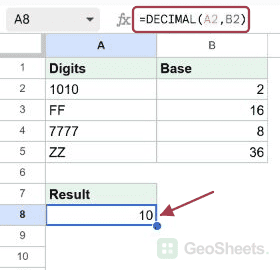
Enter this dataset starting in A1. The first row contains headings. Keep the result area separate from the source table.
| Digits | Base |
|---|---|
| 1010 | 2 |
| FF | 16 |
| 7777 | 8 |
| ZZ | 36 |
Convert binary digits to base 10
Enter this formula in A8. The text 1010 in A2 represents ten in binary, so the result is 10. Binary inputs may contain only 0 and 1.
=DECIMAL(A2,B2)Result: 10.
Convert hexadecimal values
A3 contains FF and B3 contains 16. Each F represents 15; the result is 15 × 16 + 15, or 255. Lowercase letters are accepted too.
=DECIMAL(A3,B3)Result: 255.
Convert an octal code
A4 contains 7777 in base 8. Its decimal value is 4095. Reading an octal permission code as decimal does not explain or change its individual permission flags.
=DECIMAL(A4,B4)Result: 4095.
Convert a base-36 identifier
The letters extend the available digits: A represents 10 and Z represents 35. ZZ therefore gives 35 × 36 + 35, or 1295.
=DECIMAL(A5,B5)Result: 1295.
Convert a number back with BASE
BASE returns text in another base. Here it converts 255 to FF, and DECIMAL converts that text back to 255.
=DECIMAL(BASE(255,16),16)Result: 255.
Check invalid digits and signed inputs
This binary text contains 2, which is not a binary digit, so it returns #NUM!. The same error occurs for the signed string -10 in our DECIMAL test.
=DECIMAL("102",2)Result: #NUM!.
Other Google Sheets articles you may also like