
HYPERLINK in Google Sheets creates a clickable link with readable text. Use =HYPERLINK(B2,A2) when B2 contains the URL and A2 contains the label you want to display.
Create a Link from URL and Label Columns
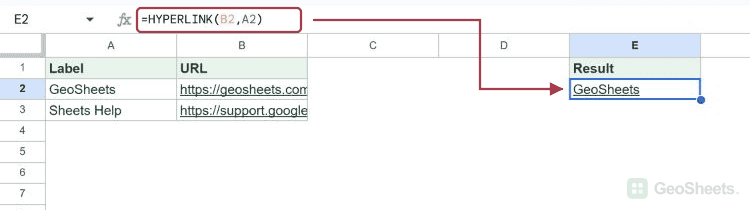
Enter this dataset starting in A1. Leave cells marked “(blank)” empty.
| Label | URL |
|---|---|
| GeoSheets | https://geosheets.com/ |
| Sheets Help | https://support.google.com/docs |
Enter this formula in E2:
=HYPERLINK(B2,A2)The result displays GeoSheets and points to https://geosheets.com/. Updating the label or URL changes the formula result. Keep the destination separate from the visible text when maintaining a resource list.
HYPERLINK Function Syntax
=HYPERLINK(url, [link_label])The URL is required. The label is optional and defaults to the URL. Both arguments can be text in double quotes or cell references. The first argument determines the destination, regardless of the label.
Use a complete HTTPS address for web links when available. Sheets also supports other documented protocols, including HTTP and mailto. If no protocol is supplied, Google documents that HTTP is assumed.
Create a Fixed Link with a Custom Label
=HYPERLINK("https://support.google.com/docs","Sheets Help")The cell displays Sheets Help. Select or hover over it to reveal the link preview, then follow the preview link. A single click may select the cell instead of immediately opening the website.
With =HYPERLINK("https://geosheets.com/"), the address itself is displayed. A literal empty label, "", makes the cell appear blank while retaining the link; use descriptive labels so readers can identify it.
Build a Link from a Base URL and Page Slug
Enter this dataset starting in A12. Leave cells marked “(blank)” empty.
| Function slug |
|---|
| sum |
| average |
=HYPERLINK("https://geosheets.com/google-sheets-function/"&A13&"/",A13)The first result displays sum and links to the SUM tutorial. The ampersands join the fixed base URL, the changing slug, and the trailing slash. Ensure the assembled destination actually exists.
Create a Search Link with Proper URL Encoding
Enter this dataset starting in A22. Leave cells marked “(blank)” empty.
| Search term |
|---|
| sheets sum & average |
=HYPERLINK("https://www.google.com/search?q="&ENCODEURL(A23),A23)The label remains sheets sum & average. ENCODEURL converts spaces and the ampersand into URL-safe characters, so the ampersand stays part of the search term instead of starting another parameter.
Encode the changing query value, not the complete URL. The expected query portion is sheets%20sum%20%26%20average. The search runs when the link is opened; the formula itself creates the link.
Link to a Cell in the Same Spreadsheet
=HYPERLINK("#gid=3009010&range=E2","SUM result")In the example workbook, this links to E2 on the GS30-SUM tab. Your tab has its own gid.
Copy an actual link to the destination cell and use that address instead of copying this workbook’s identifier.
A link does not grant access to its destination. Someone opening a link to another private spreadsheet still needs permission to that file.
For a one-off manually added link, the Insert Link command is another option. HYPERLINK is useful when the destination or label is calculated from cells and should update with the data.
Other Google Sheets articles you may also like