The LEN function in Google Sheets counts the number of characters in a text string.
It includes spaces and punctuation in the count, and works on any text or value you point it at. In this article, I’ll walk you through four practical examples that show how LEN gets used in real spreadsheets.
LEN Function Syntax in Google Sheets
LEN takes a single argument.
=LEN(text)
text: the string or cell reference whose characters you want to count.
That’s the whole syntax. LEN returns a number representing the count of characters in the supplied text.
When to Use LEN Function
- Check the length of cell values for data validation (for example, flag entries shorter than ten characters).
- Build word-count or character-count formulas by combining LEN with SUBSTITUTE.
- Pad short text values to a fixed length using LEN with REPT.
- Compare two strings to see if they’re the same length, which is useful when hunting typos in product codes or IDs.
- Calculate trailing or leading character positions inside RIGHT, LEFT, or MID formulas.
Example 1: Count characters in a column of product codes
Let’s start with the most common use case. You have a column of text values and you want to know how long each one is.
Below is a small list of product codes.

The goal is to get the length of each product code in the Length column.
Here is the formula:
=LEN(A2)
Put it in B2, then drag the fill handle down through B6 (or copy B2 and paste it into B3:B6). Each row gets its own formula referencing the cell next to it.

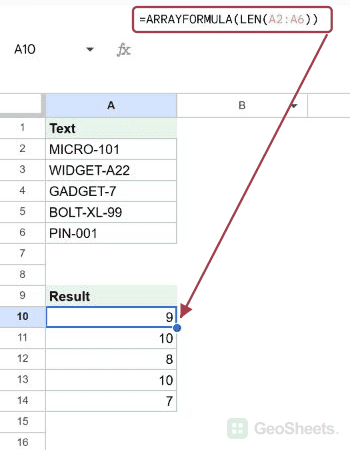
B2 returns 9, since “MICRO-101” is nine characters long (the hyphen counts too). The rest of the column fills in: 10 for WIDGET-A22, 8 for GADGET-7, 10 for BOLT-XL-99, and 7 for PIN-001. LEN treats every visible character the same: letters, digits, and punctuation all add 1 to the count.
Pro Tip: If you’d rather use a single formula instead of filling down, wrap LEN in ARRAYFORMULA: =ARRAYFORMULA(LEN(A2:A6)). The result spills into the same five cells. Both styles work; per-row is easier to read for beginners, ARRAYFORMULA is cleaner once you know it.
Example 2: Flag short customer comments using IF and LEN
LEN is great inside IF statements when you want to enforce a minimum or maximum length. Say you’re collecting customer feedback and you want to flag any comment that’s too short to be useful.
Below is a list of comments from a recent product survey.

The goal is to mark any comment shorter than 20 characters as “Too short”, and everything else as “OK”.
Here is the formula:
=IF(LEN(A2)<20,"Too short","OK")
Put it in B2 and fill it down to B5.

“Good.” is five characters, so it gets “Too short”. “Decent quality.” is fifteen, also “Too short”. “Great product, fast shipping!” is twenty-nine, so it gets “OK”. And the longest comment also gets “OK”. You can use this pattern any time you want to enforce a minimum length on free-text input.
Pro Tip: If you want a fixed threshold like 20 that you can change in one place, store it in a separate cell (say D1) and reference it: =IF(LEN(A2)<$D$1,"Too short","OK"). That keeps the rule editable without touching every formula.
Example 3: Count words in a sentence with LEN and SUBSTITUTE
You’d expect Google Sheets to have a built-in word count function, but it doesn’t. The classic workaround uses LEN and SUBSTITUTE together.
Below is a list of sentences.

The idea is to count the spaces in the sentence, then add 1. That gives you the number of words, assuming the sentence has no extra internal spaces.
Here is the formula:
=IF(A2="",0,LEN(TRIM(A2))-LEN(SUBSTITUTE(TRIM(A2)," ",""))+1)
Put it in B2 and fill it down through B4.

For “The quick brown fox jumps over the lazy dog.”, this returns 9. “Hello world.” returns 2. “Spreadsheets are useful for data analysis.” returns 6.
How this formula works:
TRIM(A2)strips any leading or trailing spaces so they don’t throw off the count.LEN(TRIM(A2))is the length of the cleaned sentence.SUBSTITUTE(TRIM(A2), " ", "")replaces every space with nothing, and the LEN around it is the length of the sentence without spaces.- Subtracting those two values gives the number of spaces in the sentence.
- Adding 1 converts space count to word count, since a sentence with one space has two words.
- The outer IF handles the edge case of an empty cell, returning 0 instead of 1.
Pro Tip: For more reliable word counting, you can also use =COUNTA(SPLIT(TRIM(A2)," ")). SPLIT is a Google Sheets-specific function that breaks the string into separate cells, and COUNTA tallies them. Both formulas give the same result for most sentences, but SPLIT handles multiple consecutive spaces a bit more gracefully.
Example 4: Pad product IDs to a fixed width with LEN and REPT
LEN paired with REPT lets you format short numeric IDs with leading zeros so they all become the same width. Useful when systems expect a fixed-length code.
Below is a list of short product IDs.

The goal is to pad each ID with leading zeros so it becomes exactly six characters wide.
Here is the formula:
=REPT("0", 6 - LEN(A2)) & A2
Put it in B2 and fill it down through B6.

For “1”, LEN is 1, so REPT puts five zeros in front and the result is “000001”. For “5000”, LEN is 4, so REPT puts two zeros in front and the result is “005000”. Each row gets its own correctly-padded value.
Pro Tip: Google Sheets also has a TEXT function that can do fixed-width padding directly: =TEXT(A2,"000000") gives the same result for numeric input. The LEN + REPT approach is handy when the ID contains letters or symbols where TEXT formatting doesn’t apply.
Tips & Common Mistakes
- LEN counts every character, including spaces. If you only want the letter count, strip the spaces first with
SUBSTITUTE(A2, " ", "")before passing to LEN, like this:=LEN(SUBSTITUTE(A2," ","")). - LEN works on numbers and dates too. Google Sheets converts them to text first, so
=LEN(1234)gives 4 and=LEN(TODAY())gives the length of today’s date as a serial number (around 5 digits). If you want the formatted display length, wrap the value in TEXT:=LEN(TEXT(TODAY(),"YYYY-MM-DD"))gives 10. - Empty cells return 0. If a cell is genuinely empty, LEN gives 0. If it contains a single space, LEN gives 1. This catches people checking for “blank” cells. Wrap with TRIM first if you want both to count as empty.
Closing thought. LEN is a small function but it sits at the heart of a lot of useful text patterns in Google Sheets.
Whether you’re validating user input, counting words, or padding strings, knowing how to use LEN well saves you time across all sorts of everyday spreadsheet tasks.