
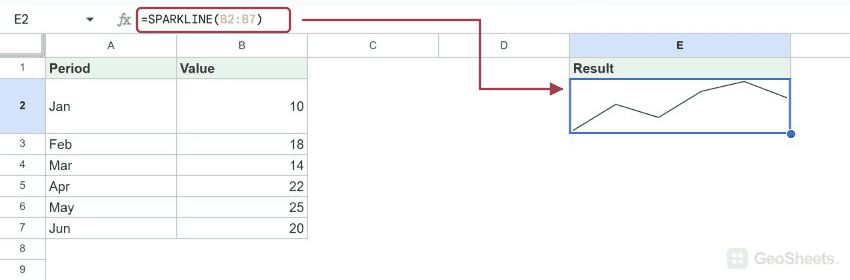
SPARKLINE in Google Sheets draws a miniature chart inside one cell. Use it for trends, small column charts, or progress bars. For example, =SPARKLINE(B2:B7) charts six values as a line.
Create a Basic Line Sparkline
Enter this dataset starting in A1. Leave cells marked “(blank)” empty.
| Period | Value |
|---|---|
| Jan | 10 |
| Feb | 18 |
| Mar | 14 |
| Apr | 22 |
| May | 25 |
| Jun | 20 |
Enter this formula in E2:
=SPARKLINE(B2:B7)The line rises from 10 to 18, dips to 14, climbs to 25, then ends at 20. Its left-to-right order follows the values from B2 down to B7.
SPARKLINE Function Syntax
=SPARKLINE(data, [options])Data is the range or array to chart. Options can be a two-column settings range or an array of name-value pairs. The default chart type is line.
In the examples, commas separate an option from its value, and semicolons separate option rows. These separators match the tested US locale. Other spreadsheet locales may require different argument and array separators.
Resize the result cell to make its chart easier to read. For several rows of data, use a separate SPARKLINE formula for each row. The chart stays inside the cell that contains its formula.
Create a Column Sparkline
=SPARKLINE(B2:B7,{"charttype","column"})Each value becomes a vertical column. May’s 25 is the tallest, and January’s 10 is the shortest. This view emphasizes individual values rather than connecting them into a continuous line.
Create an In-Cell Progress Bar
Enter this dataset starting in A12. Leave cells marked “(blank)” empty.
| Current | Target |
|---|---|
| 60 | 100 |
=SPARKLINE(A13,{"charttype","bar";"max",B13;"color1","#137333"})The bar fills 60% of its available width because the current value is 60 and the target is 100. Use a positive target and keep the current value beside the chart for context.
Set the target explicitly. Without max, automatic scaling does not reliably represent progress against your target. For bar charts, the first bar color is controlled by color1, not color.
Change the Line Color and Thickness
=SPARKLINE(B2:B7,{"charttype","line";"color","#137333";"linewidth",2})This draws the same trend in forest green with a thicker line. Line and column charts use color; bar charts use color1 and color2. Named colors and hexadecimal colors are supported.
Highlight the Highest Column
=SPARKLINE(B2:B7,{"charttype","column";"color","#137333";"highcolor","#A43D4D"})The highest value, 25, uses the maroon highlight while the other columns remain green. Column charts also support lowcolor and negcolor for minimum and negative values.
Compare Scales and Handle Missing Data
Automatic scaling can make charts with very different values look similar. For fair visual comparisons, use common ymin and ymax settings on line or column sparklines and keep the underlying numbers visible.
Options named empty and nan control blank and nonnumeric inputs. Empty can be zero or ignore; nan can be convert or ignore.
Choose the behavior that matches whether missing data means zero or an unknown value.
A winloss chart displays positive and negative outcomes without representing their magnitude. For example:
=SPARKLINE({1,-1,1,-1},{"charttype","winloss";"color","#137333";"negcolor","#A43D4D"})This shows alternating positive and negative columns. For sums, averages, or other calculations, reference the numeric source data instead of the cell containing the miniature chart.
Other Google Sheets articles you may also like