
To extend a series in Google Sheets, select its starting values and drag the fill handle. Google also documents Ctrl + Alt + Enter on Windows, or Command + Option + Enter on Mac.
Extend a series with the keyboard
Enter two numeric values such as 1 and 2, followed by empty destination cells. Include the starting values and destination in the selection.
- Enter 1 in A2 and 2 in A3.
- Select A2:A8.
- Press Ctrl + Alt + Enter on Windows or Command + Option + Enter on Mac.
- Inspect the resulting sequence before using it in a larger table.
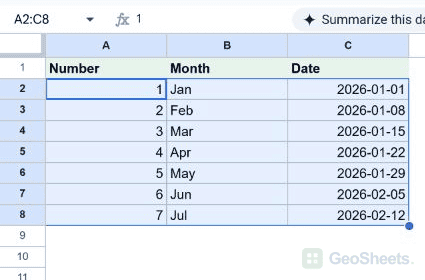
Drag the fill handle
The small blue handle sits at the bottom-right of the selection. Drag down a column or across a row to extend the pattern.
- Enter the first two values in neighboring cells.
- Select both starting cells.
- Drag the blue fill handle to the final destination.
- Release and check the first and last generated values.
Extend months and weekly dates
Use Jan and Feb for a month series. For weekly dates, enter actual date values seven days apart, such as January 1 and January 8, 2026. Formulas that return fixed dates may instead be copied.
Copy formulas with relative references
Dragging a formula such as =A2*1.1 downward adjusts its relative reference to A3, A4 and later rows. Use dollar signs for references that must remain fixed.
Use double-click when adjacent data defines the length
Double-clicking the fill handle can fill alongside neighboring data. Gaps or an absent neighboring range can limit the result. Inspect where the fill stops rather than assuming it reaches every intended row.
Understand Fill down and Smart Fill
Ctrl + D on Windows copies the first selected value or formula downward. A selection starting with Jan therefore repeats Jan. Smart Fill suggests transformations such as extracting names; it is a separate feature.
Check the starting pattern
Use genuinely empty destination cells. A single value may repeat or trigger a recognized series, depending on its type. Two clear starting values make an intended numeric step easier to infer.
Other Google Sheets articles you may also like