
To merge cells in Google Sheets in Chrome on Windows, select the range. Hold Alt, press O, release both keys, then press M and Enter.
This combines the selected cells into one larger cell. Check the range first because merging populated cells can permanently discard values.
Use the merge cells shortcut
These shortcuts navigate Google Sheets menus. They are sequences, not single key combinations.
Chrome on Windows
Alt + O, M, Enter
- Select the cells you want to merge.
- Hold Alt and press O to open Format, then release both keys.
- Press M to open Merge cells, then press Enter for Merge all.
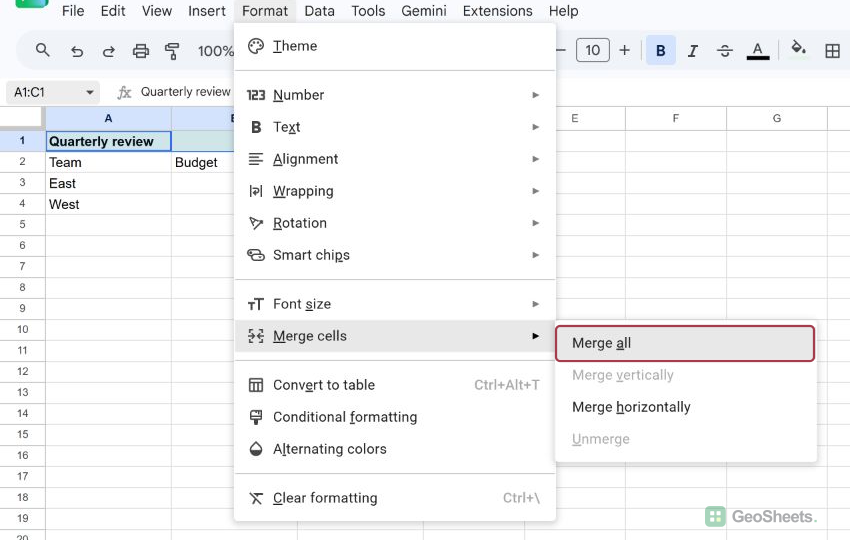
In our Windows Chromium test, Alt + O opened Format. M opened the Merge cells submenu, and Enter merged the selected range.
Mac
Control + Option + O, M, Enter
Google documents Control + Option + O for opening the Format menu on Mac. Then press M and Enter to choose Merge all.
Other Windows browsers and ChromeOS
Google documents Alt + Shift + O for opening Format in Windows browsers that reserve Alt + O. After the menu opens, press M and Enter.
On ChromeOS, Google lists Alt + O for Format. Release the keys, then press M and Enter. See Google’s Sheets shortcut list for platform details.
You can also select the range and choose Format > Merge cells > Merge all. The toolbar’s merge button opens the same choices.
Choose Merge all, horizontally, or vertically
The Merge cells submenu changes according to the shape of your selection.
- Merge all turns the complete selection into one cell.
- Merge horizontally creates one merged cell in each selected row.
- Merge vertically creates one merged cell in each selected column.
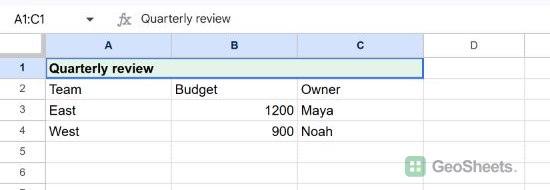
For example, merging A1:C1 with Merge all makes the heading “Quarterly review” span three columns.
Check for data loss before merging
When several selected cells contain data, Google Sheets warns that only the upper-left value will remain. The other values are discarded if you continue.

In the live test, A3:C3 contained East, 1200, and Maya. After merging, only East remained. Unmerging did not restore 1200 or Maya.
Unmerge cells
Select a merged cell, then choose Format > Merge cells > Unmerge. You can also press Alt + / on Windows and search for “Unmerge cells.”
Unmerging separates the range again. The retained value stays in the upper-left cell, while the other cells remain blank.
For a focused shortcut walkthrough, see how to unmerge cells in Google Sheets.
Keep both values when combining text
Merging changes the sheet layout. It does not combine text from several cells.
To preserve every value, join the text in another cell instead. For example, =TEXTJOIN(" ",TRUE,A3:C3) combines nonblank values with spaces.
See the Google Sheets TEXTJOIN tutorial for separators, blanks, and larger ranges.
Merged cells can also interfere with sorting and filtering. Reserve them for presentation areas such as titles, rather than rows you plan to analyze.
Other Google Sheets articles you may also like