
If you want to check whether every one of several conditions is true at the same time, the AND function in Google Sheets is the one to use. It returns TRUE only when all the conditions you give it pass, and FALSE the moment any single one fails.
In this article, I’ll show you how to use AND with numbers, ranges, inside an IF, and across a whole column of values.
AND Function Syntax in Google Sheets
The AND function takes one or more conditions and returns a single TRUE or FALSE.
=AND(logical_expression1, [logical_expression2, ...])
- logical_expression1 is the first condition to test. It can be a comparison, a cell reference, or a range that resolves to TRUE/FALSE values.
- logical_expression2, … are optional extra conditions. You can keep adding more, separated by commas.
When to Use AND Function
- Pass a row only when every condition is met, like clearing the bar in both subjects.
- Confirm a number falls inside a range by testing a lower and an upper bound together.
- Combine AND with the IF function to return a readable label when all conditions hold.
- Test a whole column of TRUE/FALSE checks to confirm they all passed.
Example 1: Pass Only If Both Subjects Clear 40
Let’s start with the core case, where a row passes only when every condition is true.
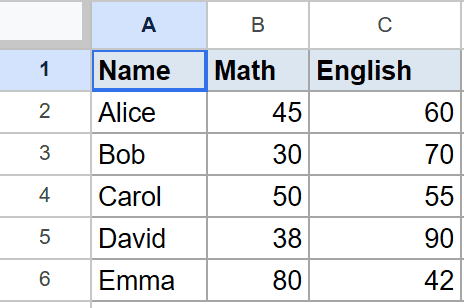
Below is the dataset. Column A has the student name, column B has the Math score, and column C has the English score.
I want to mark a student as passing only if both subjects are 40 or higher.
Here is the formula:
=AND(B2>=40, C2>=40)
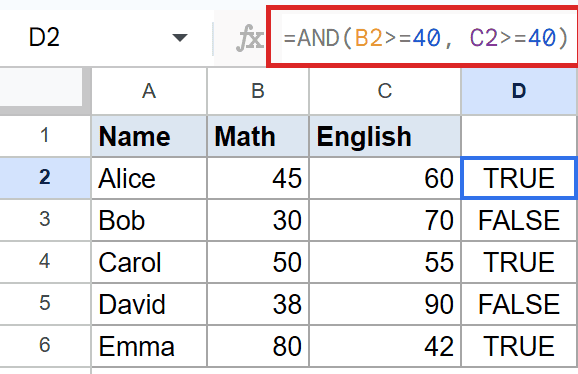
AND checks both conditions and returns TRUE only when both are met. For Alice, Math is 45 and English is 60, so both pass and the result is TRUE. For Bob, Math is only 30, so one condition fails and the result is FALSE.
The formula in D2 is filled down so every student gets their own check.
Pro Tip: If you’d rather use one formula instead of filling down, wrap the check in ARRAYFORMULA: =ARRAYFORMULA(AND(B2:B6>=40, C2:C6>=40)). Note that this collapses to one combined answer for the whole range, so for a per-row result keep the fill-down version.
Example 2: Check a Number Falls in a Range
Here AND confirms a value sits between two bounds.
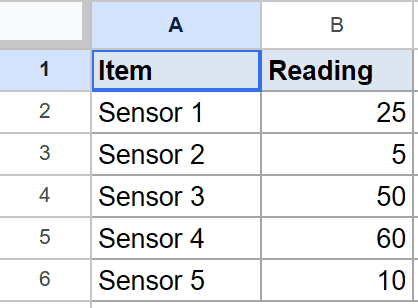
Below is the dataset. Column A has the sensor name and column B has its reading.
I want to confirm each reading is inside the acceptable window of 10 to 50.
Here is the formula:
=AND(B2>=10, B2<=50)
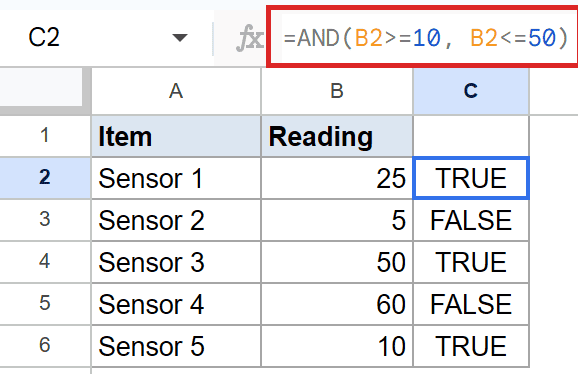
Both conditions point at the same cell, one checking the lower bound and one the upper. Sensor 1 reads 25, which clears both bounds, so the result is TRUE. Sensor 2 reads 5, which is below 10, so the lower check fails and the result is FALSE.
This two-sided test is the standard way to ask “is this value inside a range?” in a sheet.
Example 3: AND Inside an IF
AND on its own returns TRUE or FALSE. Wrapping it in an IF turns that into a label you can actually read.
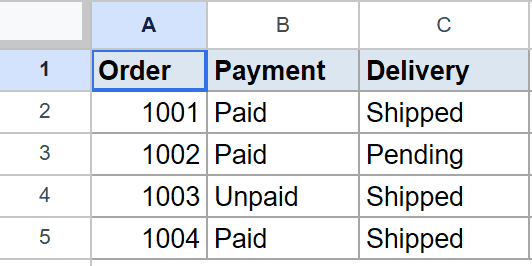
Below is the dataset. Column A has the order number, column B has the payment status, and column C has the delivery status.
I want to show “Complete” only when an order is both Paid and Shipped, and “Pending” otherwise.
Here is the formula:
=IF(AND(B2="Paid", C2="Shipped"), "Complete", "Pending")
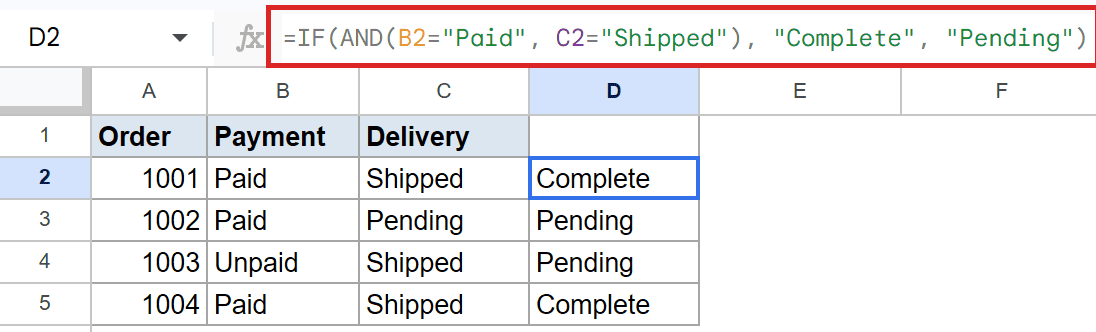
The AND runs first and hands its TRUE/FALSE answer to the IF function, which then picks the label. Order 1001 is Paid and Shipped, so AND is TRUE and the result is “Complete”. Order 1002 is Paid but still Pending on delivery, so AND is FALSE and the result is “Pending”.
This is the most common way people use AND in real sheets, since a plain TRUE/FALSE rarely reads well in a report.
Example 4: AND Across a Range of Checks
AND can also take a whole range at once instead of separate conditions.
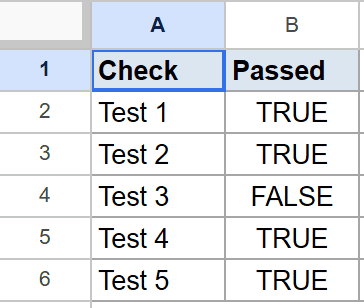
Below is the dataset. Column A has the check name and column B has a TRUE/FALSE pass value for each one.
I want to know if every single check passed.
Here is the formula:
=AND(B2:B6)
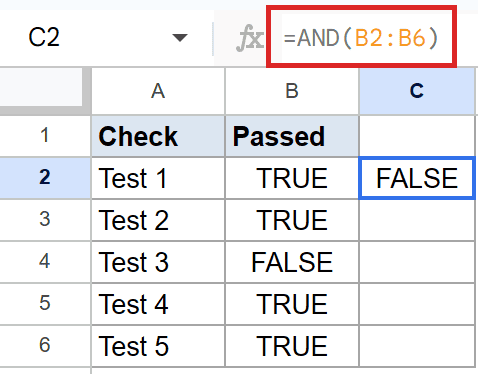
When you feed AND a range, it scans every value in it. Most checks here are TRUE, but Test 3 is FALSE, so the formula returns FALSE. That’s the whole lesson of AND. It only comes back TRUE when every value passes, and a single FALSE anywhere drags the result down.
This is the quick way to ask “did everything pass?” across a column without listing each cell by hand.
Tips & Common Mistakes
- AND needs every condition to be true, not just one. If you only need at least one condition to pass, use OR instead. Reaching for AND when you meant OR is the most common mistake.
- Wrap text values in double quotes. A condition like B2=”Paid” only works with the quotes around the text. Without them, Sheets treats Paid as a named range and the formula breaks.
- A range argument like AND(B2:B6) returns one answer, not one per row. If you want a separate result for each row, give AND the per-row conditions and fill the formula down, as in the first three examples.
AND is the function for “all of these must be true” logic.
You’ve now seen it with numbers, ranges, inside an IF, and across a full column. Pick the form that matches whether you need a per-row answer or a single combined one.
List of All Google Sheets Functions
Related Google Sheets Functions / Articles: