
If you want the middle value of a list of numbers, the MEDIAN function in Google Sheets sorts your data behind the scenes and hands back the value that sits in the middle.
In this article, I’ll show you how to use MEDIAN on test scores, sales with blank days, an even-count list, a filtered subset, and a price column with a big outlier.
MEDIAN Function Syntax in Google Sheets
Here is how the MEDIAN function is written:
=MEDIAN(value1, [value2], ...)
- value1 is the first number, cell, or range you want to include.
- value2, … are optional. You can keep adding values, cells, or ranges, comma-separated.
MEDIAN sorts the numbers internally, then returns the one in the middle. If the count is even, it averages the two middle numbers.
When to Use MEDIAN Function
- Find the typical value in a list when a few extreme entries would distort the average.
- Report the middle salary, score, or price without being skewed by an outlier.
- Pair with FILTER to find the median for one category, region, or product.
- Compare the median against the average to check how skewed a dataset is.
- Summarize survey ratings or test results where the “middle” reading matters more than the mean.
Example 1: Median of a Column of Test Scores
Let’s start with the basic case, finding the middle score in a class.
Below is the dataset, with student names in column A and test scores in column B, across rows 2 to 8.
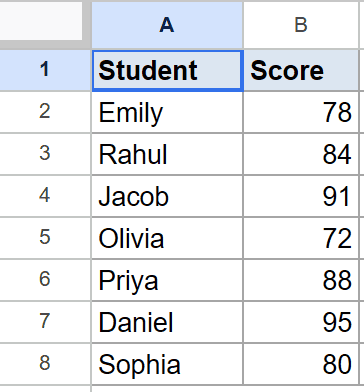
You want the median test score across all seven students.
Here is the formula:
=MEDIAN(B2:B8)
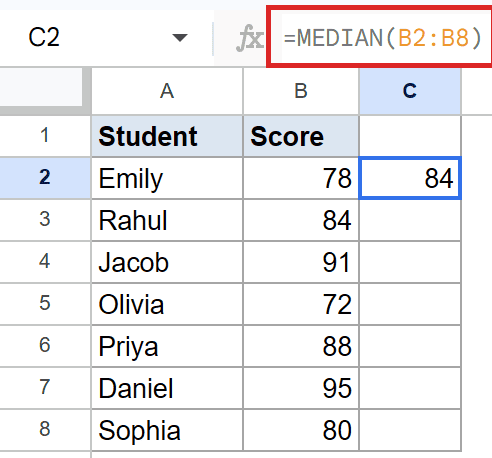
MEDIAN sorts the seven scores from low to high and picks the one sitting in the fourth position. That’s the middle value of an odd-sized list.
The order of students in the original column doesn’t matter. MEDIAN does the sorting internally, so you can leave the dataset as is.
Example 2: MEDIAN Ignores Blank Cells
Empty cells inside the range are skipped entirely. They don’t get treated as zero, so they can’t drag the median down.
Below is the dataset, with day names in column A and sales figures in column B, across rows 2 to 8. Two of the cells are blank because the shop was closed.
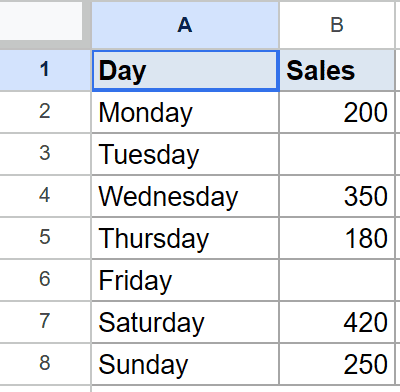
You want the median daily sales using just the five days that had numbers.
Here is the formula:
=MEDIAN(B2:B8)
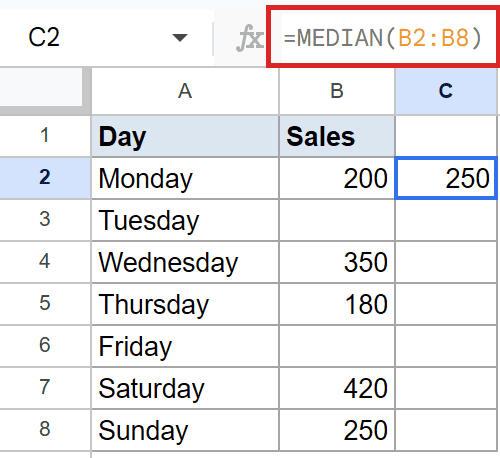
MEDIAN looks at column B, ignores the two empty cells, and finds the middle of the five remaining values.
Pro Tip: MEDIAN also skips non-numeric cells. Any text values inside the range, like “N/A” or a header label, are ignored rather than treated as zero. The COUNTUNIQUE function works the same way with blank cells, so the two play nicely together when you’re summarizing a messy column.
Example 3: Median of an Even Number of Values
When the list has an even number of values, MEDIAN averages the two middle numbers instead of picking one.
Below is the dataset, with order IDs in column A and order amounts in column B, across rows 2 to 7. That’s six values, so the count is even.
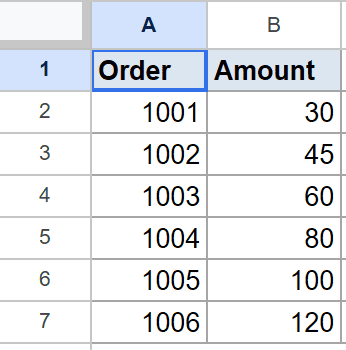
You want the median order amount across all six orders.
Here is the formula:
=MEDIAN(B2:B7)
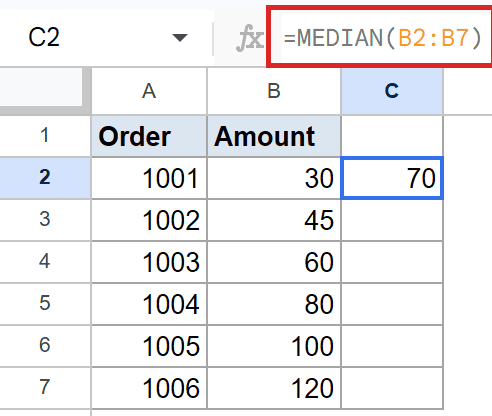
With six values, there isn’t one cell sitting in the middle. MEDIAN takes the third and fourth values from the sorted list and averages them.
Sorted, the amounts are 30, 45, 60, 80, 100, 120. The two middle numbers are 60 and 80, and their average lands at 70.
Example 4: Conditional Median With FILTER
To get the median for just one category, wrap FILTER around the data so only matching rows reach MEDIAN.
Below is the dataset, with regions in column A and revenue values in column B, across rows 2 to 8. Both East and West rows are mixed together.
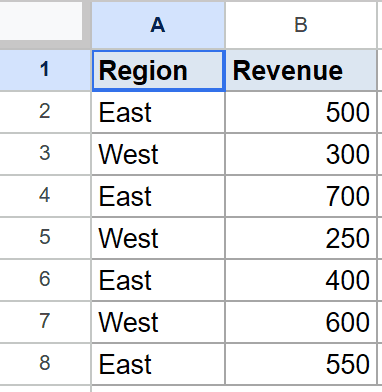
You want the median revenue for the East region only.
Here is the formula:
=MEDIAN(FILTER(B2:B8,A2:A8="East"))
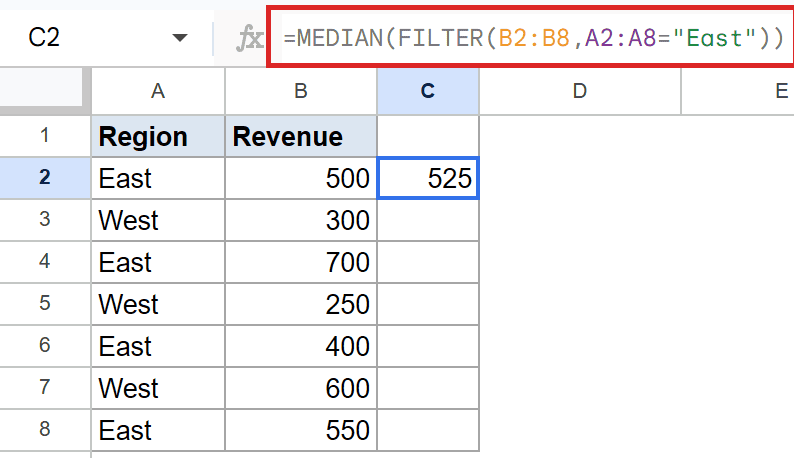
How this formula works:
- FILTER takes the revenue range and keeps only the rows where column A equals “East”.
- That filtered list is passed straight into MEDIAN, which finds the middle value of the East-only subset.
- Swap “East” for any other region and MEDIAN updates instantly.
This pattern is the cleanest way to compute a conditional median in Google Sheets. There’s no MEDIANIF built-in, so FILTER does the slicing for you.
Example 5: MEDIAN Resists a Big Outlier
This is where MEDIAN earns its keep. On a skewed list, the average gets dragged toward the extreme value while MEDIAN stays put.
Below is the dataset, with house labels in column A and asking prices in column B, across rows 2 to 6. Four houses sit in a normal range and one is an outlier.
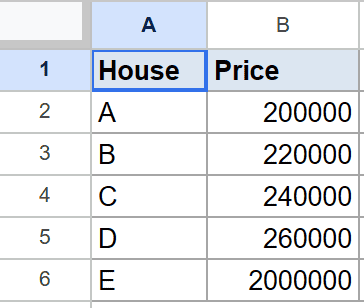
You want the median price across the five houses to get a typical value that isn’t pulled up by the outlier.
Here is the formula:
=MEDIAN(B2:B6)
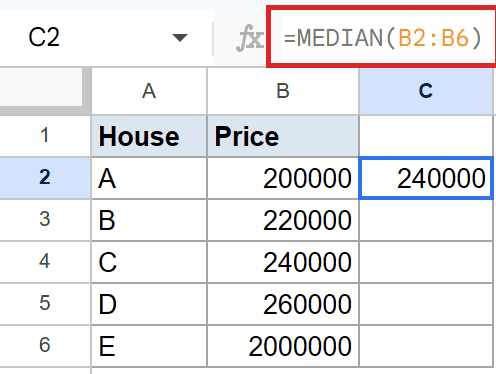
MEDIAN picks the middle price from the sorted list, ignoring how far the highest value sits from the others. The outlier could be ten times bigger and MEDIAN wouldn’t budge.
Compare that with AVERAGE on the same range. AVERAGE adds the outlier into the sum and divides by five, so the average gets pulled well above the typical house price. That gap is exactly why median is the better summary on skewed data.
Tips & Common Mistakes
- MEDIAN ignores text and blanks, not zeros. A cell holding 0 is a real number, so it’s included in the sort. If you want to skip zeros too, use a FILTER wrapper like
=MEDIAN(FILTER(B2:B, B2:B>0)). - Don’t wrap MEDIAN in ARRAYFORMULA. MEDIAN reduces a range to a single value, like SUM, so ARRAYFORMULA adds nothing. The wrapper is for per-row formulas like
=ARRAYFORMULA(A2:A * B2:B), not for aggregators. - Median is not the same as average. On a roughly symmetric dataset they land close together. On a skewed dataset (incomes, house prices, response times) median is usually the more honest summary because it isn’t pulled by extreme values.
MEDIAN gives you the middle value of a list with one clean call. Point it at a range and you get back a single number that resists outliers and ignores blank cells along the way.
Wrap it with FILTER when you need a conditional median, and reach for it instead of AVERAGE whenever your data has a few extreme entries that shouldn’t dominate the summary.
List of All Google Sheets Functions
Related Google Sheets Functions / Articles: