
MODE returns a number that appears most often in a dataset. It is useful for repeated scores, ratings or daily counts. If no numeric value repeats, it returns #N/A.
MODE function syntax
=MODE(value1, [value2, ...])- value1: the first number or range to include.
- value2 and further arguments: optional additional values or ranges.
- MODE returns one number. Use MODE.MULT when you need all tied modes.
Set up the example data
Enter this dataset starting in A1. The first row contains headings. Keep the result area separate from the source table.
| Score | Orders |
|---|---|
| 82 | 20 |
| 75 | 18 |
| 82 | 22 |
| 90 | 18 |
| 75 | 25 |
| 82 | 18 |
| 88 | 21 |
Find the most common test score
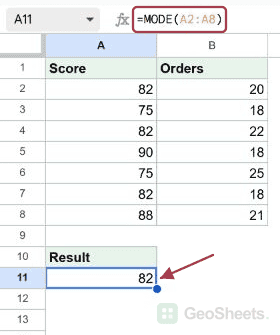
Enter this formula in A11. The score 82 appears three times in A2:A8, more often than any other score, so MODE returns 82.
=MODE(A2:A8)Result: 82.
Find the most common daily order count
Column B contains seven daily order counts. The number 18 appears three times, so it is the mode. This describes a frequency, not the total orders for the week.
=MODE(B2:B8)Result: 18.
Check what happens when frequencies tie
The values 4, 5 and 3 each appear twice. In this tested order, MODE returns 4, the first encountered tied value. Changing the input order can change that single result.
=MODE({4;5;3;4;5;3})Result: 4.
Return every tied mode
MODE.MULT returns all three tied numbers as a vertical array. In this example, the output is 3, 4 and 5. Keep three cells free below the formula.
=MODE.MULT({4;5;3;4;5;3})Result: 3; 4; 5.
Find one mode across two columns
This example combines two five-row columns into one dataset. The number 7 occurs four times across the ten cells and is the overall mode.
=MODE({7,9;6,7;7,8;5,6;9,7})Result: 7.
Compare mode, average and median
These seven sales are 100, 100, 100, 150, 150, 200 and 300. The formula returns mode, average and median in three columns: 100, about 157.14 and 150.
={MODE({100;100;100;150;150;200;300}),AVERAGE({100;100;100;150;150;200;300}),MEDIAN({100;100;100;150;150;200;300})}Result (rounded for display): 100, 157.142857, 150.
Handle a dataset with no repeats
Every number in this example is unique, so MODE returns #N/A. That is an expected outcome for this dataset, not evidence that the range should be expanded until a repeat appears.
=MODE({1;2;3})Result: #N/A.
Other Google Sheets articles you may also like