
Google’s keyboard-shortcut reference does not list a native fill-color command. Select the cells, then use the Fill color control in the toolbar.
Is There a Keyboard Shortcut for Fill Color in Google Sheets?
There is no dedicated fill-color shortcut listed in Google’s native shortcut reference for Windows, Mac, or ChromeOS. The toolbar palette is the direct way to choose a background color.
A custom macro can have its own keyboard shortcut. That is a setup-based alternative for repeating a color change, rather than a built-in shortcut available in every spreadsheet.
How to Apply Fill Color in Google Sheets
Select the cell or range you want to color.
Click Fill color in the toolbar. In a narrow window, click More (the three dots) first.
Choose a preset color from the palette.

Confirm that the selected cells have the new background color.
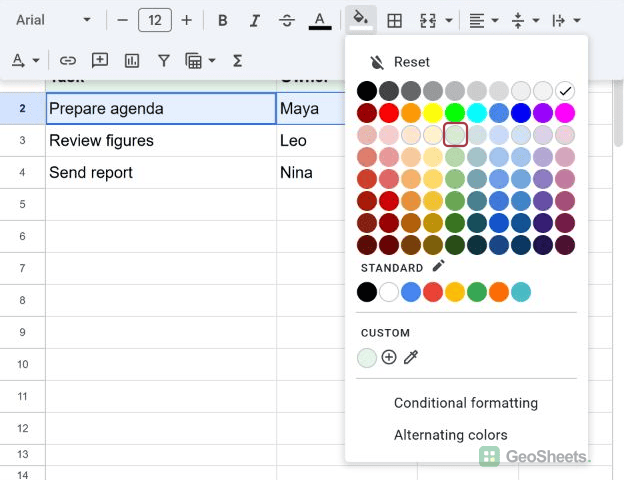
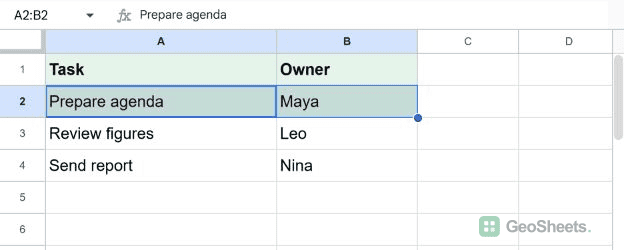
Here, A2:B2 uses the light green 3 preset. The task and owner remain unchanged.
Google’s color help documents selecting cells, clicking Fill color, and choosing a preset or custom color. Fill color changes the background, not the cell value or formula.
How to Use a Custom Fill Color
- Open Fill color again.
- Click the + button labeled Add a custom color.
- Enter a Hex code, such as #E6F4EA, or the corresponding RGB values: 230, 244, 234.
- Click OK.
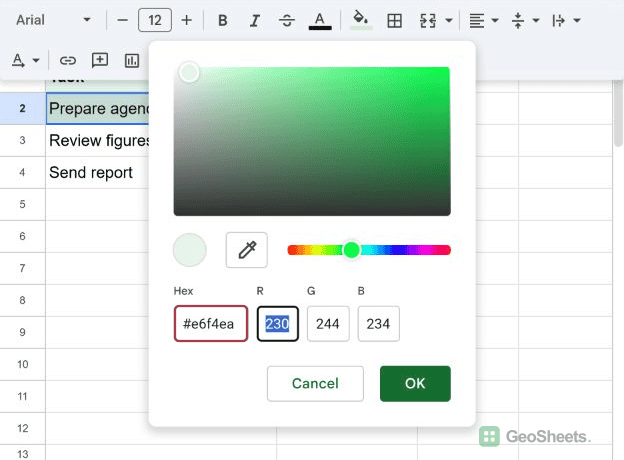
The selected cells now use that custom background. You can choose the saved swatch from the palette when applying the same color elsewhere.
Google also documents an eyedropper for selecting a color from the screen. That tool is supported in Chrome and Edge browsers.
Can You Create Your Own Fill Color Shortcut?
Google Sheets supports recorded macros with custom shortcuts. This is useful when you repeatedly apply the same formatting in a spreadsheet.
Choose Extensions > Macros > Record macro, record the formatting action, then save the macro with a name and shortcut. Test it on spare cells before using it on working data.
Use relative references when the action should follow the selected cell. Absolute references repeat the action on the recorded cells, even when another cell is selected.
Macros create Apps Script code and can require authorization. This route repeats the recorded action; it does not create a universal shortcut for opening the color palette.
How to Remove a Fill Color
Select the colored cells, open Fill color, and choose Reset at the top of the palette. This removes the manually applied fill without deleting cell values.
If the color remains, check Format > Conditional formatting. A rule can still color the cell after its manual fill has been reset.
Change Fill Color Automatically with Conditional Formatting
Use a rule when the background should respond to data, such as a task changing to Done. A manual fill remains fixed until you change it yourself.
- Select the range to format.
- Choose Format > Conditional formatting.
- Choose the condition under Format cells if.
- Set the background under Formatting style, then click Done.
Google’s conditional-formatting instructions explain text, number, and custom-formula rules. Review the rule when a manual fill does not appear as expected.
Other Google Sheets articles you may also like