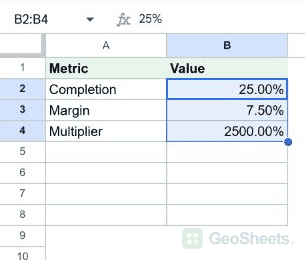
You’ve got a column of ratios or rates that should read as percentages. Right now they’re sitting there as plain decimals like 0.25 and 0.187.
A single keystroke flips the selected cells to percent format. The display gets multiplied by 100 and a % sign sits at the end.
Format as Percent Keyboard Shortcut in Google Sheets
Format as Percent Keyboard Shortcut (
Windows)
Ctrl + Shift + 5
Format as Percent Keyboard Shortcut (
Mac)
⌘ + Shift + 5
What this shortcut does
The shortcut applies percent format to the cells in your selection. The stored value doesn’t change. The display does.
A cell holding 0.25 shows as 25%. A cell holding 1 shows as 100%. A cell holding 0.005 shows as 0.5% (with a couple of toolbar clicks to add decimal precision).
If a cell already holds a whole number like 25 and you apply percent format, it displays as 2500%. The shortcut doesn’t divide by 100, it just adds the % sign and shifts the visible decimal place.
How to use it (step by step)
- Select the cell or range to format.
- Press the shortcut for your platform.
- The cells now show as percentages with the
%sign at the end. - Use the toolbar’s increase / decrease decimal buttons to control how many decimal places show.
Quick example. Type 0.25 into A1 and 0.187 into A2.
Select both cells and press the shortcut. A1 reads 25% and A2 reads 19% (Sheets defaults to no decimal places).
Click the increase-decimal toolbar button twice and A2 now reads 18.70%. Same stored value, just more precision on screen.
Alternative method (toolbar and menu)
Two more ways to apply the same format:
- The
%button on the toolbar does the same thing in one click. - Format → Number → Percent through the menu, useful when you want to combine percent format with custom decimal rules.
For full control over decimal count, negative-value styling, or a custom pattern like 0.00%;[red]-0.00%, go through Format → Number → Custom number format.
Things to watch for
- The 25 vs 0.25 trap. People often type
25into a percent-formatted cell expecting25%, and get2500%. The stored value is what gets multiplied, so type0.25or=25/100to land on25%. - Apply the format first, type the number after. If the cell already has percent formatting, you can type
25%directly with the sign included and Sheets will store0.25for you. - Decimal precision is separate from the format. The shortcut sets the format. The toolbar buttons control how many decimals show.
- Formula references read the stored value. A SUM of a percent column adds the raw decimals, not the displayed
25%. So0.25 + 0.50is0.75, displayed as75%. - Reverting to a plain number.
Ctrl + Shift + 1(Win) or⌘ + Shift + 1(Mac) strips it back to the default number format.
Google Sheets keyboard shortcuts
Related Google Sheets shortcuts: