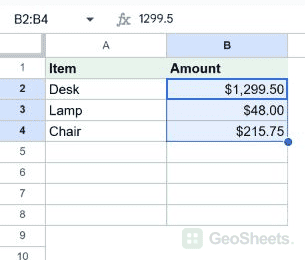
Format as Currency Shortcut in Google Sheets

You have a column of numbers that should read as dollars, euros, or rupees. Selecting each cell and walking through the Format menu works, but it’s slow.

There’s a single keystroke that flips the selected cells to your locale’s default currency format. The number itself doesn’t change, only the way it’s displayed.

Format as Currency Keyboard Shortcut in Google Sheets

Format as Currency Keyboard Shortcut (Windows Windows)

Ctrl + Shift + 4

Format as Currency Keyboard Shortcut (Mac Mac)

⌘ + Shift + 4

What this shortcut does

The shortcut applies the default currency format to every cell in your selection. A plain number like 1500 becomes something like $1,500.00.

The symbol that shows up depends on your file’s locale. A US locale gives you $, a UK locale gives £, an India locale gives , and so on.

The underlying value is untouched. 1500 is still 1500 to any formula referencing the cell. Only the display layer changes.

How to use it (step by step)

  1. Select the cell or range you want to format. A whole column works too.
  2. Press the shortcut for your platform.
  3. The cells now show your locale’s currency symbol, comma grouping, and two decimal places.
  4. To revert to a plain number, press Ctrl + Shift + 1 on Windows or ⌘ + Shift + 1 on Mac.

Quick example. Type 1500 into A1 and 2750.5 into A2.

Select both cells, press the shortcut, and the column reads $1,500.00 and $2,750.50 (assuming a US locale).

Type a new number into A3 like 999 and it stays plain, because formatting only sticks to cells already in the selection.

Alternative method (Format menu)

If you want a specific currency that doesn’t match your locale, like euros on a US sheet, the menu gives you the control:

  • Go to Format → Number and pick Currency for your locale’s default.
  • Or pick Custom currency to choose a different symbol, decimal count, or placement.
  • Format → Number → Accounting is the close cousin if you want negative values in parentheses and the symbol pinned to the left edge of the cell.

The toolbar $ button does the same thing as the shortcut, in one click.

Things to watch for

  • Locale drives the symbol. If you switch the file’s locale under File → Settings → Locale, every cell using the default currency format updates to the new symbol. Cells with a custom currency format stay as they were.
  • The underlying value doesn’t move. This trips people up when they sum a currency column and get an unrounded total. The displayed $1,500.00 might really be 1500.004, and the sum reflects the stored value.
  • Decimal places. The default is two. To change it, use the toolbar’s increase / decrease decimal buttons or set it under Custom currency.
  • A blank cell that’s been formatted is still blank. The format sits there waiting. Type a number in and it’ll dress up automatically.

Google Sheets keyboard shortcuts

Related Google Sheets shortcuts: