Format as Percent Shortcut in Google Sheets

You’ve got a column of ratios or rates that should read as percentages. Right now they’re sitting there as plain decimals like 0.25 and 0.187.

A single keystroke flips the selected cells to percent format. The display gets multiplied by 100 and a % sign sits at the end.

Format as Percent Keyboard Shortcut in Google Sheets

Format as Percent Keyboard Shortcut (Windows Windows)

Ctrl + Shift + 5

Format as Percent Keyboard Shortcut (Mac Mac)

⌘ + Shift + 5

What this shortcut does

The shortcut applies percent format to the cells in your selection. The stored value doesn’t change. The display does.

A cell holding 0.25 shows as 25%. A cell holding 1 shows as 100%. A cell holding 0.005 shows as 0.5% (with a couple of toolbar clicks to add decimal precision).

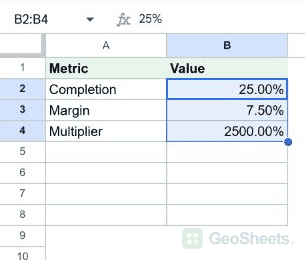
If a cell already holds a whole number like 25 and you apply percent format, it displays as 2500%. The shortcut doesn’t divide by 100, it just adds the % sign and shifts the visible decimal place.

How to use it (step by step)

  1. Select the cell or range to format.
  2. Press the shortcut for your platform.
  3. The cells now show as percentages with the % sign at the end.
  4. Use the toolbar’s increase / decrease decimal buttons to control how many decimal places show.

Quick example. Type 0.25 into A1 and 0.187 into A2.

Select both cells and press the shortcut. A1 reads 25% and A2 reads 19% (Sheets defaults to no decimal places).

Click the increase-decimal toolbar button twice and A2 now reads 18.70%. Same stored value, just more precision on screen.

Alternative method (toolbar and menu)

Two more ways to apply the same format:

  • The % button on the toolbar does the same thing in one click.
  • Format → Number → Percent through the menu, useful when you want to combine percent format with custom decimal rules.

For full control over decimal count, negative-value styling, or a custom pattern like 0.00%;[red]-0.00%, go through Format → Number → Custom number format.

Things to watch for

  • The 25 vs 0.25 trap. People often type 25 into a percent-formatted cell expecting 25%, and get 2500%. The stored value is what gets multiplied, so type 0.25 or =25/100 to land on 25%.
  • Apply the format first, type the number after. If the cell already has percent formatting, you can type 25% directly with the sign included and Sheets will store 0.25 for you.
  • Decimal precision is separate from the format. The shortcut sets the format. The toolbar buttons control how many decimals show.
  • Formula references read the stored value. A SUM of a percent column adds the raw decimals, not the displayed 25%. So 0.25 + 0.50 is 0.75, displayed as 75%.
  • Reverting to a plain number. Ctrl + Shift + 1 (Win) or ⌘ + Shift + 1 (Mac) strips it back to the default number format.

Google Sheets keyboard shortcuts

Related Google Sheets shortcuts: