
Use a custom number format to indent text in Google Sheets without adding spaces to the stored value. This works well for sub-items beneath category headings.
The tested desktop toolbar and Format > Alignment menu did not contain Increase indent or Decrease indent controls. The custom-format method below provides a reproducible alternative.
Indent text with a custom number format
- Select the text cells to indent, such as A3:A4 for Ads and Events.
- Choose Format > Number > Custom number format.
- Enter the format below: quotation marks containing four spaces, followed by @.
- Click Apply.
" "@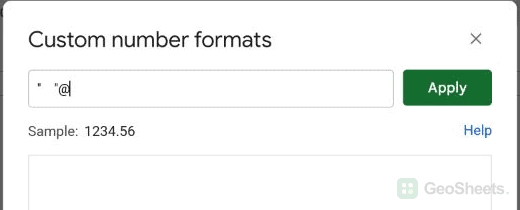
The @ displays the cell’s text. The quoted spaces add a visual offset before it. Change the number of spaces to adjust the amount.
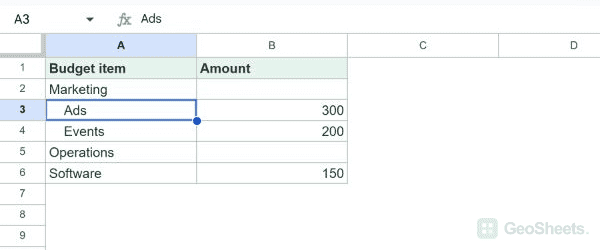
Keep category headings at the left edge
Apply the format to the sub-item cells only. Leave Marketing and Operations unformatted so the budget hierarchy remains visible.
Click an indented cell and inspect the formula bar. Ads remains Ads; the display format does not prepend spaces to its stored value.
Remove or reuse the indent
To remove this custom format, select the cells and choose Format > Number > Automatic. This resets their number format; other styling such as borders can remain.
To reuse the display format, copy formatting from an already indented cell with Paint format. It also copies the source cell’s other formatting, so choose an appropriate source.
Add actual spaces with a formula
=REPT(" ",4)&"Ads"This produces four leading spaces followed by Ads. Replace the quoted label with a cell reference to build an indented helper column.
Unlike the display-only method, these spaces are part of the resulting text. They affect length and exact comparisons, and may need cleaning before a lookup.
Choose the right method for numeric values
The demonstrated @ format is for text labels. Numeric amounts need a numeric format that preserves their decimal, currency, and negative-number display.
Right alignment positions content against the right side of the cell; it is not the same as a left indent. There is no dedicated indent shortcut in Google’s current shortcut reference.
See Google’s formatting guidance for the documented options.
Other Google Sheets articles you may also like