
PI() supplies an approximation to the mathematical constant pi, about 3.14159. It takes no arguments. Use it inside geometry and trigonometry formulas instead of typing a shortened constant.
PI function syntax
=PI()- Keep the empty parentheses when calling PI. There are no arguments.
- Use numeric radius values in a consistent unit for geometry formulas.
- The number shown in a cell depends on its format; displaying fewer digits does not necessarily reduce the stored calculation precision.
Set up the example data
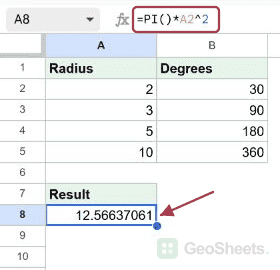
Enter this dataset starting in A1. The first row contains headings. Keep the result area separate from the source table.
| Radius | Degrees |
|---|---|
| 2 | 30 |
| 3 | 90 |
| 5 | 180 |
| 10 | 360 |
Calculate the area of a circle
Enter this formula in A8. The radius in A2 is 2, so the area is 4π, approximately 12.566371. The exponent ^2 squares the radius before multiplication.
=PI()*A2^2Result (rounded for display): 12.566371.
Calculate a circle’s circumference
For radius 3 in A3, multiply 2 by pi by the radius. The circumference is approximately 18.849556 and uses the same length unit as the radius.
=2*PI()*A3Result (rounded for display): 18.849556.
Convert degrees into radians
The angle 30 degrees is in B2. Multiplying by PI()/180 gives approximately 0.523599 radians, which can be used as input to trigonometric functions such as COS.
=B2*PI()/180Result (rounded for display): 0.523599.
Calculate the volume of a sphere
For radius 5 in A4, the formula (4/3)πr³ gives approximately 523.598776 cubic units. The parentheses around 4/3 make the coefficient easy to read.
=(4/3)*PI()*A4^3Result (rounded for display): 523.598776.
Round only when your result needs it
ROUND returns the circumference for radius 3 rounded to two decimal places: 18.85. This changes the result used by later formulas; a number format changes only the display.
=ROUND(2*PI()*A3,2)Result: 18.85.
Inspect PI’s available precision
This formats PI() as text with 14 decimal places, showing 3.14159265358979 in the native test. It demonstrates more digits than the nine decimal places stated on Google’s current reference page.
=TEXT(PI(),"0.00000000000000")Result: 3.14159265358979, returned as text.
Other Google Sheets articles you may also like