
Press Ctrl + H in Google Sheets on Windows or Command + Shift + H on Mac to open Find and replace.
Enter the old and new text, check the search range, then replace one match or every match. The dialog also supports case-sensitive, formula, whole-cell, and regular-expression searches.
Use the Find and replace shortcut
Windows and ChromeOS
Ctrl + H
In our Windows Chrome test, this shortcut opened the Find and replace dialog. Google lists the same shortcut for Windows and ChromeOS.
Mac
Command + Shift + H
Google documents this Mac shortcut in its Google Sheets shortcut list. We did not test it on a Mac.
You can always choose Edit > Find and replace. This opens the same dialog without a keyboard shortcut.
Find and replace text in a selected range
- Select the cells you want to change.
- Press Ctrl + H on Windows or use Edit > Find and replace.
- Enter the current text in Find and the new text in Replace with.
- Check the Search range and any matching options.
- Click Find, then Replace for one match or Replace all for every match in scope.
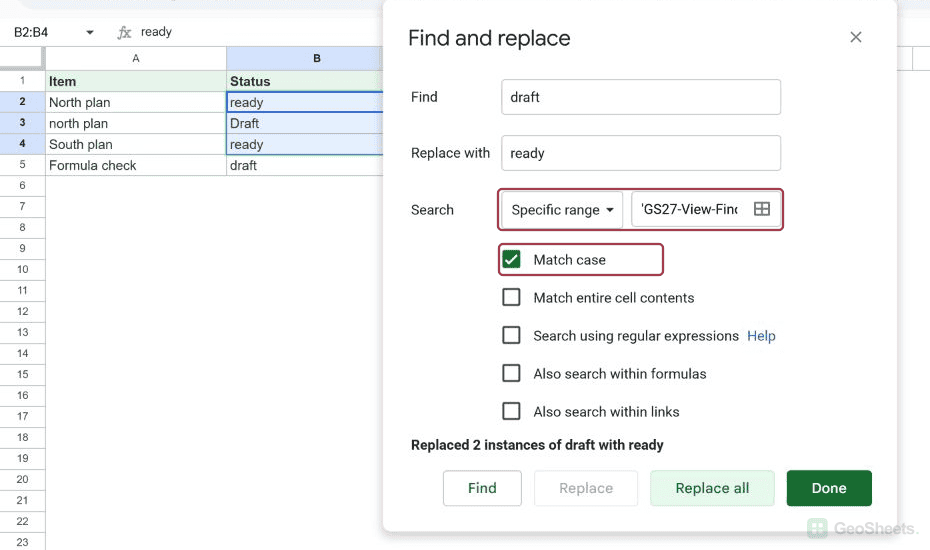
Our test selected B2:B4 before opening the dialog. Sheets automatically set Search to that specific range.
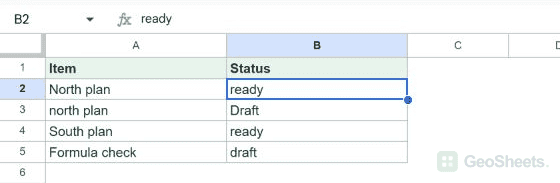
With Match case enabled, replacing draft with ready changed B2 and B4. It left Draft in B3 unchanged and reported two replacements.
Choose where Sheets searches
The Search menu can limit the operation to the current sheet, all sheets, or a specific range. Its available wording can reflect the selection you made before opening the dialog.
Use a specific range for one table or column. Choose all sheets only when the same replacement belongs in every tab.
Match case, whole cells, formulas, or patterns
- Match case treats
draftandDraftas different text. - Match entire cell contents excludes cells where the search text is only part of a longer value.
- Also search within formulas searches formula text instead of limiting the search to displayed values.
- Search using regular expressions finds text that follows a pattern.
In our test, the formula ="draft" stayed unchanged during an ordinary value replacement. Enabling formula search let us replace its formula text with ="reviewed".
A regex such as ^draft$ matches a cell containing only that word. Google Sheets uses RE2 patterns and supports replacement capture groups such as $1.
In the tested dialog, enabling regular expressions also enabled Match case. Review every checked option before replacing data.
Google’s Find and replace documentation includes regex examples and explains each search option.
Undo a replacement
If a replacement changes the wrong cells, press Ctrl + Z on Windows or Command + Z on Mac before continuing with unrelated edits.
For searches that should return a transformed value without changing the source cells, use the SUBSTITUTE function or REGEXREPLACE function.
Other Google Sheets articles you may also like