
Google Sheets does not offer a native superscript text style for cell contents. Paste a raised Unicode character such as ², or build a label with CHAR.
Paste a raised character
For a square-metre label, use m². This is text for presentation, not a numerical exponent operation.
- Copy ² from this article.
- Edit the target cell and type m.
- Paste ² after the m.
- Press Enter.
Create superscript with CHAR
CHAR(178) returns ². The following formula creates the text x²; the result is a label, not the square of a variable.
="x"&CHAR(178)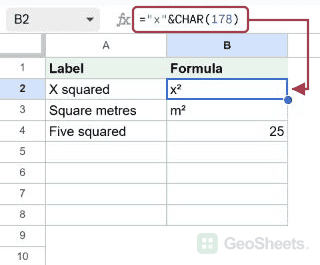
Copy common superscript characters
Digits: ⁰ ¹ ² ³ ⁴ ⁵ ⁶ ⁷ ⁸ ⁹. Signs and parentheses: ⁺ ⁻ ⁼ ⁽ ⁾. Useful letters include ⁱ and ⁿ; other modifier letters exist in separate Unicode blocks.
Calculate a power separately
Use the caret operator or POWER to calculate an exponent. For example, =5^2 calculates 25. Pasting 5² produces text notation rather than the same calculation.
Keep lookup keys consistent
x² and x2 contain different characters. A formatting command cannot toggle ² back to 2; replace the character itself. Use consistent keys when searching or matching labels.
Use Google Docs for true superscript styling
In Google Docs, Ctrl + period on Windows or Command + period on Mac raises selected text. That changes styling rather than character identity. Use actual Unicode characters when you need portable cell text.
Preview the chosen font
A font may not contain every modifier or superscript glyph. Check the displayed label and any export before relying on unusual characters. Avoid treating a short character list as the full Unicode repertoire.
Other Google Sheets articles you may also like