
If you want to combine text from several cells into one, with a delimiter between each piece, the TEXTJOIN function in Google Sheets is the cleanest way to do it.
It joins values with whatever separator you choose, and it can skip blank cells so you never end up with stray delimiters. In this article, I’ll walk you through how TEXTJOIN works with a handful of practical examples.
TEXTJOIN Function Syntax in Google Sheets
Here is how the TEXTJOIN function is structured.
=TEXTJOIN(delimiter, ignore_empty, text1, [text2, ...])
- delimiter is the text placed between each joined value, such as a space, a comma, or a dash.
- ignore_empty is TRUE or FALSE. TRUE skips empty cells so you don’t get doubled delimiters. FALSE keeps them.
- text1 is the first value or range to join.
- text2, … are optional extra values or ranges to include.
When to Use TEXTJOIN Function
- Combine first and last names into a single full-name column.
- Build an address line from separate city, state, and zip columns.
- Merge a whole list of items into one comma-separated string.
- Join values while skipping any blank cells in the range.
Example 1: Combine First and Last Names With a Space
Let’s start with the most common job, joining two name columns into one.
Below is the dataset with first names in column A and last names in column B, across rows 2 to 5.
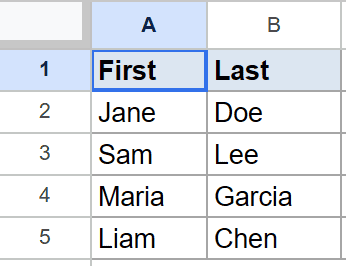
The goal is to put the full name in column C, with a space between the two parts.
Here is the formula:
=TEXTJOIN(" ",TRUE,A2:B2)
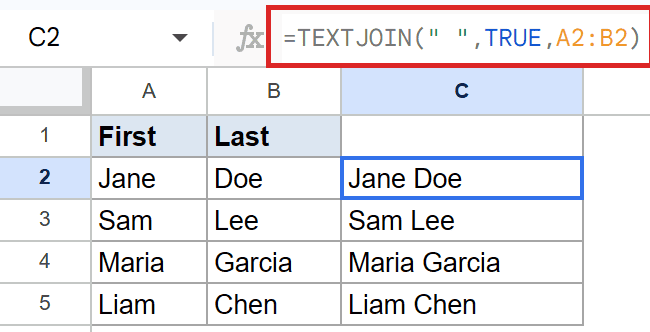
The first argument is a space, so that sits between the two names. The second argument is TRUE, which tells TEXTJOIN to skip any empty cells.
The range A2:B2 holds the values to join. The first row becomes Jane Doe, and you can fill the formula down for the rest of the list.
Example 2: Build a Full Address From City, State, Zip
Next, let’s stitch three columns into a single address line.
Below is the dataset with City in column A, State in column B, and Zip in column C, across rows 2 to 5.
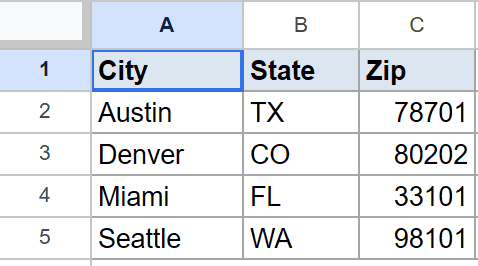
The goal is to combine all three parts into one line in column D, separated by a comma and a space.
Here is the formula:
=TEXTJOIN(", ",TRUE,A2:C2)
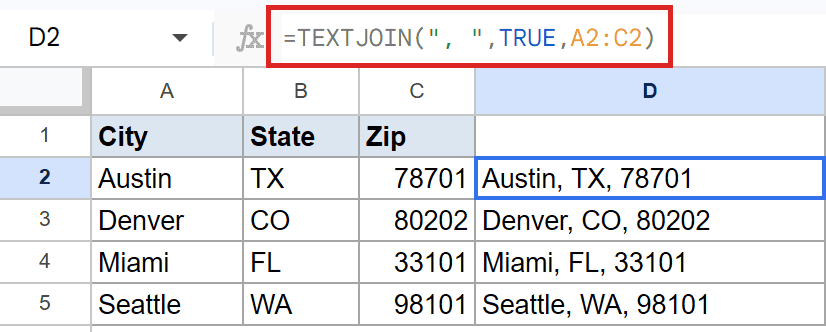
This time the delimiter is a comma followed by a space, which is the natural separator for an address. The range A2:C2 covers all three columns.
The first row becomes Austin, TX, 78701. Filling the formula down gives you a clean address line for every record.
Example 3: Skip Blank Middle Names Automatically
This example shows why the ignore_empty argument matters.
Below is the dataset with First, Middle, and Last name columns in A, B, and C. Some rows have a middle name and some leave it blank.
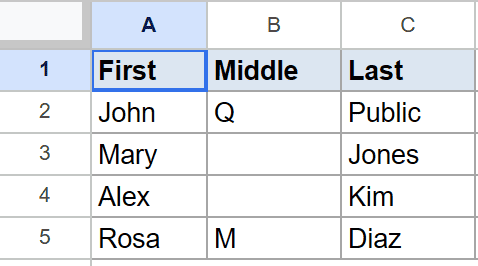
The goal is to build a full name in column D without extra spaces where the middle name is missing.
Here is the formula:
=TEXTJOIN(" ",TRUE,A2:C2)
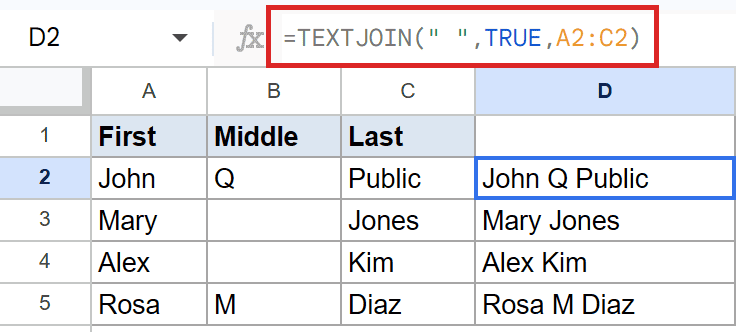
Because ignore_empty is TRUE, TEXTJOIN drops the blank middle cell instead of leaving a double space. A row with a middle initial becomes John Q Public.
A row with no middle name becomes Mary Jones, with a single space and nothing extra. If you set ignore_empty to FALSE, you would see two spaces in those rows.
Pro Tip: Set ignore_empty to TRUE whenever your data has gaps. It keeps your joined text clean without you having to check each row for blanks.
Example 4: Merge a Whole Column Into One Cell
Finally, let’s collapse an entire list into one cell.
Below is the dataset with a single Fruit column in A, holding six items from row 2 to row 7.
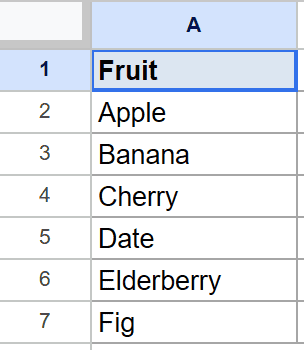
The goal is to gather every fruit into one comma-separated string in cell B2.
Here is the formula:
=TEXTJOIN(", ",TRUE,A2:A7)
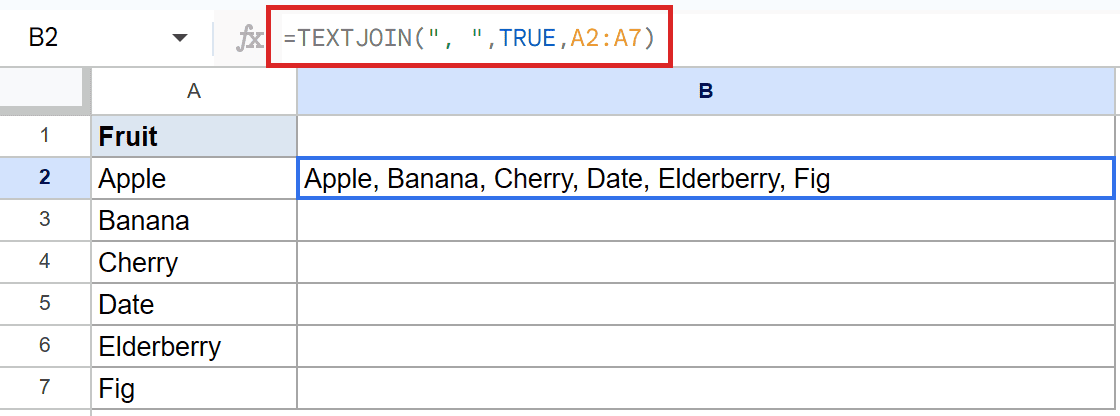
Here the range covers the whole column, A2:A7, instead of a single row. TEXTJOIN walks through every cell and joins them with a comma and a space.
The result becomes Apple, Banana, Cherry, Date, Elderberry, Fig in one cell. This is handy for turning a list into a single readable line.
Tips & Common Mistakes
- Wrap text delimiters in double quotes. A space is
" "and a comma is", ". Forgetting the quotes throws an error. - Set ignore_empty to TRUE when your range has blanks, or you’ll get doubled delimiters where cells are empty.
- TEXTJOIN returns text, so numbers like zip codes come back as text. If you need the length of that joined string, the LEN function counts the characters for you. To join values only when a condition is met, pair TEXTJOIN with the IF function so unwanted rows drop out before the join.
TEXTJOIN takes the busywork out of combining cells. Pick a delimiter, decide whether to skip blanks, and point it at your range. Once you’ve used it for names and addresses, you’ll reach for it any time you need to merge text.
List of All Google Sheets Functions
Related Google Sheets Functions / Articles: