
When you have an array result and want to trim it down to a specific number of rows and columns, the ARRAY_CONSTRAIN function in Google Sheets does it in one step. You hand it the source array along with the row and column limits, and it returns the top-left block of that size.
In this article, I’ll walk through five practical ARRAY_CONSTRAIN setups. You’ll see a simple list crop, a 2D table crop, top-N picks with SORT, capped FILTER results, and a trimmed SEQUENCE grid.
ARRAY_CONSTRAIN Function Syntax in Google Sheets
Here is how you write the ARRAY_CONSTRAIN function.
=ARRAY_CONSTRAIN(input_range, num_rows, num_cols)
- input_range is the source array or range you want to crop.
- num_rows is the maximum number of rows to return.
- num_cols is the maximum number of columns to return.
The result always comes from the top-left corner of the input. If you ask for more rows or columns than the source has, ARRAY_CONSTRAIN just returns whatever is there without raising an error.
When to Use ARRAY_CONSTRAIN Function
- Show only the first N rows of a long list without sorting or filtering.
- Pair with SORT to get a clean top-3 or top-10 leaderboard.
- Cap a FILTER result so a runaway match list doesn’t blow up your layout.
- Pull a fixed-size block (say 3 rows, 2 columns) out of a wider report.
- Trim an array generated by SEQUENCE, MAKEARRAY, or any other dynamic-array function.
Example 1: Crop the First N Rows of a List
Let’s start with the simplest case, trimming a single column down to its first few values.
Below is the dataset. Column A holds a list of sales figures across eight rows.
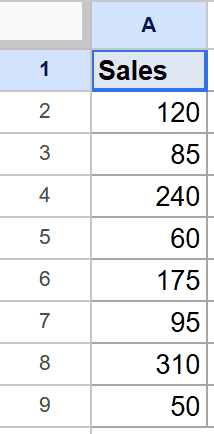
I want only the first three values from that list.
Here is the formula:
=ARRAY_CONSTRAIN(A2:A9, 3, 1)
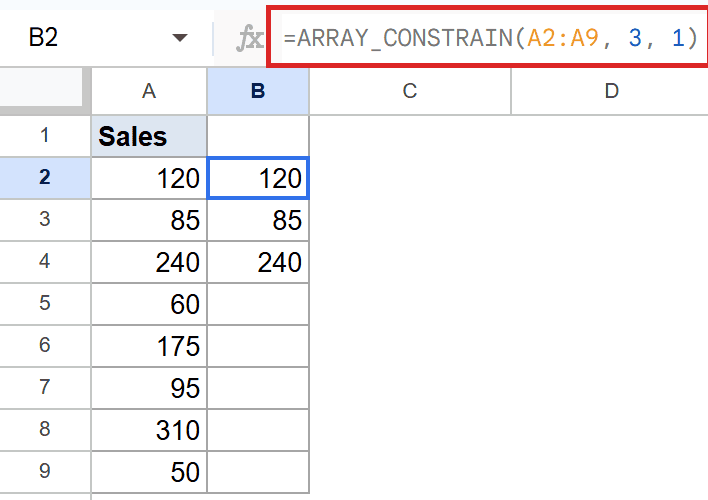
ARRAY_CONSTRAIN reads A2:A9 (eight rows, one column) and returns just the top three rows. The result spills into B2:B4 as 120, 85, 240.
The third argument is 1 because the source is one column wide. If you set it to 2 here, ARRAY_CONSTRAIN would still return one column since the source only has one. It never invents extra cells.
Example 2: Crop Rows and Columns From a 2D Table
ARRAY_CONSTRAIN shines when you have a wider table and want a fixed block out of it.
Below is the dataset. Column A has the name, column B has sales, and column C has bonus, across five rows.
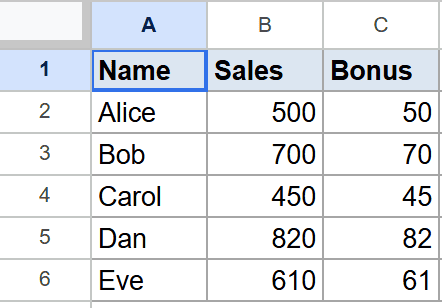
I want the first three rows but only the first two columns (name and sales, no bonus).
Here is the formula:
=ARRAY_CONSTRAIN(A2:C6, 3, 2)
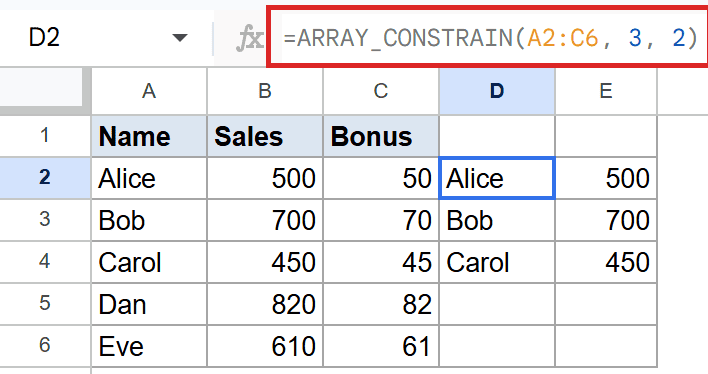
The crop pulls the top-left 3×2 block from A2:C6. The result is Alice/500, Bob/700, and Carol/450. The Bonus column is dropped because we capped column count at 2.
This is the cleanest way to grab a fixed-size preview out of a larger range without writing a separate INDEX or QUERY.
Example 3: Top 3 Highest Scores With SORT
A common pattern is to sort a list and keep only the top few rows. ARRAY_CONSTRAIN pairs naturally with SORT.
Below is the dataset. Column A has the name and column B has the score, across six rows.
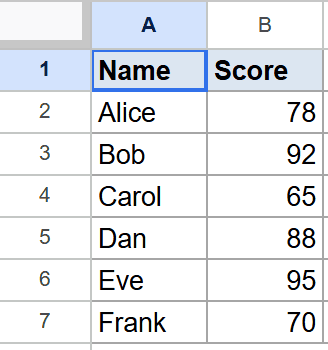
I want the three highest scorers along with their scores.
Here is the formula:
=ARRAY_CONSTRAIN(SORT(A2:B7, 2, FALSE), 3, 2)
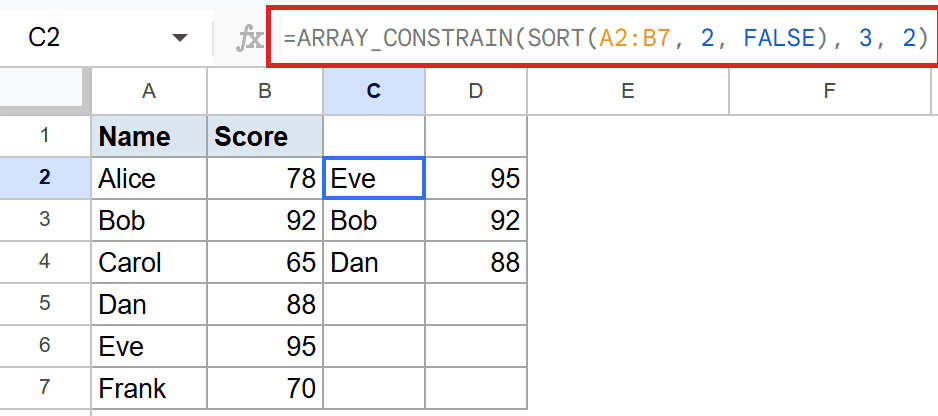
How this formula works:
- SORT(A2:B7, 2, FALSE) sorts the whole table by column 2 (score) in descending order.
- ARRAY_CONSTRAIN wraps that sorted array and keeps only the first 3 rows and 2 columns.
- The result is Eve at 95, Bob at 92, and Dan at 88.
You get a clean top-3 leaderboard without a helper column or a manual sort.
Pro Tip: This pattern works the same way for top-10 or top-100. Just change the row count from 3 to 10 or 100. The formula scales without any other edits.
Example 4: Limit a FILTER Result to the First N Matches
When you don’t know how many rows FILTER will return, ARRAY_CONSTRAIN caps the output so your layout stays predictable.
Below is the dataset. Column A has the product and column B has the sales figure, across six rows.
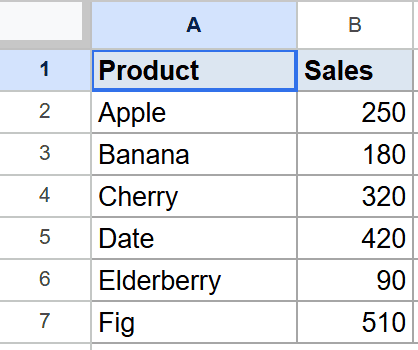
I want the first two products whose sales beat 200.
Here is the formula:
=ARRAY_CONSTRAIN(FILTER(A2:B7, B2:B7>200), 2, 2)
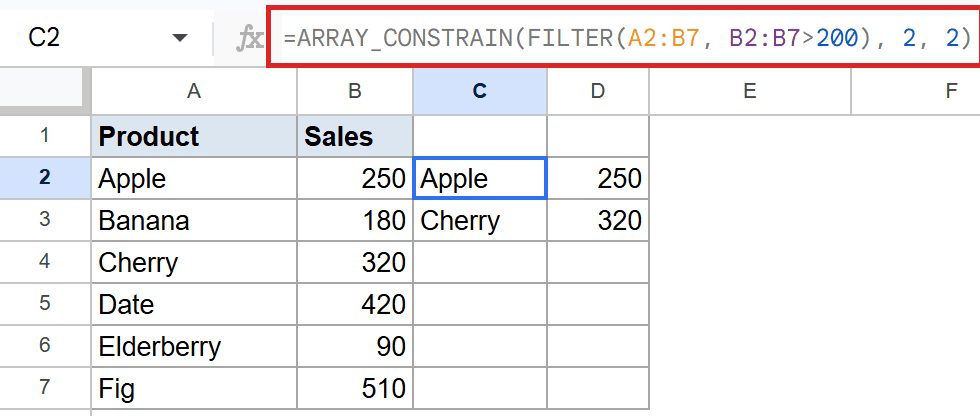
How this formula works:
- FILTER returns every row where sales are above 200 (Apple, Cherry, Date, Fig in this dataset).
- ARRAY_CONSTRAIN keeps only the first 2 rows and both columns.
- The result is Apple at 250 and Cherry at 320. Date and Fig are trimmed off.
Useful for dashboards where you want a “first few matches” snapshot rather than the entire filtered set.
Example 5: Crop a SEQUENCE-Generated Array
ARRAY_CONSTRAIN works on any array, including ones generated on the fly.
Below is the setup. The formula doesn’t read from a column. Instead, SEQUENCE builds a 5×3 grid of consecutive numbers in memory.

I want to crop that 5×3 grid down to a 3×2 block.
Here is the formula:
=ARRAY_CONSTRAIN(SEQUENCE(5,3), 3, 2)

SEQUENCE(5,3) generates a 5-row by 3-column grid starting at 1 (so 1-2-3 on row one, 4-5-6 on row two, and so on). ARRAY_CONSTRAIN keeps only the top-left 3 rows and 2 columns, which is 1/2, 4/5, 7/8.
This pattern is handy for tests, dummy data, or grids where you need a fixed-size block out of a generated array.
Tips & Common Mistakes
- Silent truncation when you ask for too many. If you request 10 rows from a 5-row source, ARRAY_CONSTRAIN returns all 5 without an error or warning. Double-check your source size if a result looks short.
- Always crops from the top-left. There is no “bottom 3” mode. To grab the last N rows, sort the source in reverse first, then ARRAY_CONSTRAIN.
- Don’t confuse it with FILTER. ARRAYCONSTRAIN trims by position, not by condition. If you want only rows matching a rule, use FILTER. If you want the first N rows regardless of value, ARRAYCONSTRAIN is the right tool.
ARRAY_CONSTRAIN is the simplest way to cap an array result in Google Sheets. You’ve now seen it on plain lists, 2D tables, sorted ranges, filtered output, and a SEQUENCE-generated grid.
List of All Google Sheets Functions
Related Google Sheets Functions / Articles: