If you want to know how much of a single loan payment actually goes toward paying down the principal, the PPMT function in Google Sheets gives you that piece directly. You hand it the rate, the period, the total number of periods, and the loan amount, and it returns the principal portion for that one payment.
In this article, I’ll show you how to use PPMT for the first monthly payment, a later month, an annual schedule, and a full year-by-year breakdown.
PPMT Function Syntax in Google Sheets
The PPMT function returns the principal payment for a given period of a fixed-payment loan.
=PPMT(rate, period, number_of_periods, present_value, [future_value], [end_or_beginning])
- rate is the interest rate per period. For a monthly schedule, this is the annual rate divided by 12.
- period is the payment number you want the principal for. 1 is the first payment, 2 is the second, and so on.
- number_of_periods is the total count of payments over the life of the loan. For a 5-year monthly loan, that’s 60.
- present_value is the loan amount, the cash you receive up front.
- future_value is the balance you want left at the end. Optional, defaults to 0 (loan fully paid off).
- end_or_beginning is 0 if payments are due at the end of each period, 1 if at the beginning. Optional, defaults to 0.
When to Use PPMT Function
- Find out how much of a specific loan payment goes toward principal versus interest.
- Build a loan amortization schedule alongside the IPMT and PMT functions.
- Compare the principal portion of early payments to later payments on the same loan.
- Forecast how a balance pays down year by year, not just monthly.
- Decide whether extra principal payments early on are worth it for a given rate.
Example 1: Principal Portion of the First Monthly Payment
Let’s start with the simplest case, the principal portion of the very first payment on a fixed-rate loan.
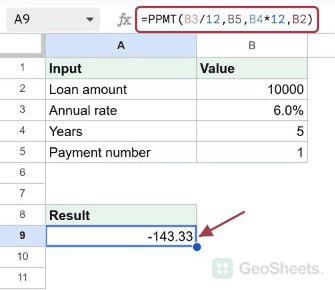
Below is the dataset, set up as a small input card. Column A lists the input labels (loan amount, annual rate, term in years, period in months) and column B holds the corresponding values. The loan is 10000 dollars at 6 percent annual, paid monthly over 5 years.
I want the principal portion of the first monthly payment, rounded to two decimals.

Here is the formula:
=ROUND(PPMT(B3/12, B5, B4*12, B2), 2)

How this formula works:
- B3/12 converts the 6 percent annual rate into the monthly rate of 0.5 percent.
- B5 is the period, which is 1 for the first payment.
- B4*12 turns the 5-year term into 60 monthly periods.
- B2 is the loan amount of 10000.
- The whole thing is wrapped in ROUND to keep the answer to two decimal places.
PPMT returns a negative number because it represents money leaving your account (a cash outflow). The principal portion of the first payment is around 143 dollars in absolute terms.
Pro Tip: PPMT returns a negative value because it’s a cash outflow from your perspective. If you’d rather display it as a positive number on a summary card, wrap the result in ABS or stick a minus sign in front of PPMT.
Example 2: Principal Portion in a Later Month of the Same Loan
Now let’s see what happens later in the loan, keeping every input the same except the period.
Below is the dataset. Same loan as before, with the period changed from 1 to 12 (the twelfth monthly payment).
I want the principal portion of payment number twelve.

Here is the formula:
=ROUND(PPMT(B3/12, B5, B4*12, B2), 2)

The formula is identical to Example 1. The only thing that changed is the period input in B5, which is now 12 instead of 1. PPMT returns a larger principal portion in absolute terms than the first payment.
That’s because on a fixed-payment loan, the principal portion grows each month as the interest portion shrinks. Early payments are mostly interest. By the end of the loan, it flips.
Example 3: Annual Rate With Yearly Payments Instead of Monthly
When payments are yearly, you don’t divide the rate by 12 and you don’t multiply the term.
Below is the dataset. The loan is 5000 dollars at 8 percent annual, paid yearly over 4 years. The period is set to 1 for the first yearly payment.
I want the principal portion of the first yearly payment.

Here is the formula:
=ROUND(PPMT(B3, B5, B4, B2), 2)

Here the rate argument is B3 directly (the 8 percent annual rate), the period is B5 (1), the total periods is B4 (4 years), and the loan is B2 (5000). No division and no multiplication, because the rate and the period are both in the same unit, which is years.
Pro Tip: The rate and the period count must use the same time unit. Monthly rate with monthly periods, annual rate with yearly periods. Mixing them (annual rate with monthly periods) is the single most common PPMT bug, and the result will be wildly off.
Example 4: Principal Paid Across Every Year of a Loan
Let’s build a year-by-year breakdown by referencing a period column and filling PPMT down.
Below is the dataset. Column A lists the period numbers 1 through 4 (one row per year), and column B is where the principal payment will be calculated. The loan is 5000 dollars at 8 percent over 4 years.
I want to see the principal portion grow row by row, one entry per year.

Here is the formula:
=ROUND(PPMT(0.08, A2, 4, 5000), 2)

The formula is filled down from B2 to B5. The period argument is A2, which adjusts automatically to A3, A4, and A5 as you copy the formula down. The rate, total periods, and loan amount stay constant.
The principal portion climbs each year. Across all four payments, the absolute principal portions sum to 5000, which is exactly the loan amount. That’s the math working out: by the final payment, the loan balance has been fully cleared.
Tips & Common Mistakes
- Match the time unit of rate and periods. For a monthly schedule, divide the annual rate by 12 and multiply the years by 12. For yearly payments, leave both alone. Skipping this is the single biggest source of wrong PPMT answers.
- The period must be between 1 and the total number of periods. PPMT returns a #NUM! error if you pass a period of 0, a negative period, or a period larger than the loan term. Use IF function to guard the call if the period comes from a user input.
- PPMT returns a negative number on purpose. Sheets uses the cash-flow convention where money you pay out is negative. Wrap PPMT in ABS if you want a positive display, or pass a negative loan amount if you’d rather see positive payment values.
PPMT pulls the principal portion of one specific loan payment with a single call. That’s the building block for any amortization schedule you’d want to build.
You’ve now seen it on the first monthly payment, a later month of the same loan, an annual schedule, and a full year-by-year breakdown with a fill-down.
List of All Google Sheets Functions
Related Google Sheets Functions / Articles: