
Press Ctrl + F on Windows or Command + F on Mac to find text in a Google Sheets tab. Enter the search text and use the arrows to move between matches.
Find text in the current sheet
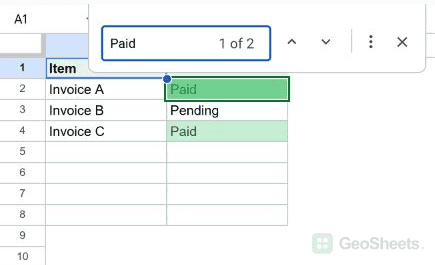
In the example, searching for Paid locates two matching cells. Find highlights matches without replacing the cell contents.
- Click inside the sheet.
- Press Ctrl + F, or Command + F on Mac.
- Type Paid, or your own search term.
- Use the search arrows to inspect matches, then press Escape to close Find.
Search all sheets or a selected range
Open Edit > Find and replace when the search needs a different scope. Its Search setting lets you choose the current sheet, all sheets, or a specific range.
Match the whole cell or letter case
Find and replace offers Match case and Match entire cell contents. Without a whole-cell restriction, Paid may also match a longer string containing those letters.
Search formulas or patterns
Use Also search within formulas to include formula text. Search using regular expressions lets you match patterns. These options belong to Find and replace rather than the small Find box.
Replace only when intended
Enter replacement text and use Find to inspect the match before clicking Replace. Replace all changes every match in the selected scope, so confirm that scope first.
Choose Find or the FIND function
The keyboard command navigates to matching cells. The FIND function returns a character position inside text and is case-sensitive. Use the function when a formula needs the position for extraction.
Other Google Sheets articles you may also like