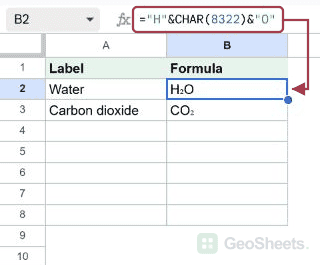
Subscript is text that drops slightly below the regular line. The “2” in H₂O is subscript. So is the “n” in xₙ.
It comes up in chemical formulas, math notation, and the occasional product code. Anywhere you want a small, lowered character sitting next to normal text.
Google Sheets has no built-in keyboard shortcut for subscript on Windows or Mac. There is no subscript style for cells at all. The fastest fix is to paste Unicode characters that already look lowered.
Is There a Keyboard Shortcut for Subscript in Google Sheets?
Subscript Keyboard Shortcut (
Windows)
No native keyboard shortcut on Windows. Sheets has no subscript style for cells. Use the Unicode method below.
Subscript Keyboard Shortcut ( Mac)
No native keyboard shortcut on Mac. Sheets has no subscript style for cells. Use the Unicode method below.
No, there is no keyboard shortcut and no subscript style in Google Sheets. Unlike Google Docs, you can’t highlight a few characters inside a cell and lower them below the baseline.
What works is Unicode. There’s a block of characters that already sit at subscript height. Type or paste them into a cell and they look right immediately. Digits are fully covered. Letter coverage is partial.
How to Add Subscript in Google Sheets (Step by Step)
The workflow is the same regardless of what you’re writing. Pick whichever method fits your situation.
Method 1: paste the Unicode characters directly.
- Find the character you need from the list in the next section.
- Copy it.
- Click into the cell, type the regular text, then paste the subscript character where it belongs.
For water, type H, paste ₂, type O. The cell reads H₂O.
Method 2: build it with the CHAR function.
Each character has a Unicode code point. Pull it into a formula with =CHAR(code).
=CHAR(8322) returns ₂. So ="H" & CHAR(8322) & "O" produces H₂O from a formula.
Handy when the chemical or index is generated dynamically.
Method 3: paste from Google Docs.
Type the formula in Docs, apply real subscript with Ctrl+, (or Cmd+, on Mac), then copy and paste into Sheets. Docs swaps in Unicode subscript characters where they exist.
Common Unicode subscript characters
- Digits:
₀ ₁ ₂ ₃ ₄ ₅ ₆ ₇ ₈ ₉ - Signs:
₊ ₋ ₌ - Parens:
₍ ₎ - Letters (partial set):
ₐ ₑ ₕ ᵢ ⱼ ₖ ₗ ₘ ₙ ₒ ₚ ᵣ ₛ ₜ ᵤ ᵥ ₓ
For chemical formulas like CO₂, NH₃, or H₂SO₄, the digit set is all you need. For math indices like xₙ or aᵢ, the available letters cover most of what you’ll write.
Another Way to Add Subscript
When you need real subscript formatting for a report, do that part in Google Docs.
Highlight the character, press Ctrl+, (Cmd+, on Mac), and Docs drops it below the baseline. Export to PDF and the styling holds.
Inside a spreadsheet cell, though, Unicode is the only option.
Things to Watch For
- Letter coverage is incomplete. Subscript
b,c,d,f,g,q,w,y, andzdon’t exist in standard Unicode. If your variable name needs one of those lowered, there’s no clean character to paste. - It’s static text. A subscript character can’t be toggled off. To change it, delete and retype.
- Sorting and lookups see different strings.
H₂OandH2Oare not equal as text. SORT, FILTER, and VLOOKUP will treat them as separate values, which matters if half your sheet uses Unicode and the other half uses plain digits. - Stick to one style per sheet. Mixing
CO2andCO₂in the same column makes filters and uniqueness checks miss matches. Pick one and stay with it. - Font compatibility. Default Sheets fonts render all common subscript characters. Some custom or display fonts skip the rarer ones and fall back to a box. Preview before you commit to a font.
Google Sheets keyboard shortcuts
Related Google Sheets shortcuts: