
Select the merged area and choose Unmerge from the merge dropdown in Google Sheets. The combined area becomes separate cells again.
Unmerging keeps the merged value in the upper-left cell. It does not restore other values that were discarded when the cells were originally merged.
Unmerge with the toolbar
- Select the merged cell or range, such as A1:C1.
- Click the arrow beside the Merge cells toolbar button.
- Choose Unmerge.
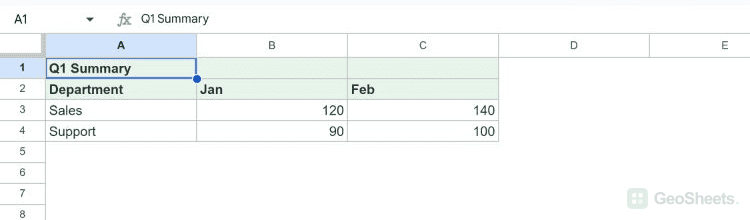
In the example, Q1 Summary remains in A1 while B1 and C1 become separate empty cells. The data rows underneath stay in place.
Google’s shortcut reference does not list a dedicated single shortcut for Unmerge. Use the toolbar dropdown or the Format menu below.
Unmerge through the Format menu
- Select the merged area.
- Choose Format > Merge cells > Unmerge.
If Unmerge is unavailable, check that your selection includes a merged area and that you have permission to edit it. The control is beside the border and alignment tools in the desktop interface.
Unmerge several areas together
Select the bounded range containing the merged areas, then use the same Unmerge command. Include the complete merged areas in the selection.
If you intend to unmerge everything on a tab, select the whole sheet first. This affects unrelated merged headings too, so use a smaller range when possible.
Understand what happens to the data
Only the value currently stored in the merged cell remains. Unmerge does not split a sentence into several cells or reconstruct previously deleted entries.
Use Undo promptly if you need to reverse the original merge. For text that needs separating by a delimiter, use Split text to columns or the SPLIT function.
Keep the layout readable afterward
Check borders, alignment, and column widths after unmerging. The separate cells may need new borders to make their boundaries clear, especially when gridlines are hidden.
Unmerging alone is not a command to remove conditional-formatting rules. Inspect the applicable rules if colors still appear after the cells are separated.
See Google’s formatting guidance for the documented options.
Other Google Sheets articles you may also like