
You can insert symbols in Google Sheets by copying a character into a cell, using CHAR or UNICHAR, or opening the Emoji picker. For a searchable special-character catalog, use Google Docs and copy the result.
Copy a Symbol Directly into a Cell
Copy a symbol from this table, select a cell, and paste it. To add it beside existing text, enter cell-editing mode and place the cursor where the symbol should go before pasting.
| Name | Symbol | Decimal Unicode value |
|---|---|---|
| Check mark | ✓ | 10003 |
| Summation | ∑ | 8721 |
| Greek capital sigma | Σ | 931 |
| Copyright | © | 169 |
| Right arrow | → | 8594 |
| Degree sign | ° | 176 |
| Plus or minus | ± | 177 |
These are text characters. Copying an image of a symbol produces a different type of content. Use the actual character when you need it in text, formulas, or labels.
Insert a Symbol with CHAR
=CHAR(8721)This returns ∑, the mathematical summation sign. Enter a decimal Unicode number as the argument. In Google Sheets, CHAR uses the current Unicode table; it is not limited to ASCII or codes below 256.
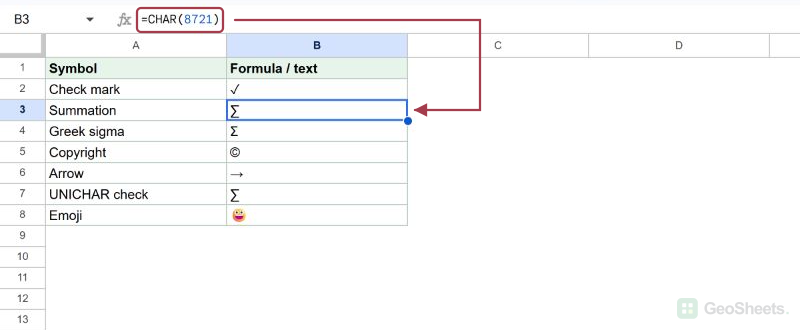
=CHAR(10003)This returns ✓. The copyright formula is =CHAR(169), and =CHAR(8594) returns →. Use a cell reference instead of a literal number if another cell supplies the code.
To combine a symbol with text, use the ampersand:
=CHAR(10003)&" Complete"The result is ✓ Complete. If you need a fixed character instead of a formula, copy the result and use Paste special → Values only.
Use UNICHAR and Understand the Code
=UNICHAR(8721)This also returns ∑ in the tested Google Sheet. CHAR already supports Unicode here, so you do not need UNICHAR merely because a character’s code exceeds 255.
Σ and ∑ are different characters. Code 931 produces Greek capital sigma. Code 8721 produces the n-ary summation sign. They are not simply small and large versions of the same symbol.
Unicode references often show hexadecimal codes, such as U+2211. The formulas above use decimal numbers. Convert the hexadecimal value before supplying it as the numeric argument.
For example, hexadecimal 2211 is decimal 8721. Do not type U+2211 directly into CHAR as though it were a numeric argument.
Find a Symbol in Google Docs
- Open a Google document.
- Choose Insert → Symbols → Special characters. In interfaces with a shorter menu, choose Insert → Special characters.
- Search for the character by name or Unicode value, browse the categories, or draw its shape in the drawing area.
- Click the character to insert it into the document.
- Select and copy the inserted character, then paste it into a Google Sheets cell.
The special-character dialog belongs to Docs and Slides. Sheets has an Emoji picker, but that is not the same as the full special-character catalog.
Search is useful when you know a name such as “summation.” Drawing helps when you recognize a shape but do not know what it is called. Check the selected character before copying it.
Insert an Emoji Directly in Google Sheets
- Select a cell or place the cursor inside existing cell text.
- Choose Insert → Emoji, or type @emoji and press Enter.
- Search or browse for the emoji and select it.
Emoji appearance can differ by operating system and font. A check-mark emoji and the plain ✓ character can have different colors, widths, and presentation, even when they communicate a similar idea.
Use the Windows Character Map
- Search Windows for Character Map and open it.
- Choose a font that contains the character.
- Select the character, add it to Characters to copy, and click Copy.
- Return to Sheets and paste it into the destination cell.
The Advanced view offers additional search and character-set options. If a symbol is missing from the current font, choose a suitable font or use the Google Docs catalog instead.
Use a Windows Alt Code
On a compatible Windows keyboard, hold Alt while entering a supported code on the numeric keypad, then release Alt. Put the cursor inside the cell’s text before entering the code.
Alt codes depend on the code system, leading zeros, keyboard setup, and application. They are not interchangeable with decimal Unicode values used by CHAR. The number row above the letters is not a numeric keypad.
If your laptop lacks a suitable numeric keypad, copying the character or using CHAR is more predictable. Do not present Windows Alt-code entry as a Mac shortcut.
Use the Operating System’s Character Picker
On Windows, Windows + period opens the emoji panel. On Mac, Control + Command + Space opens the character viewer. Place the text cursor in the destination cell before choosing a character.
The available tabs and symbol categories vary by operating system version. This is an operating-system feature, separate from the Insert → Emoji command inside Sheets.
Use an Add-on or a Character Website
An add-on can provide another character catalog. Open Extensions → Add-ons → Get add-ons to inspect available tools. Check the current listing, price, requested access, and compatibility before choosing one.
After installation, follow that add-on’s own instructions under Extensions. Menu labels and licensing differ, so a particular developer’s old screenshot is not a reliable guide for every current add-on.
You can also find a character on a Unicode reference website and copy the actual text. Verify its name and code when similar-looking symbols have different meanings.
An add-on is optional for the methods above. Installing one does not normally mean reinstalling it in every new Sheets session; account and administrator restrictions can affect availability.
Keep Symbols Separate from Numeric Data
Typing a degree sign or currency character directly into a number can turn the entry into text. Use a suitable number format when the value must remain numeric for calculations.
If a pasted symbol appears as an empty box, the font may lack that character. Try another font and confirm the underlying character before replacing it with a picture.
Other Google Sheets articles you may also like