
If you want to pull a specific piece of text out of a longer string, like a number, a domain, or a word, the REGEXEXTRACT function in Google Sheets does it with a pattern. You tell it what shape of text to look for, and it hands back the first match.
In this article, I’ll show you how to use REGEXEXTRACT to grab digits, domains, words, prices, and text tucked inside brackets.
REGEXEXTRACT Function Syntax in Google Sheets
Here is how the REGEXEXTRACT function is written.
=REGEXEXTRACT(text, regular_expression)
- text: the cell or string you want to search inside.
- regular_expression: the pattern that describes the piece you want. If it has a capture group in parentheses, REGEXEXTRACT returns just that group.
When to Use REGEXEXTRACT Function
- You want to lift a number, code, or ID out of mixed text.
- You are cleaning up emails, URLs, or file names and need one part of each.
- You want the first word, the last chunk, or the text between two markers.
- A simple LEFT or MID would not work because the piece sits at a different spot in each row.
Example 1: Extract the Digits From a String
Let’s start with the most common job, pulling a number out of text.
Below is the dataset. Column A holds short labels that each end with a number, and column B is where the result goes.
The goal is to grab just the run of digits from each label.
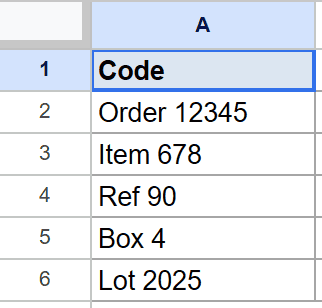
Here is the formula:
=REGEXEXTRACT(A2, "\d+")
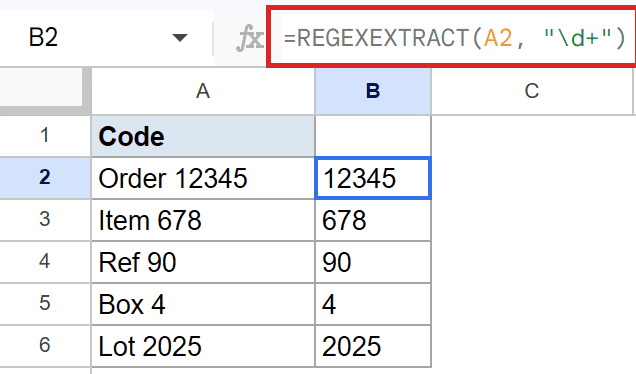
The pattern \d+ means one or more digits in a row. The \d matches a single digit and the + says keep going while there are more.
So the first row pulls out 12345, and each row below it picks up its own run of numbers. Note that REGEXEXTRACT returns text, so the result lines up to the left even though it looks like a number.
Pro Tip: If you need the result as an actual number you can do math on, wrap the formula in VALUE, like =VALUE(REGEXEXTRACT(A2, “\d+”)).
Example 2: Pull the Domain From an Email
Next up, grabbing everything after the @ sign in an email.
Below is the dataset. Column A holds email addresses and column B will hold each domain.
The goal is to return only the domain part, dropping the name before the @.
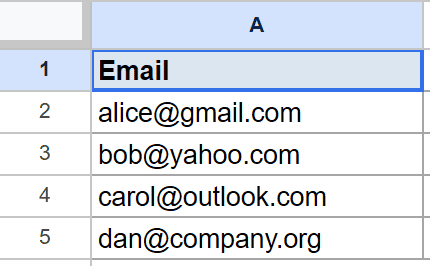
Here is the formula:
=REGEXEXTRACT(A2, "@(.*)")
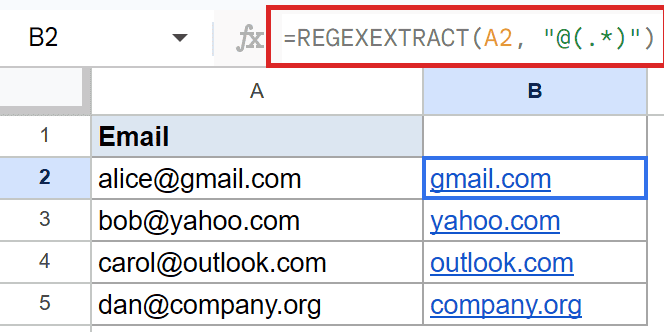
Here is how this formula works:
@matches the literal at sign in the address.(.*)is a capture group. The dot means any character and the star means any number of them.- Because the part you want sits inside the parentheses, REGEXEXTRACT returns only that group, not the @ itself.
So the first row leaves you with gmail.com, and the rest of the column comes back with each address’s own domain.
Example 3: Grab the First Word
Sometimes you just want the opening word of a phrase.
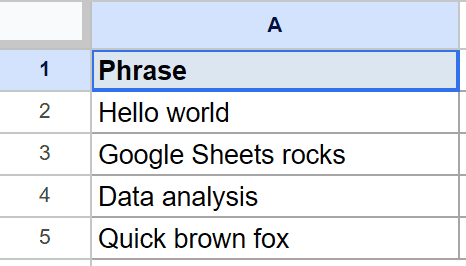
Below is the dataset. Column A holds short phrases and column B will hold the first word from each.
The goal is to capture only the word at the very start of the string.
Here is the formula:
=REGEXEXTRACT(A2, "^\w+")
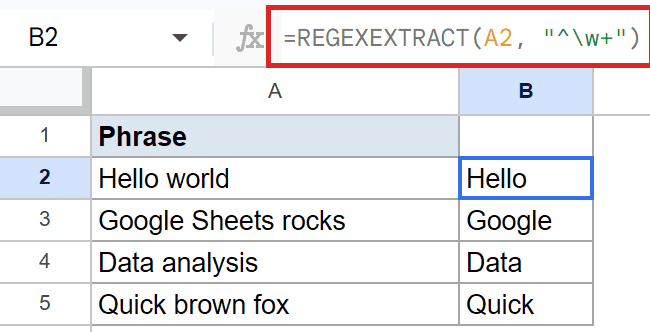
The ^ anchors the pattern to the start of the string, so the match has to begin there. The \w+ then matches one or more word characters, which means letters, digits, or underscores.
Put together, the first row pulls out Hello, and each row below grabs its own opening word and stops at the first space.
Example 4: Extract a Price With Decimals
Now let’s pull a price out of a sentence.
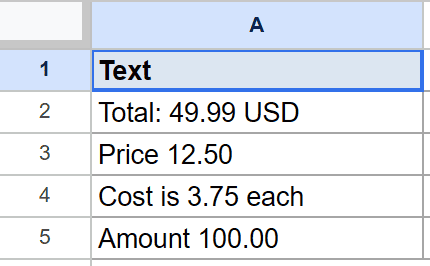
Below is the dataset. Column A holds sentences that each contain a price, and column B will hold the extracted amount.
The goal is to match a number that has a decimal point in it.
Here is the formula:
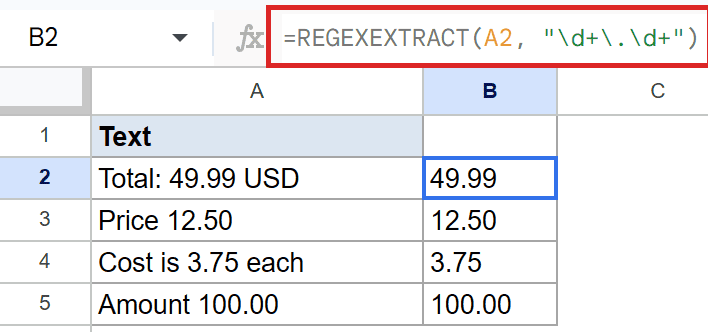
=REGEXEXTRACT(A2, "\d+\.\d+")
Here is how this formula works:
\d+matches the digits before the decimal point.\.matches a literal dot. The backslash is needed because a plain dot means any character.\d+then matches the digits after the point.
So the first row leaves you with 49.99, and each row below pulls out its own price. The result is still text, so wrap it in VALUE if you plan to total it.
Example 5: Extract Text Between Brackets
Last one, getting whatever sits inside square brackets.
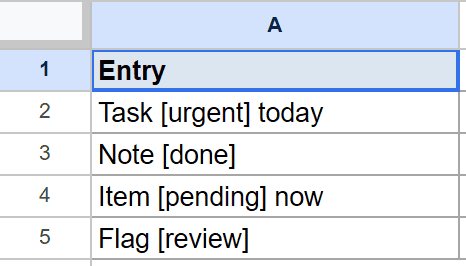
Below is the dataset. Column A holds entries with a tag in square brackets, and column B will hold the tag.
The goal is to return only the text between the brackets, without the brackets themselves.
Here is the formula:
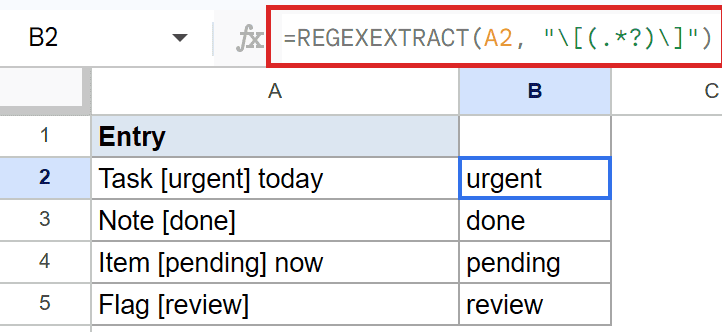
=REGEXEXTRACT(A2, "\[(.*?)\]")
Here is how this formula works:
\[and\]match the literal opening and closing brackets. They are escaped because brackets have a special meaning in patterns.(.*?)is a lazy capture group. The?tells it to grab as little as possible, so it stops at the first closing bracket instead of running to the last one.
So the first row pulls out urgent, and each row below returns its own tag from inside the brackets.
Tips & Common Mistakes
- If no part of the text matches the pattern, REGEXEXTRACT throws a #N/A error. Wrap it in IFERROR to show a blank or a fallback instead.
- The result is always text, even when it looks like a number. Use VALUE around it before doing any math.
- Escape special characters like the dot, brackets, and parentheses with a backslash when you mean them literally, or the pattern will read them as commands.
REGEXEXTRACT is the tool to reach for when the piece you want lives at a different spot in every row. Once you learn a handful of patterns, most cleanup jobs come down to picking the right one. If your end goal is counting matches rather than pulling them, see how to count cells with text instead.
List of All Google Sheets Functions
Related Google Sheets Functions / Articles: