
The FIND function in Google Sheets tells you the position of one piece of text inside another. Point it at a character or word, and it gives back the spot where that text starts.
It is case-sensitive, so “A” and “a” count as different characters. That makes it the precise option when capitalization matters in your data.
FIND Function Syntax in Google Sheets
Here is the syntax for the FIND function.
=FIND(search_for, text_to_search, [starting_at])
- search_for — the text you want to find inside the larger string.
- text_to_search — the cell or string where you want to search.
- starting_at — optional. The character position where the search begins. Defaults to 1.
When to Use FIND Function
A few common scenarios where FIND comes in handy.
- Pulling the username out of an email address by locating the @ sign.
- Splitting a full name into first and last by finding the space.
- Checking whether a specific code or keyword sits inside a longer text entry.
- Powering nested formulas like LEFT, MID, or RIGHT that need a position to slice on.
- Validating data by flagging rows that are missing a required character.
Example 1: Find the Position of a Character in a Word
Let’s start with the simplest case, finding where a single letter sits inside a word.
Below is the dataset with five short words in column A.
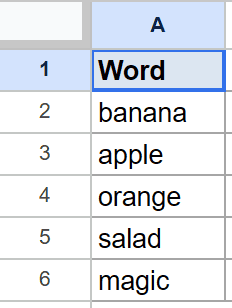
We want the position of the letter “a” in each word.
Here is the formula:
=FIND("a", A2)
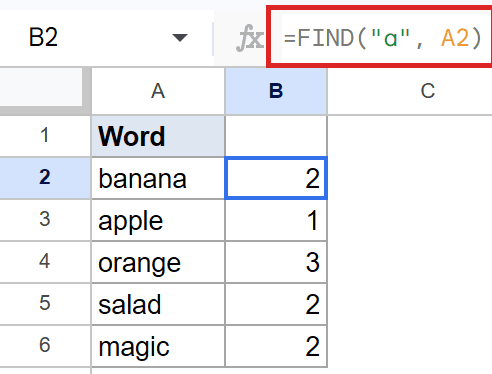
FIND scans the text from left to right and stops at the first match. In “banana” the letter “a” sits at position two, in “apple” it sits at position one, and so on.
Remember that FIND is case-sensitive. Searching for “A” instead of “a” in these words would give a #VALUE! error since none of them start with a capital A.
Pro Tip: If you want a case-insensitive search instead, use SEARCH. It takes the same arguments as FIND but treats “A” and “a” as the same character.
Example 2: Find the @ Sign Inside an Email Address
This is one of the most common reasons to reach for FIND, locating the @ sign that splits a username from a domain.
Below is the dataset with five email addresses in column A.
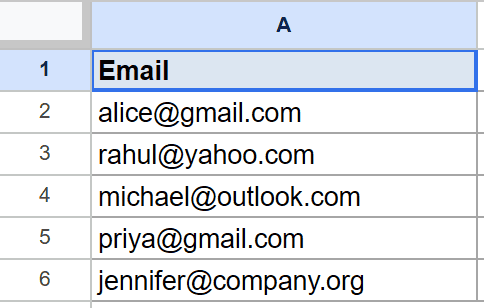
We want the position of the @ symbol in each email.
Here is the formula:
=FIND("@", A2)
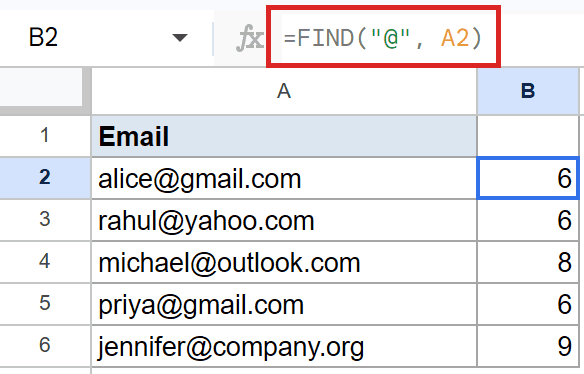
For “alice@gmail.com” the @ sits at the sixth character, so the formula gives six. For longer usernames like “michael” the position shifts to eight.
Once you have the @ position, you can pair it with LEFT to grab the username or with LEN and RIGHT to grab the domain. That’s the workhorse pattern for parsing emails in Sheets.
Example 3: Find the Second Space Using the Starting-At Argument
The optional third argument is what unlocks FIND beyond the first match. You tell it where to start looking, and it skips everything before that point.
Below is the dataset with five full names that each contain two spaces.
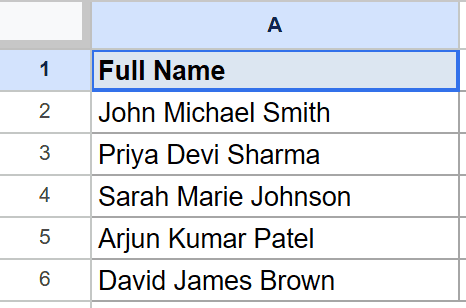
We want the position of the second space in each name.
Here is the formula:
=FIND(" ", A2, FIND(" ", A2)+1)
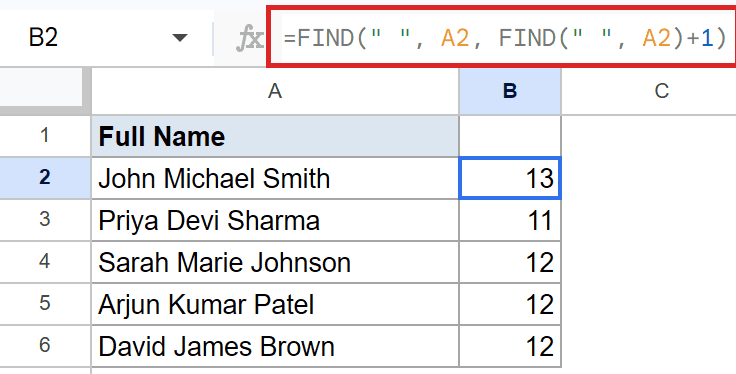
How this formula works:
- The inner
FIND(" ", A2)locates the first space. - Adding one tells the outer FIND to begin searching from the character right after that first space.
- The outer FIND then returns the position of the next space it hits, which is the second one.
For “John Michael Smith” the second space sits at position thirteen, and for “Priya Devi Sharma” it sits at position eleven.
Example 4: Combine FIND With LEFT to Extract the First Name
FIND becomes most useful when it feeds another function. Pairing it with LEFT is the classic way to slice the first part of a string up to a delimiter.
Below is the dataset with five full names in column A.
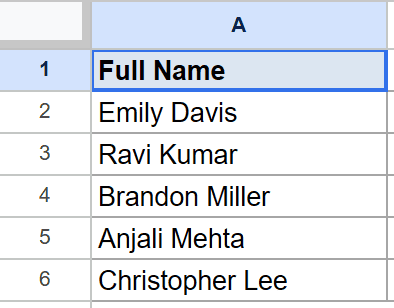
We want to extract just the first name from each row.
Here is the formula:
=LEFT(A2, FIND(" ", A2)-1)
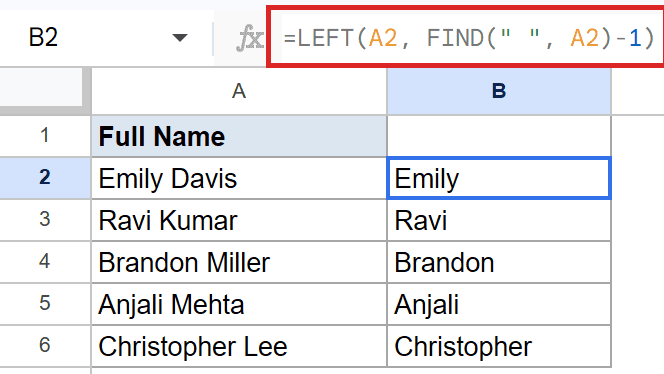
How this formula works:
FIND(" ", A2)locates the first space in the name.- Subtracting one gives the position of the last character before that space, which is the last letter of the first name.
- LEFT then pulls that many characters from the start of the string.
For “Emily Davis” the formula pulls the first name Emily, for “Ravi Kumar” it pulls Ravi, and the same pattern holds for the rest of the rows.
A similar pattern with RIGHT and LEN gives you the last name, and using MID with two FIND calls lets you grab a middle chunk.
Example 5: Handle Missing Substrings With IFERROR
FIND returns a #VALUE! error when the substring is not in the text. That’s noisy in a results column, so wrap the call in IFERROR to swap the error for a friendly label.
Below is the dataset where some rows are emails and others are plain text without an @ sign.
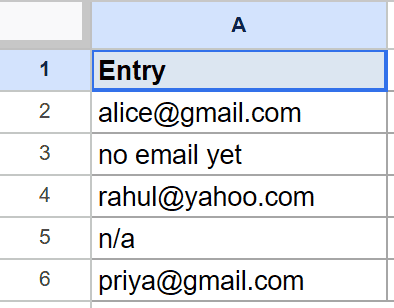
We want the position of @ where it exists, and a “no @” tag where it doesn’t.
Here is the formula:
=IFERROR(FIND("@", A2), "no @")
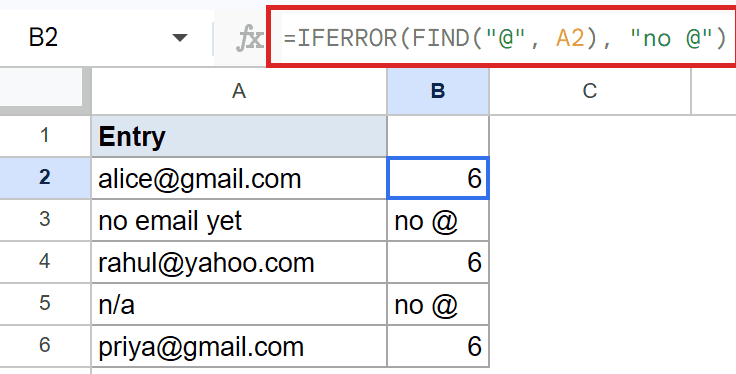
For the email rows the formula returns 6 for “alice@gmail.com” and “rahul@yahoo.com”, and 6 again for “priya@gmail.com”. For “no email yet” and “n/a” there is no @ to find, so IFERROR steps in and the cell shows “no @” instead of an error.
Pro Tip: You can replace “no @” with an empty string (“”) if you’d rather have blank cells, or with a number like 0 if a downstream formula needs to do math on the column.
Tips & Common Mistakes
- FIND is case-sensitive, SEARCH is not. If your data has mixed case and you don’t want to worry about matching exactly, swap FIND for SEARCH. Same arguments, looser matching.
- A missing substring throws #VALUE!, not a blank or a zero. Always wrap FIND in IFERROR when you can’t guarantee the substring is present, otherwise a single missing row will plant an error in your column.
- The starting_at argument is a character position, not an offset. A value of 1 starts the search at the very first character. Passing 0 or a negative number gives a #VALUE! error.
The FIND function is a small workhorse that pays off the moment you need to slice or test a string. On its own it tells you where something is, and paired with LEFT, RIGHT, or MID it does most of the text-parsing jobs you’ll run into in Google Sheets.
The next time you find yourself eyeballing a column of names or emails, reach for FIND and let the formula do the counting.
List of All Google Sheets Functions
Related Google Sheets Functions / Articles: