
If you want to take any value in a cell and turn it into its plain text version, the TO_TEXT function in Google Sheets does exactly that. It works on numbers, dates, and boolean values, and the result is always a string.
In this article, I’ll show you how TO_TEXT handles numbers, date serials, and TRUE/FALSE values. I’ll also cover how to use it inside a concatenation and how to wrap a computed value so the result is ready for string operations. TO_TEXT is Google Sheets only, so there’s no Excel equivalent.
TO_TEXT Function Syntax in Google Sheets
The TO_TEXT function converts any value to a string while preserving how the cell displays.
=TO_TEXT(value)
- value is the input you want to convert. It can be a number, a date, a boolean, a formula result, or a cell reference like A2. If the input is already text, TO_TEXT leaves it alone.
Worth knowing: TO_TEXT is not the same as TEXT. TEXT takes a value plus a format string and applies the format. TO_TEXT just hands you back the value as a plain string, with no formatting code involved.
When to Use TO_TEXT Function
- Convert a number to a string so you can concatenate it with another label cleanly.
- Turn a TRUE or FALSE into the literal text TRUE or FALSE for display in a report.
- Get the underlying serial number of a date as a string when you need the raw value.
- Force a computed value into text form before passing it to a string-only function.
- Stop a downstream formula from treating a number as a number when you want text behavior.
Example 1: Convert Numbers to Plain Text
Let’s start with the simplest case, plain numbers becoming text.
Below is the dataset. Column A has five numeric values ranging from negative to a million.
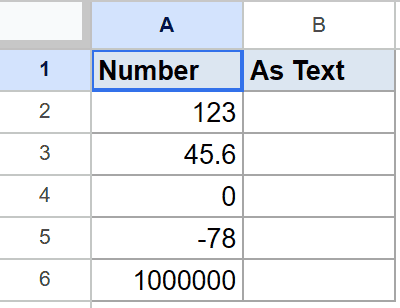
I want the text version of each number in column B.
Here is the formula:
=TO_TEXT(A2)
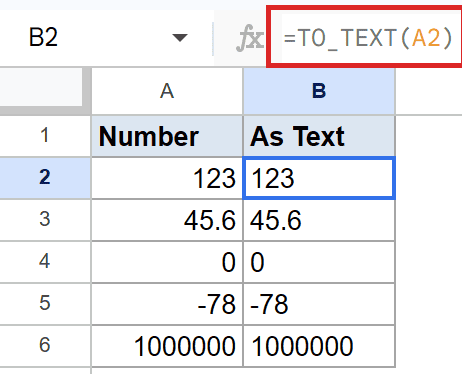
TO_TEXT reads the number in column A and hands back a string with the same digits. So 123 becomes the string 123, and 45.6 becomes 45.6.
You can tell the result is text rather than a number by the alignment. Numbers align to the right by default in Google Sheets, text aligns to the left. After TO_TEXT, column B sits flush left.
Pro Tip: If you need to control the number of decimals or add a thousand separator, use TEXT instead, like =TEXT(A2, “#,##0.00”). TO_TEXT just hands you the value as is.
Example 2: Convert Date Serials to Text
Dates in Google Sheets are stored as serial numbers under the hood. When you pass a date serial to TO_TEXT, you get the serial back as text.
Below is the dataset. Column A has five date serials with the cells formatted as General.
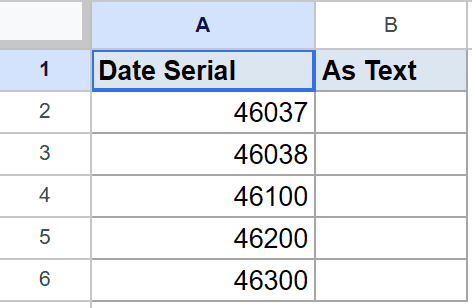
I want each serial as a string in column B.
Here is the formula:
=TO_TEXT(A2)
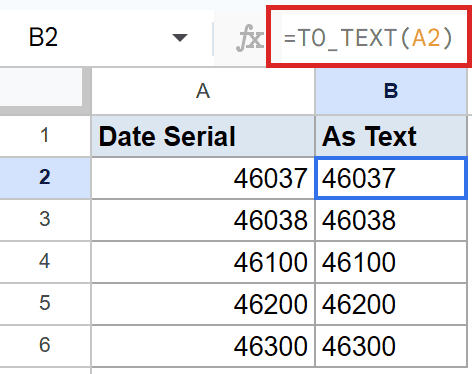
The first row holds 46037 and column B now reads 46037 as text. The second row, 46038, becomes the string 46038.
Heads up: TO_TEXT reflects the cell’s displayed value. If the source cell were formatted as a date, TO_TEXT would hand you a string like 1/15/2026 instead. Here the cells are General, so you see the raw serials.
Example 3: Convert TRUE and FALSE to Text
Booleans behave a little differently from numbers. TO_TEXT turns them into the literal strings TRUE and FALSE.
Below is the dataset. Column A has five boolean values, alternating between TRUE and FALSE.
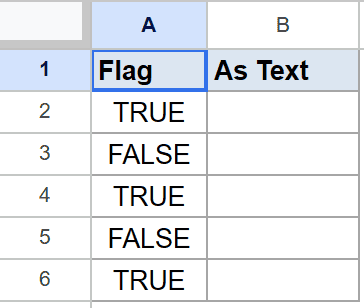
I want the text version of each flag in column B.
Here is the formula:
=TO_TEXT(A2)
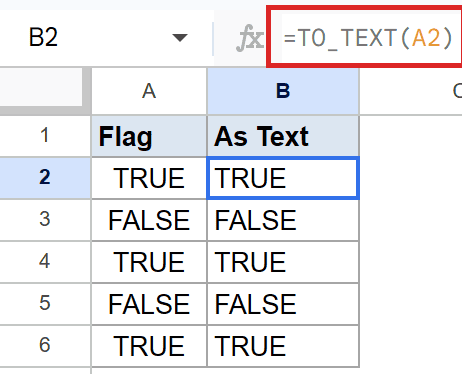
The first row’s TRUE becomes the string TRUE. The second row’s FALSE becomes FALSE. The values look identical to the source but they’re now text, not booleans.
This matters for downstream logic. A real TRUE behaves like the number 1 in math. The string TRUE does not. So after TO_TEXT, expressions like B2+1 will throw a #VALUE! error.
Example 4: Concatenate Quantity With a Unit Label
A common use case is gluing a number onto a unit label. TO_TEXT keeps the join clean, especially when paired with the & operator.
Below is the dataset. Column A has an item name and column B has the quantity in stock.
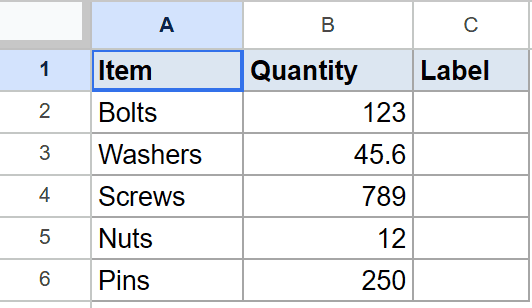
I want column C to read like 123 units, with the quantity from column B followed by the word units.
Here is the formula:
=TO_TEXT(B2)&" units"
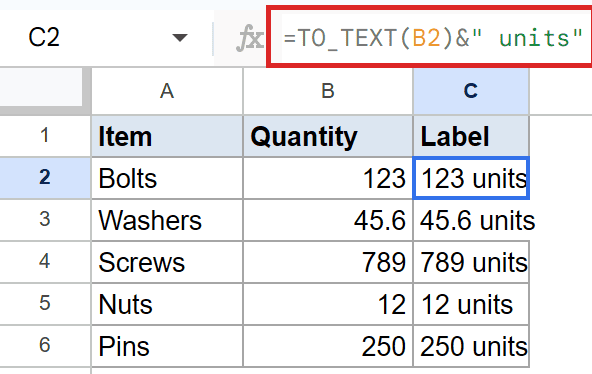
TO_TEXT converts the number in B2 to a string, and the &" units" part bolts the label on the end. So the first row becomes 123 units and the third row becomes 789 units.
In practice you could skip TOTEXT here because the & operator handles numbers fine. The benefit of wrapping in TOTEXT is reliability. If the source cell is ever formatted in a way that changes its display, TO_TEXT picks up the formatted version, which keeps the output predictable.
Example 5: Convert a Computed Value to Text
TO_TEXT doesn’t have to wrap a cell reference. You can run a calculation inside it and the result comes out as text.
Below is the dataset. Column A has a name and column B has a score between 0 and 1.
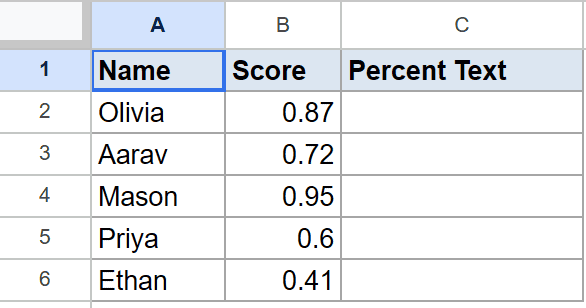
I want column C to show the score multiplied by 100, as text.
Here is the formula:
=TO_TEXT(B2*100)
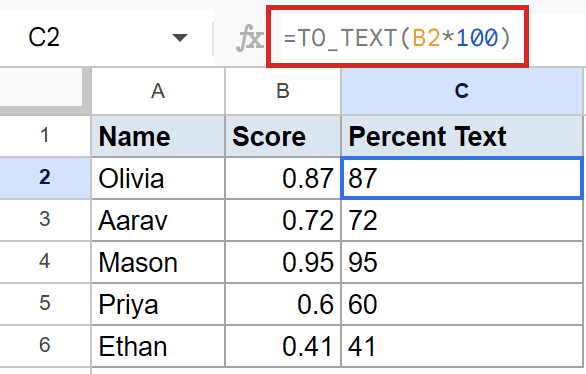
Google Sheets evaluates B2*100 first, then hands the result to TO_TEXT. Olivia’s 0.87 multiplied by 100 becomes 87, and Mason’s 0.95 becomes 95.
The result is text now, so anything that needs a string input downstream (like concatenation with a percent sign or a comment) will work without complaint. Just remember you can’t do further math on these without converting back with VALUE.
Pro Tip: To get a string like 87%, append the percent sign with concatenation, like =TO_TEXT(B2*100)&”%”. Combine the trick with IF for conditional labels.
Tips & Common Mistakes
- TO_TEXT is not TEXT. TEXT applies a format string, like =TEXT(0.5, “0.00%”) becoming
50.00%. TOTEXT just hands the value back as a plain string with no format applied. Pick TEXT when you need formatting control, TO_TEXT when you want the raw display value. - The output is text, not a number. After TO_TEXT, math operations stop working on that cell. Cell alignment flips from right to left, which is the visual cue. If you need to do math again, wrap it in VALUE.
- TO_TEXT is Google Sheets only. Excel doesn’t have this function. If you’re moving a workbook between Excel and Google Sheets, replace TO_TEXT with TEXT plus a format like “0” before exporting.
TO_TEXT is the simple way to force any value into its string form in Google Sheets. It works on numbers, dates, booleans, and the result of calculations, with no format string to worry about.
You’ve now seen it handling plain numbers, date serials, booleans, concatenation with labels, and computed values. When you just need a string version of whatever sits in a cell, TO_TEXT does the job.
List of All Google Sheets Functions
Related Google Sheets Functions / Articles: