
Use Ctrl + D on Windows or Command + D on Mac to fill down in Google Sheets. Select the source cell and destination cells below it before pressing the shortcut.
Fill a formula down a column
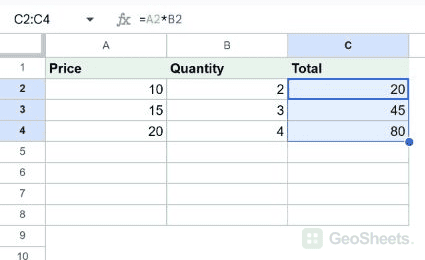
In the example, C2 contains =A2*B2. Filling C2:C4 creates =A3*B3 and =A4*B4 in the next rows, giving totals of 20, 45 and 80.
- Enter the source formula in C2.
- Select C2:C4, including the source cell at the top.
- Press Ctrl + D, or Command + D on Mac.
- Inspect a copied formula to confirm its references.
Copy from the cell directly above
Selecting just C5 and pressing Ctrl + D copied the formula above in our test. Its relative references became A5 and B5. Selecting the whole intended range makes the source and destination clearer.
Preserve a fixed reference
Relative references adjust as a formula moves down. Add dollar signs to references that should remain fixed, such as $B$1 for a rate. Check mixed references when copying both down and across.
Repeat text or values
Fill down copies the top value in each selected column. It does not infer a number or month series. If Jan is the first cell in the selection, the repeated value is Jan.
Use the menu or fill handle
Edit > Fill > Down performs the same action. Dragging the fill handle offers a mouse alternative. To extend a series rather than copy the first value, use the separate autofill workflow.
Check the destination first
Fill down replaces existing destination content. Include only cells you intend to overwrite, and use Undo if the selected range was wrong. An array formula may already populate its own output range.
Other Google Sheets articles you may also like