
To wrap text in Google Sheets, select the cells, open the toolbar’s text-wrapping control, and choose Wrap. Sheets shows the full value on multiple lines.
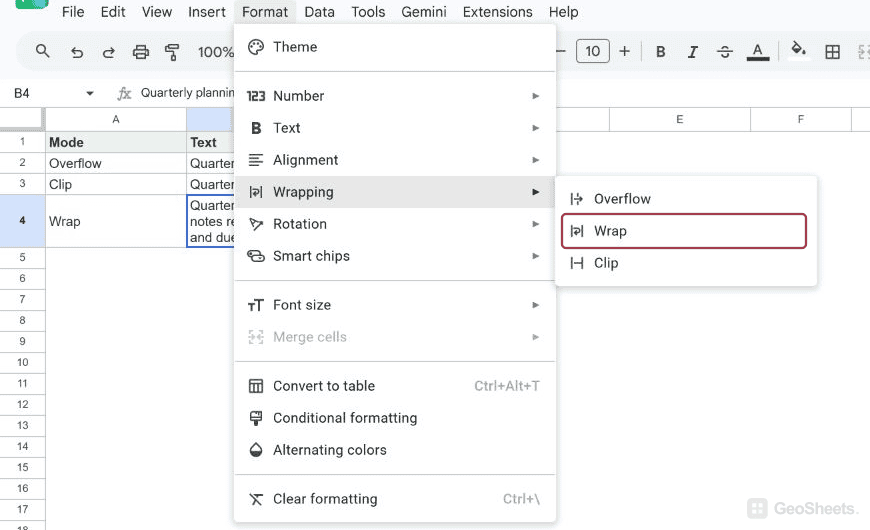
You can also choose Format > Wrapping > Wrap. Overflow, Wrap, and Clip control whether long text extends, moves to another line, or stays hidden.
Wrap text from the toolbar
- Select the cell or range containing long text.
- Open the Text wrapping control in the toolbar.
- Choose Wrap.
- Confirm that every word is visible inside the selected cells.
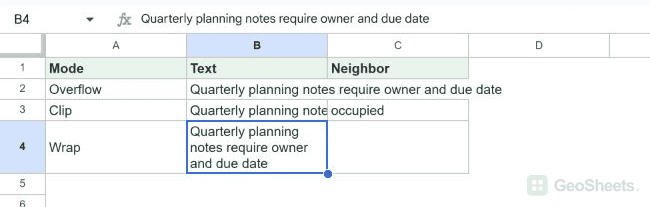
In our Windows Chrome test, B4 displayed the complete sentence on several lines. The row became taller to fit the wrapped value.
Wrap text from the Format menu
Select the cells, then choose Format > Wrapping > Wrap. We tested this route and it produced the same wrapped result as the toolbar control.
Choose Wrap, Overflow, or Clip
- Overflow can display text across empty cells to the right.
- Wrap displays the complete value on multiple lines inside the cell.
- Clip hides the part that does not fit within the current cell width.
Our fixture showed all three states. B2 overflowed into empty C2, B3 was clipped beside occupied C3, and B4 wrapped onto several lines.
Fix wrapped text that is still hidden
First, confirm that Wrap is applied to the correct cells. Formatting affects only the selected range.
If the row has a fixed manual height, right-click its row number, choose Resize row, select Fit to data, and confirm the change.
Adjusting the column width changes where wrapped lines break. A wider column uses fewer lines, while a narrower column may make the row much taller.
Is there a wrap-text keyboard shortcut?
Google’s native shortcut list does not include a direct command for applying Wrap formatting. The toolbar control is the quickest standard method.
A manual line break solves a different task. It places a break at a chosen point inside the cell instead of wrapping automatically at the column boundary.
See how to insert a line break in a cell for verified platform shortcuts. Google’s formatting guide defines all three wrapping modes.
Other Google Sheets articles you may also like