
To autofit a column in Google Sheets, double-click the right boundary of its column header. Sheets resizes the column to fit its displayed content.
You can also right-click the column header, choose Resize column, select Fit to data, and click OK.
Autofit a column with a double-click
- Move the pointer to the right boundary of the column letter.
- Wait for the horizontal resize pointer.
- Double-click the boundary.
In our Windows Chrome test, column A widened from 80 to 163 pixels. Its longest entry, “Annual planning workbook,” became fully visible.
Use Resize column and Fit to data
- Right-click the column letter.
- Choose Resize column.
- Select Fit to data, then click OK.
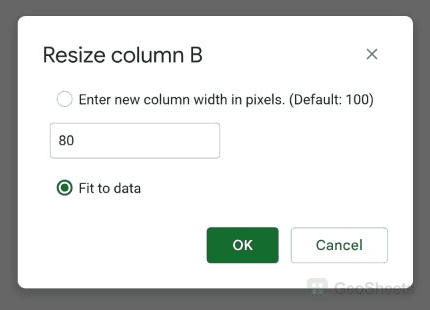
We tested this method on column B. It resized the column to display its longest owner name.
Autofit several columns or the whole sheet
Select several complete column headers, then double-click a boundary inside the selection. Sheets fits each selected column to its own content.
Our A:C test produced different widths for Item, Owner, and Status. It did not force every selected column to use one shared width.
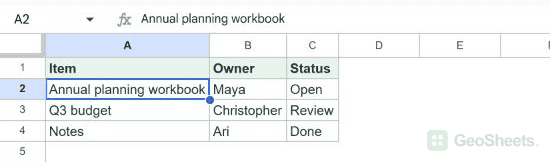
To fit the whole sheet, click the blank square above row 1 and left of column A. Then double-click any selected column boundary.
Why an autofitted column may still look wrong
A long header can determine the fitted width even when the values below it are short. Shorten or wrap the header when a compact table matters more.
Text wrapping solves a different layout problem. It keeps the current column width and moves long content onto additional lines.
See how to wrap text in Google Sheets when widening a column would use too much horizontal space.
Is there an autofit keyboard shortcut?
Google’s native shortcut list does not include a direct autofit command. The double-click gesture and Fit to data are the standard methods.
Google’s column-editing guide documents both double-clicking an edge and choosing Fit to data.
Other Google Sheets articles you may also like