
To insert a column in Google Sheets, right-click a column header and choose Insert 1 column left or Insert 1 column right.
With a complete column selected, press Ctrl + Alt + = on Windows or Command + Option + = on Mac to insert on the left.
Insert a column on the left or right
- Click the letter of the column beside the new column’s position.
- Right-click the selected column header.
- Choose Insert 1 column left or Insert 1 column right.
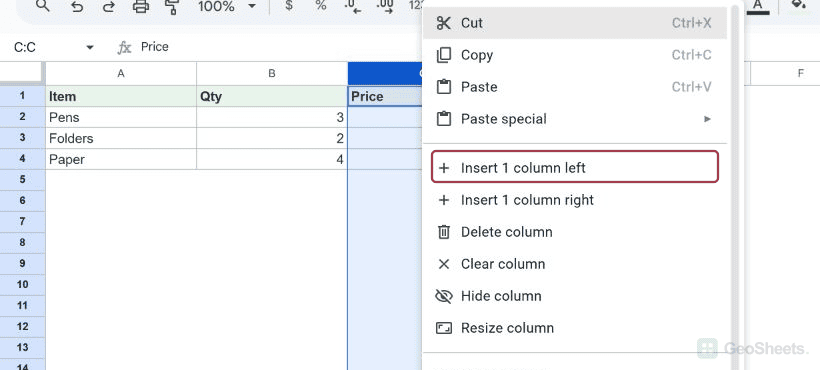
Our test started with Item, Qty, Price, and Total in columns A:D. We selected column C and inserted one column on its left.
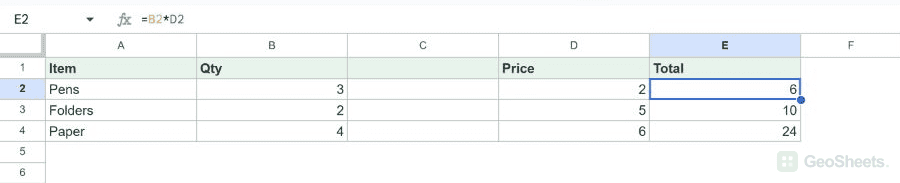
The new column C was blank. Price moved to D, Total moved to E, and the total formula in E2 updated to =B2*D2.
Insert multiple columns at once
Select as many adjacent column headers as you want to add. Right-click the selection, then choose the command to insert that number of columns on the left or right.
We selected columns C:D and chose Insert 2 columns left. Sheets created two blank columns at C:D and moved Price and Total to E:F.
Use the insert-column shortcut
Windows and ChromeOS
Ctrl + Alt + =
Select the complete column header, then press the shortcut. Our Windows Chrome test inserted one blank column to the left of the selected column.
Mac
Command + Option + =
Google documents this Mac shortcut when columns are selected. We did not test it on a Mac.
Google also documents menu sequences for inserting columns on a chosen side in its Sheets shortcut list.
Select the complete column before using the shortcut
Clicking the column letter is the clearest selection method. A blue highlight should cover the complete column, including empty cells below the data.
In our test, pressing Ctrl + Space once from C1 selected only the used cells C1:C4. Clicking the column header avoided that ambiguity.
What happens to formulas?
Sheets can update references when a structural insertion moves their source cells. In the tested table, =B2*C2 moved with Total and became =B2*D2.
Check important formulas after inserting columns, especially formulas that use text-based references or external data. The tested automatic update does not prove every formula pattern will adjust.
Google’s column and cell instructions also cover moving, resizing, and deleting columns.
Other Google Sheets articles you may also like