
To put an image inside a Google Sheets cell, select the destination and choose Insert → Image → Image in cell. The picture becomes cell content, so choose an empty destination.
Insert an Image Inside a Cell
- Select the destination cell, such as B2 beside a product name in A2.
- Open Insert → Image and choose the in-cell option.
- Choose the image source offered by the picker, such as an upload or URL.
- Select the image and confirm the insertion.
- Adjust the row height and column width to give the picture enough space.
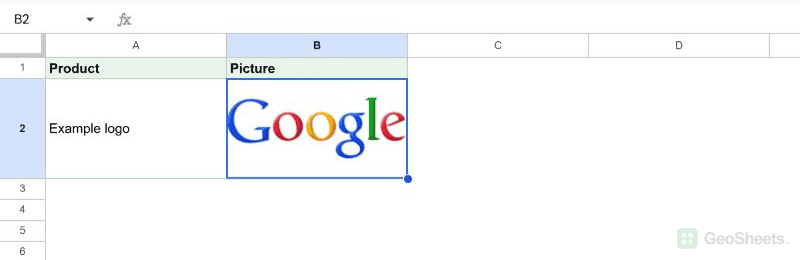
An image cell cannot also contain ordinary text. Put the product name, notes, or a link in neighboring cells instead of replacing information you still need.
An in-cell image belongs to its row. When sorting a table, include the entire record, including the image column, so each picture stays paired with the correct product.
Is There a Dedicated Image-in-Cell Shortcut?
Google’s standard shortcut list does not assign a dedicated combination to this command. Use the Insert menu, or search the menus for the image command available in your version of Sheets.
Do not confuse the Insert Link shortcut with image insertion. A link points to another location; it does not place the destination picture inside the cell.
Insert an Image from a URL with IMAGE
=IMAGE("https://www.google.com/images/srpr/logo3w.png")This public example URL displays Google’s logo. Use your own accessible image URL for the actual picture. The default mode fits the picture inside the cell while keeping its proportions.
The IMAGE function also supports stretch, original-size, and custom-size modes. Adjust the cell dimensions separately; the formula does not automatically enlarge the row or column.
Google’s IMAGE documentation excludes drive.google.com URLs and SVG files. Sharing a Drive file publicly does not remove that documented limitation. The Insert interface is a separate option for choosing an image.
Put an Image Over Cells Instead
Choose the over-cells option in Insert → Image when you want a movable picture above the grid. You can drag and resize that object independently of a single cell.
Floating images are suitable for a banner or illustration. They do not behave like a picture stored within a sortable record. Use an in-cell image when the picture should be part of the table.
Move Between In-Cell and Floating Images
For an image inserted in a cell through the interface, right-click it and choose Image → Put image over cells.
To move a floating image into a cell, first select the destination cell. Select the image, open its three-dot More menu, and choose Put image in selected cell.
These commands describe inserted image objects. A cell containing an IMAGE formula has a formula-based result; do not assume every object command applies to it in the same way.
Add a Description or a Separate Link
Right-click an in-cell image and choose Image → Add alt text to cell to add a description. For a floating image, use its More menu and then Alt text.
If readers need to open the product page or original file, add a HYPERLINK in a neighboring cell. The image formula itself does not turn the displayed picture into a linked button.
Check image placement after exporting to another format. Avoid assuming that every spreadsheet application preserves the same image anchoring and sizing behavior.
Other Google Sheets articles you may also like