
Select a cell and press Ctrl+K on Windows or ChromeOS, or Command+K on Mac, to add a link in Google Sheets. Enter the destination and apply it.
A descriptive cell label can stay visible while the URL sits behind it. You can link to a website or choose a sheet or range within the workbook.
Insert a website link with the keyboard
- Enter a descriptive label, such as GeoSheets, and select that cell.
- Press Ctrl+K on Windows or ChromeOS, or Command+K on Mac.
- Enter the complete destination URL in the Link field.
- Click Apply.
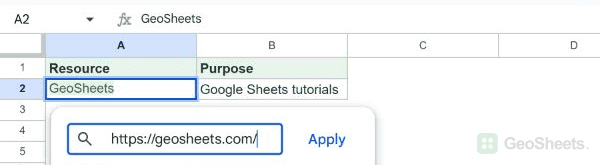
The example links the existing GeoSheets label to https://geosheets.com/. The cell’s visible label remains GeoSheets.
Use the menu instead
Select the cell and choose Insert > Link. The same link editor lets you supply a destination.
For existing text, select the intended cell or text before opening the editor. Check the displayed label and destination before applying the change.
Link to a sheet or range
Open the link editor and choose Sheets and named ranges. Select the target available in the workbook and apply the link.
This creates navigation within the spreadsheet. It does not grant another person access to a file they cannot already open.
Create a link with a formula
=HYPERLINK("https://geosheets.com/","GeoSheets")HYPERLINK creates the destination and label from formula arguments. Cell references can replace the quoted strings when you maintain a list of URLs.
The formula result is clickable text. Edit its formula arguments when you need to change its label or destination.
Open, edit, or remove a link
Selecting a linked cell normally shows a link preview. Click the destination in that preview to open it; selecting the cell alone is not the same as following the link.
Use the preview’s edit control to change a manually inserted link. Its remove-link control removes the hyperlink while keeping the label. Deleting the cell contents removes the label too.
See Google’s keyboard shortcut reference for the documented options.
Other Google Sheets articles you may also like