
SHEET in Google Sheets returns a tab’s position in the spreadsheet, counting from 1. Use =SHEET() for the current tab, or pass a reference to identify another tab’s position.
SHEET Function Syntax
=SHEET([value])The optional value can be a sheet name or a reference, including a cell or range. Without a value, the function returns the position of the tab containing the formula.
Get the Current Tab Position
=SHEET()Enter the formula in any empty cell. On the first tab, the result is 1; on the second, it is 2. In the test workbook, GS30-SHEET was the 69th tab and returned 69.
These numbers describe workbook order. They are not the permanent gid values in tab URLs, and they are not tab names. Do not use a position as a permanent record identifier.
Get the Position of a Referenced Tab
The test workbook’s first tab is named Insert rows. This formula points to that tab and returns 1:
=SHEET('Insert rows'!A1)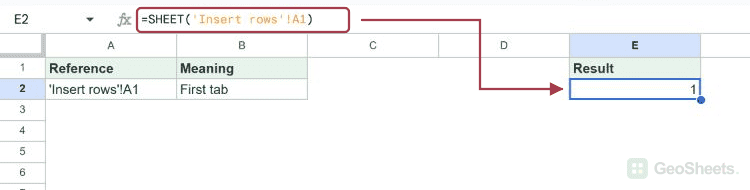
Single quotes enclose a tab name containing spaces. The exclamation mark separates the tab name from the cell address. The contents of A1 do not determine the answer.
A range reference works too: =SHEET('Insert rows'!A1:A5) returns the same position. A local reference such as =SHEET(A2) reports the tab containing A2.
Use a Sheet Name as Text
=SHEET("Insert rows")This also returns 1. Double quotes identify a literal sheet name. If the name does not exist, the formula returns #REF!; check spelling and spaces in the tab name.
Passing A2 directly refers to the cell itself. It does not automatically treat text inside A2 as another tab’s name. For addresses stored as text, INDIRECT converts the address into a reference.
Use the Position in a Calculation
=SHEET()*10On the test tab, this returned 690. On a third tab it would return 30. This can make copied templates behave differently according to their position.
Tab order affects the result. Reordering tabs changes their positions and formulas that depend on them. Keep that dependency in mind before using SHEET to choose business rules or labels.
For a cell’s row number, use ROW. For a column number, use COLUMN. These functions describe positions within a tab, while SHEET describes the tab’s position within the file.
Other Google Sheets articles you may also like