
INDEX returns a value from a position inside a range. Use a row and column number for a fixed position, or combine INDEX with MATCH when you know a label instead.
You can also return an entire row or column. These examples cover both approaches and show how to find the last populated value without confusing a position with a worksheet row.
INDEX function syntax
=INDEX(reference, [row], [column])- reference: the source range.
- row: the position within that range; 0 returns all rows. The default is 0.
- column: the position within that range; 0 returns all columns. The default is 0.
The Google INDEX reference describes the function arguments.
Example data
Enter this dataset starting in A1. Leave cells marked “leave empty” empty; type any displayed formula as a formula. Keep a separate blank area for the results.
| Product | Jan | Feb |
|---|---|---|
| Keyboard | 120 | 140 |
| Mouse | 90 | 100 |
| Monitor | 180 | 200 |
| Speaker | 75 | 85 |
| Webcam | 110 | 130 |
The examples below use this dataset unless the formula supplies its own values. Array results need enough empty cells to expand. The formulas use commas as argument separators. Your spreadsheet locale may require semicolons.
Return a value by its position
The third data row is Monitor. The header is outside A2:C6, so position 1 means worksheet row 2, not row 1.
=INDEX(A2:C6,3,1)Result: Monitor
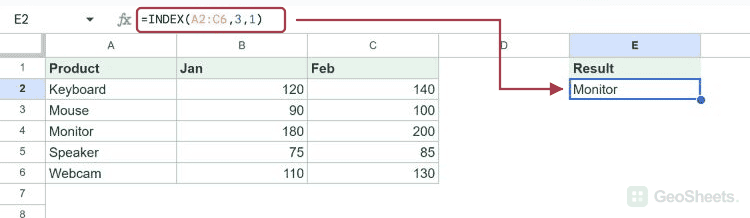
Give both coordinates to pick one cell from a grid. Row 2 and column 3 of A2:C6 contain Mouse’s February sales.
=INDEX(A2:C6,2,3)Result: 100
Look up a product with INDEX and MATCH
MATCH finds Monitor’s position in the product column. Its final 0 requests an exact match; INDEX retrieves January sales from the same position.
=INDEX(B2:B6,MATCH("Monitor",A2:A6,0))Result: 180
Build a two-way lookup
The first MATCH finds Monitor’s row. The second finds February’s column. Both positions are relative to the data block B2:C6, which excludes its labels.
=INDEX(B2:C6,MATCH("Monitor",A2:A6,0),MATCH("Feb",B1:C1,0))Result: 200
Return an entire column or row
Use 0 for the row to return every value in the second column. No ARRAYFORMULA wrapper is needed for this expansion.
=INDEX(A2:C6,0,2)| 120 |
| 90 |
| 180 |
| 75 |
| 110 |
Use 0 for the column to return every cell from the second data row. The result expands horizontally.
=INDEX(A2:C6,2,0)| Mouse | 90 | 100 |
Get the last populated value
COUNTA can supply the last position when the list is filled continuously from its first cell. Here all five January entries are present.
=INDEX(B2:B6,COUNTA(B2:B6))Result: 110
Filtering out empty entries first makes the last-position calculation work with gaps too. ROWS counts the filtered values, and INDEX selects the final one.
=INDEX(FILTER(B2:B6,B2:B6<>""),ROWS(FILTER(B2:B6,B2:B6<>"")))Result: 110
Return several requested positions
MAP applies INDEX separately to positions 3, 1, 5, 2, and 4. This produces the requested order with one formula.
=MAP({3;1;5;2;4},LAMBDA(n,INDEX(A2:A6,n)))| Monitor |
| Keyboard |
| Webcam |
| Mouse |
| Speaker |
Other Google Sheets articles you may also like