
COLUMN returns a cell’s column number, with A equal to one. Without a reference it returns the column containing the formula. COLUMNS instead measures a range’s width.
COLUMN function syntax
=COLUMN([cell_reference])- cell_reference: optional cell or range; defaults to the formula cell.
Set up the example data
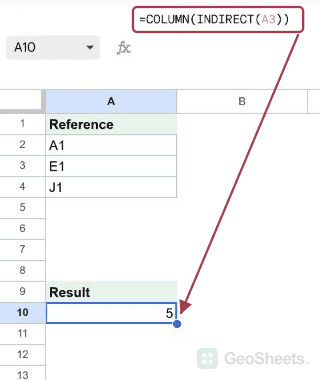
Enter this small dataset starting in A1. The first row contains headers. Keep the formula output separate from the input cells.
| Reference |
|---|
| A1 |
| E1 |
| J1 |
Get a column number from text
A3 contains the text E1. INDIRECT turns that text into a reference, and COLUMN returns 5 because E is the fifth sheet column.
=COLUMN(INDIRECT(A3))Result: 5.
Read the formula’s own column
Entered in F14, COLUMN() returns 6 because F is the sixth sheet column. Moving the formula to another column changes the result.
=COLUMN()Result: 6.
Return several column positions
ARRAYFORMULA returns all three positions across one row. Without array evaluation, COLUMN returns the first column’s position.
=ARRAYFORMULA(COLUMN(A1:C1))Result: 1, 2, 3.
Convert a number to column letters
ADDRESS creates AW1 for column forty-nine. Removing row number one leaves AW. The fourth mode value makes the reference relative, without dollar signs.
=SUBSTITUTE(ADDRESS(1,49,4),"1","")Result: AW.
Check the preceding column label
Column forty-eight is AV. This also works beyond Z without a hand-written alphabet mapping.
=SUBSTITUTE(ADDRESS(1,48,4),"1","")Result: AV.
Other Google Sheets articles you may also like