
OFFSET returns a cell or range a specified distance from an anchor. Positive offsets move down or right; negative offsets move up or left.
You can retrieve one value, pass a moving range to SUM or AVERAGE, or combine OFFSET with MATCH. These examples distinguish the offset from the size of the returned range.
OFFSET function syntax
=OFFSET(cell_reference, offset_rows, offset_columns, [height], [width])- cell_reference: the starting cell or range.
- offset_rows and offset_columns: distances from the anchor; zero stays in that direction. Decimal parts are truncated.
- height and width: optional dimensions of the returned range. With a range anchor, omitted dimensions retain its size.
The Google OFFSET reference describes the function arguments.
Example data
Enter this dataset starting in A1. Leave cells marked “leave empty” empty; type any displayed formula as a formula. Keep a separate blank area for the results.
| Product | Amount |
|---|---|
| Keyboard | 120 |
| Mouse | 90 |
| Monitor | 180 |
| Speaker | 75 |
| Webcam | 110 |
The examples below use this dataset unless the formula supplies its own values. Array results need enough empty cells to expand. The formulas use commas as argument separators. Your spreadsheet locale may require semicolons.
Retrieve a cell from an anchor
Starting at A1, moving down two rows and right one column reaches B3. The formula returns the amount stored there.
=OFFSET(A1,2,1)Result: 90
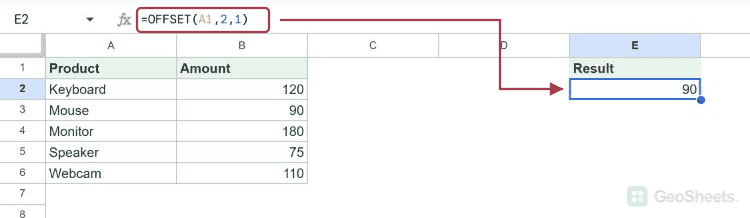
A negative offset moves in the opposite direction. From B3, one row up and one column left reaches A2.
=OFFSET(B3,-1,-1)Result: Keyboard
Sum a range built with OFFSET
Start one row below B1, then return five rows and one column. SUM adds that B2:B6 range. Change the height when you deliberately want a different window.
=SUM(OFFSET(B1,1,0,5,1))Result: 575
Return a range that expands into nearby cells
Zero offsets retain the anchor position. Height 3 and width 2 return A1:B3, including the header row.
=OFFSET(A1,0,0,3,2)| Product | Amount |
| Keyboard | 120 |
| Mouse | 90 |
Average the last three contiguous entries
COUNT returns five numeric entries. Subtracting two gives a row offset of three from B1, so the three-row window covers B4:B6.
=AVERAGE(OFFSET(B1,COUNT(B2:B6)-2,0,3,1))Result: 121.6666667
Retrieve a value beside a matched item
MATCH finds Monitor at position 3 within A2:A6. OFFSET moves three rows down from the header A1, then one column right to its amount.
=OFFSET(A1,MATCH("Monitor",A2:A6,0),1)Result: 180
Other Google Sheets articles you may also like