Insert Note Shortcut in Google Sheets

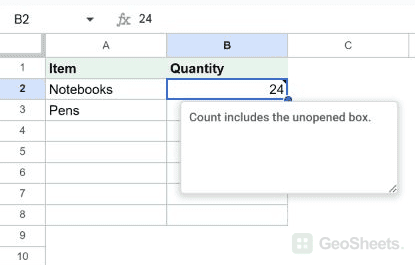
A note is a small annotation pinned to a single cell. Hover the cell and the note pops up. Click away and it tucks back behind a tiny black triangle in the top-right corner.

Notes are the quieter cousin of comments. No threading, no @mentions, no email notifications, no resolved state. Just a label attached to a cell. Great for reminding yourself (or a reader) what a number means without starting a whole conversation.

There’s a keyboard shortcut that opens a fresh note on the selected cell.

Insert Note Keyboard Shortcut in Google Sheets

Insert Note Keyboard Shortcut (Windows Windows)

Shift + F2

Insert Note Keyboard Shortcut (Mac Mac)

Shift + F2

What this shortcut does

With a cell selected, the shortcut opens the note editor right on that cell. Type your text, click away, and the note is saved.

The cell then shows a small black triangle in its top-right corner so you know something’s attached. Notes are plain text, no formatting and no replies. That’s the main difference from a comment, which is threaded and can be resolved.

How to use it (step by step)

  1. Click the cell where you want the note.
  2. Press Shift + F2. A small note box opens next to the cell.
  3. Type your text.
  4. Click anywhere else on the sheet to save.

To read it later, hover over the cell. To edit it, select the cell and press Shift + F2 again, or right-click and pick Edit note.

To remove a note, right-click the cell and pick Delete note, or open it and clear all the text.

Alternative method (Insert menu / right-click)

If you’d rather not use the keyboard, two menu routes do the same thing:

  • Insert menu: open Insert and click Note.
  • Right-click: right-click the cell and pick Insert note.

Both open the same yellow note box on the selected cell.

Things to watch for

  • Mac function keys. On many Macs, F2 is tied to a hardware function (like brightness), so you may need Fn + Shift + F2. Or turn on “Use F1, F2, etc. keys as standard function keys” in macOS keyboard settings.
  • Notes copy with cells. Copy a cell with a note and paste it, and the note tags along. Handy for repeating the same annotation, easy to forget when moving data.
  • Excel export turns notes into Excel comments. They lose their visual style but the text comes through. Re-importing to Sheets brings them back as notes.
  • Notes are silent. Adding one fires no notification. Collaborators only see it if they hover the cell.
  • You can’t @mention in a note. If you need to tag someone, use a comment instead.
  • Print and PDF export ignore notes by default. You won’t see them on a printed copy.

Google Sheets keyboard shortcuts

Related Google Sheets shortcuts: