Insert Comment Shortcut in Google Sheets

Comments are the way you and your collaborators talk about a specific cell without changing the data inside it. Think questions, callouts, or “this number looks off, can you check?”

Each comment is a threaded conversation. Anyone with access to the sheet can reply, and the thread can be marked resolved when the discussion is done.

There’s a keyboard combo that opens a fresh comment on the selected cell.

Insert Comment Keyboard Shortcut in Google Sheets

Insert Comment Keyboard Shortcut (Windows Windows)

Ctrl + Alt + M

Insert Comment Keyboard Shortcut (Mac Mac)

⌘ + ⌥ + M

What this shortcut does

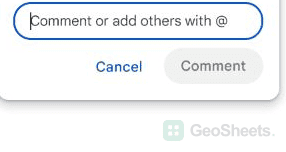
The shortcut opens a comment box anchored to the currently selected cell. You type your message, hit Comment, and the thread is saved on that cell.

A few things make comments different from notes:

  1. They’re threaded. Anyone with access can reply and the whole back-and-forth stays attached to the cell.
  2. You can @mention people. Typing @ brings up your contacts. Picking one sends them an email with a link to the comment.
  3. They can be resolved. When the discussion’s done, click the checkmark and the thread hides from the sheet (but isn’t deleted).
  4. They show as an orange triangle in the top-right corner of the cell.

How to use it (step by step)

  1. Click the cell you want to comment on. Select a range if the comment is about multiple cells.
  2. Press the shortcut. A comment box opens next to the cell.
  3. Type your message. Use @ plus a name or email to tag someone.
  4. Click Comment (or press Ctrl+Enter / ⌘+Enter).
  5. The cell gets the orange triangle marker.

To reply to a comment, click the orange triangle to open the thread. Type your reply and hit Reply. When the matter’s settled, click the checkmark to resolve.

You can re-open a resolved thread later from the Comment history button in the toolbar (the speech bubble icon near the Share button).

Alternative method (Insert menu / right-click)

The shortcut isn’t the only way in:

  • Insert menu: open Insert and click Comment. Same box appears.
  • Right-click: right-click the cell, scroll down to Comment.
  • Toolbar: click the “Add comment” icon to the right of the toolbar.

All four routes produce the same comment thread.

Things to watch for

  • Comments survive cell deletion. If you clear the cell contents or even delete the row, the comment stays attached to whatever’s there now (or moves with the row). The only way to fully remove a comment is to delete the thread itself.
  • Resolved comments hide but don’t disappear. Open the Comment history panel to see every resolved thread and re-open any of them.
  • @mention sends an email immediately. Even if you delete the comment a second later, the notification has already gone out.
  • Editor access is required to comment. Viewers can read comments but not add them. Commenter access (a specific share level) lets people leave comments without editing data.
  • Exporting to Excel converts comments to Excel comments. Threading and resolutions don’t survive the round trip cleanly.

Google Sheets keyboard shortcuts

Related Google Sheets shortcuts: