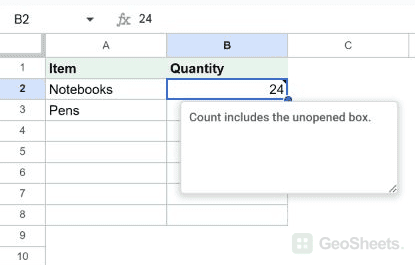
A note is a small annotation pinned to a single cell. Hover the cell and the note pops up. Click away and it tucks back behind a tiny black triangle in the top-right corner.
Notes are the quieter cousin of comments. No threading, no @mentions, no email notifications, no resolved state. Just a label attached to a cell. Great for reminding yourself (or a reader) what a number means without starting a whole conversation.
There’s a keyboard shortcut that opens a fresh note on the selected cell.
Insert Note Keyboard Shortcut in Google Sheets
Insert Note Keyboard Shortcut (
Windows)
Shift + F2
Insert Note Keyboard Shortcut ( Mac)
Shift + F2
What this shortcut does
With a cell selected, the shortcut opens the note editor right on that cell. Type your text, click away, and the note is saved.
The cell then shows a small black triangle in its top-right corner so you know something’s attached. Notes are plain text, no formatting and no replies. That’s the main difference from a comment, which is threaded and can be resolved.
How to use it (step by step)
- Click the cell where you want the note.
- Press Shift + F2. A small note box opens next to the cell.
- Type your text.
- Click anywhere else on the sheet to save.
To read it later, hover over the cell. To edit it, select the cell and press Shift + F2 again, or right-click and pick Edit note.
To remove a note, right-click the cell and pick Delete note, or open it and clear all the text.
Alternative method (Insert menu / right-click)
If you’d rather not use the keyboard, two menu routes do the same thing:
- Insert menu: open Insert and click Note.
- Right-click: right-click the cell and pick Insert note.
Both open the same yellow note box on the selected cell.
Things to watch for
- Mac function keys. On many Macs, F2 is tied to a hardware function (like brightness), so you may need Fn + Shift + F2. Or turn on “Use F1, F2, etc. keys as standard function keys” in macOS keyboard settings.
- Notes copy with cells. Copy a cell with a note and paste it, and the note tags along. Handy for repeating the same annotation, easy to forget when moving data.
- Excel export turns notes into Excel comments. They lose their visual style but the text comes through. Re-importing to Sheets brings them back as notes.
- Notes are silent. Adding one fires no notification. Collaborators only see it if they hover the cell.
- You can’t @mention in a note. If you need to tag someone, use a comment instead.
- Print and PDF export ignore notes by default. You won’t see them on a printed copy.
Google Sheets keyboard shortcuts
Related Google Sheets shortcuts: