
Delete a column by selecting its letter, right-clicking it, and choosing Delete column. The columns to its right shift left to close the gap.
Pressing Delete on the keyboard clears selected contents instead. Use the column-delete command when you want the entire worksheet column removed.
Delete one column with the mouse
- Click the column letter, such as B, to select the whole column.
- Right-click that column letter.
- Choose Delete column.
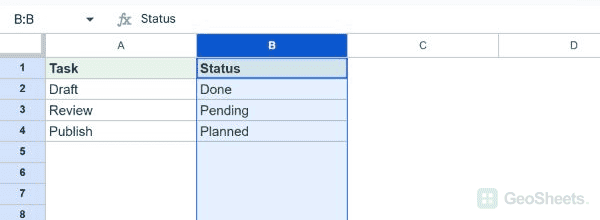
In this example, B contained a temporary field. After deletion, the Status field that was in C occupies B.
Use the delete-column keyboard shortcut
- Select the entire column by clicking its letter or entering B:B in the name box.
- On Windows or ChromeOS, press Ctrl+Alt+- while the whole column is selected.
- On Mac, use Command+Option+- with the whole column selected.
Google documents these shortcuts for selected columns. The Windows command was tested with the temporary B column. A single-cell selection can lead to different delete options.
Delete several adjacent columns
Select the first column letter and drag across the other column headers. Right-click the selection and choose the command naming the selected columns.
You can also enter a reference such as B:D in the name box. That selects three whole columns, including cells outside the visible data.
Choose between deleting, clearing, and hiding
| Goal | Action |
|---|---|
| Remove the column and shift later columns left | Delete column |
| Keep the column but empty selected values and formulas | Select cells and press Delete |
| Keep data but remove the column from view | Hide column |
Deleting a column can affect formulas and charts that depend on it. References to deleted cells can become #REF!. Review dependent calculations after the change.
Undo an unintended deletion
Use Ctrl+Z on Windows or Command+Z on Mac immediately after an unintended deletion. Confirm that both the column and its contents have returned.
If the command is unavailable, check whether you can edit the sheet and whether the range is protected. Do not remove protections you do not manage.
See Google’s keyboard shortcut reference for the documented options.
Other Google Sheets articles you may also like