
On Windows, edit a Google Sheets cell and press Alt + Enter where you want a line break. The cursor moves to a new line inside the same cell.
Mac shortcut reports conflict across browsers and keyboard layouts. This article does not claim a universal Mac combination without a direct test.
Insert a line break inside a cell
- Double-click the cell, or select it and press F2, to enter edit mode.
- Place the caret where the new line should begin.
- Press Alt + Enter on Windows.
- Continue typing, then press Enter to save the cell.
In our Windows Chromium test, we placed the caret before Bristol in 14 River Road / Bristol and replaced the separator with Alt + Enter.
The cell stored “14 River Road” and “Bristol” on separate lines without moving the edit to another cell.
Line-break shortcuts by platform
Windows
Alt + Enter
We verified this combination in the in-app Chromium browser on Windows. The cell must be in edit mode.
Mac
Google’s main shortcut page does not clearly list this action. Recent community reports disagree about Control, Option, and Command combinations, so use the combination shown by your live environment.
If no combination works, paste text that already contains line breaks into one cell, or use the formula method below.
Show every line with text wrapping
Select the cell and choose Format > Wrapping > Wrap when all lines are not visible. Wrapping lets the row display the complete multiline value.
For automatic breaks at the column boundary, see how to wrap text in Google Sheets.
Add line breaks with CHAR(10)
Use CHAR(10) when a formula should create the line break. This is useful for combining values or replacing a repeated separator.
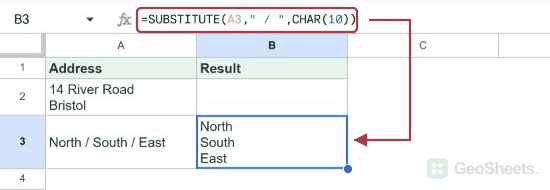
=SUBSTITUTE(A3," / ",CHAR(10))With A3 containing North / South / East, our tested formula displayed North, South, and East on separate lines after Wrap was applied.
Google’s CHAR documentation explains how the function returns a character from its decimal Unicode number.
Paste text with existing line breaks
Copy a multiline address or list from a text editor. Enter edit mode in the destination cell, then paste so the lines remain inside that one cell.
Other Google Sheets articles you may also like