
Select the cells and press Delete to remove their values and formulas in Google Sheets. The cells remain in place, and their formatting stays available for new data.
Use this when resetting an input area or removing an incorrect entry. Clearing a formula cell deletes the formula itself, not just its displayed result.
Clear a cell or a selected range
- Click a cell, or select a range such as B2:B4.
- Make sure you are selecting cells rather than editing text inside one cell.
- Press Delete. On a Mac keyboard, the key labeled Delete commonly performs the backspace action.
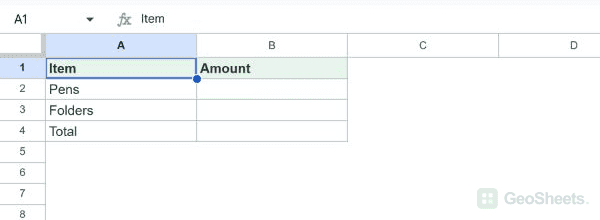
The example removed two amounts and the total formula from B2:B4. The table borders and labels stayed in place.
Use the Edit menu
- Select the cells to empty.
- Choose Edit > Delete > Values.
The menu label Values includes formulas stored in the selected cells. It does not mean “keep the formulas and remove only their current answers.”
Clear only the input cells
If a total or calculation must remain, select just its input cells. For this example, select B2:B3 and leave the total formula in B4 outside the selection.
To clear separate cells, hold Ctrl on Windows or Command on Mac while selecting them. Check every highlighted area before clearing.
Keep the cells and formatting in place
| Action | Effect |
|---|---|
| Delete key on selected cells | Removes contents, retains the cell positions and formatting |
| Delete column or row | Removes worksheet structure and shifts other cells |
| Format > Clear formatting | Resets formatting while retaining values and formulas |
Clearing an input can change formulas that depend on it. A SUM may become zero; another calculation may return an error. Check the expected downstream result.
Recover an accidental clear
Use Ctrl+Z on Windows or Command+Z on Mac to undo the last clear. Confirm that formulas as well as values have returned.
If the selection is part of an array result, edit its source formula or source data. Individual output cells cannot always be cleared independently.
See Google’s keyboard shortcut reference for the documented options.
Other Google Sheets articles you may also like