
Start with the last execution. Its status, error, and trigger type usually reveal whether the failure comes from code, authorization, a trigger, a custom function, or a deployment.
If the editor opens, choose the function and check its execution log. If Apps Script will not open at all, start with the account and access checks below.
Apps Script Not Opening or Showing Bad Request
First distinguish an editor-access problem from a failing function. If Extensions > Apps Script will not open the editor, changing a formula or script line cannot diagnose that access failure.
Open a private browser window and sign in only to the account that can edit the spreadsheet. Reopen the sheet and choose Extensions > Apps Script.
Google documents problems with multiple signed-in accounts in Apps Script. This is an account-isolation check, not proof that every Bad Request or Error 400 has the same cause.
If the problem persists, verify file access and any administrator restrictions. Check the Google Workspace Status Dashboard for a service incident before repeatedly retrying.
Diagnose a Failed Apps Script Execution
- Open the spreadsheet that owns the script.
- Choose Extensions > Apps Script.
- Select the function from the toolbar, then click Run.
- Read the Execution log for the error and line number.
- Open Executions in the left sidebar to check the function, type, status, start time, and duration.
The Apps Script dashboard records executions from the editor, triggers, web apps, and APIs. Match the failed entry to the action that should have run.
If the code catches an exception with try/catch, inspect that catch block too. A swallowed error can leave you without a useful diagnosis. Google’s logging guide explains recording errors for investigation.
Fix Syntax Errors or a Script That Will Not Save
A syntax error prevents the function from running. Use the reported file and line to find an unmatched quote, bracket, parenthesis, or invalid token.
Start at the highlighted line, then inspect the line immediately above it. A missing closing character can make the next line appear responsible.
If you see “Attempted to execute … but could not save,” resolve the save failure first. Check the reported syntax error, connection, and editing access before trying to run again.
Save after the correction and run the same function again. If it starts but then fails, return to the execution log for the new runtime error.
If the error points to a sheet or range
A misspelled sheet name is a common cause. getSheetByName() returns null when the named tab does not exist.
Create a disposable tab named Task. Enter Open in A2 and leave B2 blank.
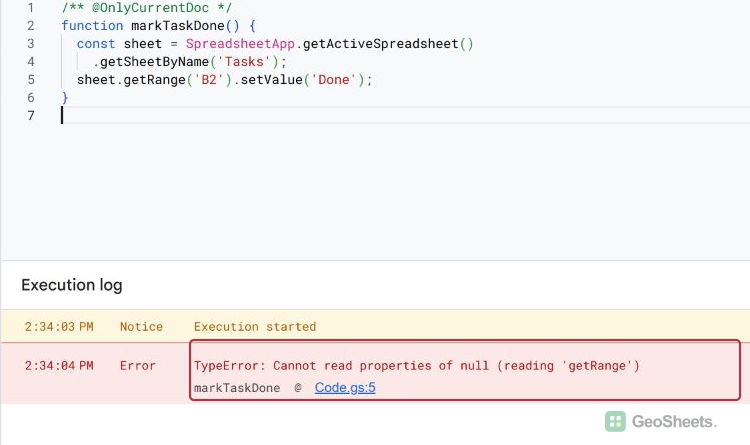
This failing version looks for Tasks, with an extra s:
/** @OnlyCurrentDoc */
function markTaskDone() {
  const sheet = SpreadsheetApp.getActiveSpreadsheet()
    .getSheetByName('Tasks');
  sheet.getRange('B2').setValue('Done');
}
The test returned TypeError: Cannot read properties of null (reading ‘getRange’), pointing to line 5. The tab is named Task, so looking up Tasks returns null.
Correct the tab name and guard against a missing sheet:
/** @OnlyCurrentDoc */
function markTaskDone() {
  const sheet = SpreadsheetApp.getActiveSpreadsheet()
    .getSheetByName('Task');

  if (!sheet) {
    throw new Error('Sheet "Task" was not found.');
  }

  sheet.getRange('B2').setValue('Done');
}
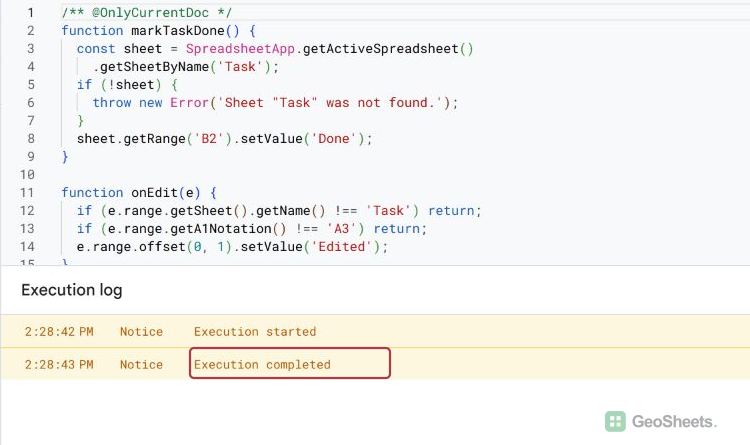
After the corrected function runs successfully, B2 contains Done. Our test also showed Execution completed in the log.
If setValues() fails, compare the range size with the array. A two-row, three-column range needs a two-row, three-column array.
For a formula parse error, inspect the formula actually written into the cell. Check its syntax and references. Google’s setFormula reference specifies A1 notation for that method.
Fix Authorization and Permission Errors
The @OnlyCurrentDoc annotation limits this example’s authorization request to the current spreadsheet.
Google’s authorization guide explains how Apps Script scans the code for services and requests the scopes it needs. Adding a service can require authorization again.
Run the function from the editor. Review the requested permissions, select the intended account, and approve only the access the script requires.
Installable triggers run under the account that created them. A background trigger cannot display an authorization dialog, so authorize the function before relying on that trigger.
If your administrator blocks the requested service, the script owner must use an allowed service or ask the administrator to approve it.
Fix an onEdit or Other Trigger That Does Not Run
A simple onEdit(e) trigger receives its event object only when a user edits the spreadsheet. Clicking Run in the editor does not create that edit event.
Use this disposable test on the Task tab:
function onEdit(e) {
  if (e.range.getSheet().getName() !== 'Task') return;
  if (e.range.getA1Notation() !== 'A3') return;

  e.range.offset(0, 1).setValue('Edited');
}
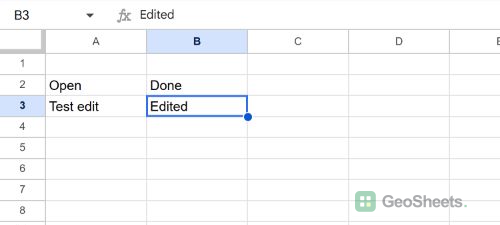
Save the script, return to the sheet, and edit A3. B3 should change to Edited.
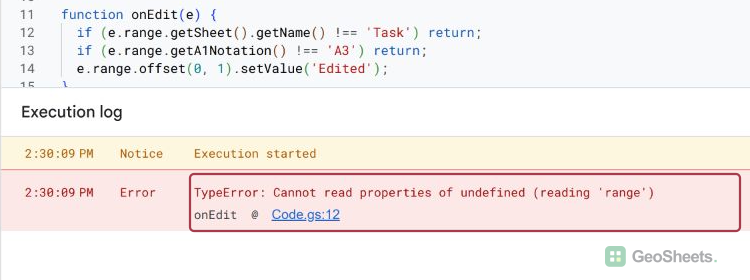
Running this function directly produced TypeError: Cannot read properties of undefined (reading ‘range’). Editing A3 in the spreadsheet instead wrote Edited into B3.
Script and API changes do not activate onEdit. Simple triggers also cannot use services that require authorization or open other files.
Use an installable trigger when the function needs authorized services. In the Apps Script editor, open Triggers, click Add Trigger, choose the function and event, then save.
For a scheduled function, check its time-driven trigger and the project’s time zone. Some recurring schedules run within a time window, so a trigger need not fire at an exact minute.
Google’s installable-trigger guide explains scheduling and failure notifications. Check the trigger owner’s account: one account cannot see triggers created by another account.
If a custom function shows an error
A spreadsheet custom function must return a value. It cannot edit arbitrary cells, open another spreadsheet, or use services that require authorization.
Check that the function name in the cell matches the saved script. Then open Executions and inspect the latest custom-function entry.
An array result expands only into empty neighboring cells. Clear blocking values when the error says the array result was not expanded.
Custom functions have a 30-second execution limit. Move longer or authorized work into a menu function that the user runs directly.
If the script succeeds but the sheet looks unchanged
Confirm the spreadsheet, tab, and A1 range used by the successful execution. A valid script can write to the wrong file or tab without throwing an error.
Log the destination before the write:
console.log({
  sheet: sheet.getName(),
  range: 'B2'
});
Read the object in the execution log. Avoid logging sheet data, email addresses, tokens, or other sensitive values.
Apps Script normally applies spreadsheet changes when execution finishes. Use SpreadsheetApp.flush() only when later code must work with pending changes immediately.
Fix Script Function Could Not Be Found or Missing doGet
Check that the named function exists in the saved script. A renamed function can leave a trigger, button, or menu pointing to its old name. Update the caller to match.
For a web app opened with a GET request, Google expects a doGet function. A POST request uses doPost. Check the web-app requirements before changing the deployment.
Do not add doGet merely to run a normal spreadsheet function. Choose that function in the editor, or use its intended menu, button, or trigger.
Update a Web App That Still Runs Old Code
A test deployment uses the latest saved code. A versioned deployment continues running its assigned version until you update the deployment.
Test the saved code with the deployment test URL. For the public web app, create a new version and edit the existing deployment to use it.
Keep the existing deployment when callers depend on its URL. Replacing it with a separate deployment creates a different deployment ID and URL.
If the execution hits a quota or timeout
Read the complete exception. Quota messages identify the exceeded service or limit, and Apps Script stops that execution.
Google can change quotas without notice. Check the current quota documentation instead of copying an old numeric limit into the script.
Reduce service calls by reading ranges into arrays, processing values in memory, and writing one rectangular result with setValues().
For a temporary server error, check the Google Workspace Status Dashboard and retry after the incident clears. Repeated failures still need an execution-log diagnosis.
Other Google Sheets articles you may also like