
Use the shortcut for your device to move between sheets in the current spreadsheet. These commands change the active sheet. They do not switch browser tabs.
Shortcut to Switch Tabs in Google Sheets
| Device | Next sheet | Previous sheet |
|---|---|---|
| Windows | Alt + Down Arrow |
Alt + Up Arrow |
| Mac | Option + Down Arrow |
Option + Up Arrow |
| ChromeOS | Ctrl + Shift + Search + Down Arrow |
Ctrl + Shift + Search + Up Arrow |
Google’s keyboard-shortcut reference lists separate commands for Windows, Mac, and ChromeOS. Keyboard layouts or language settings can affect whether a shortcut works as expected.
How to Switch to the Next or Previous Sheet
In this example, Insert rows is followed by Count text test. You can follow the same steps with any spreadsheet containing two or more sheets.
- Open a spreadsheet containing at least two sheet tabs.
- Click a cell on Insert rows so the spreadsheet has focus.
- Press the next-sheet shortcut for your device.
- Confirm that the next sheet becomes active. In our example, that is Count text test.
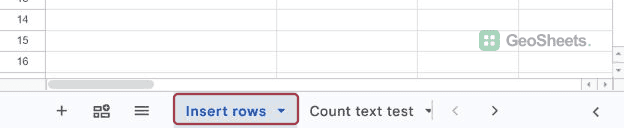
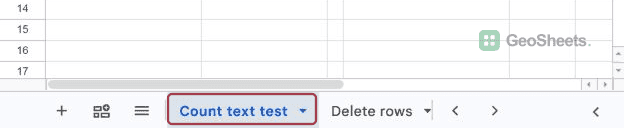
Press the previous-sheet shortcut to return. In our Windows test, Alt + Up Arrow returned to Insert rows.
If the shortcut does not work, open Google Sheets’ built-in list with Ctrl + / on Windows or ChromeOS, or ⌘ + / on Mac.
Search for “next sheet” to find the command for your device.
Switch to a Specific Sheet Without Cycling Through Tabs
Click the sheet’s name along the bottom of the spreadsheet. For a workbook with many tabs, use All Sheets, beside the add-sheet button, and choose the sheet you need.
This is useful when the destination is several tabs away. The next/previous shortcuts move through the tab order, while the sheet list lets you choose a destination directly.
Other Google Sheets articles you may also like